

All guides
Refunding an order
Find the order under Order and refund all of it, part of the amount or single items.
7 steps · 4 min read · Updated 12 November 2026
Refunds are made on the order itself, under Order on the POS. You can refund the whole order, part of the amount or single items.
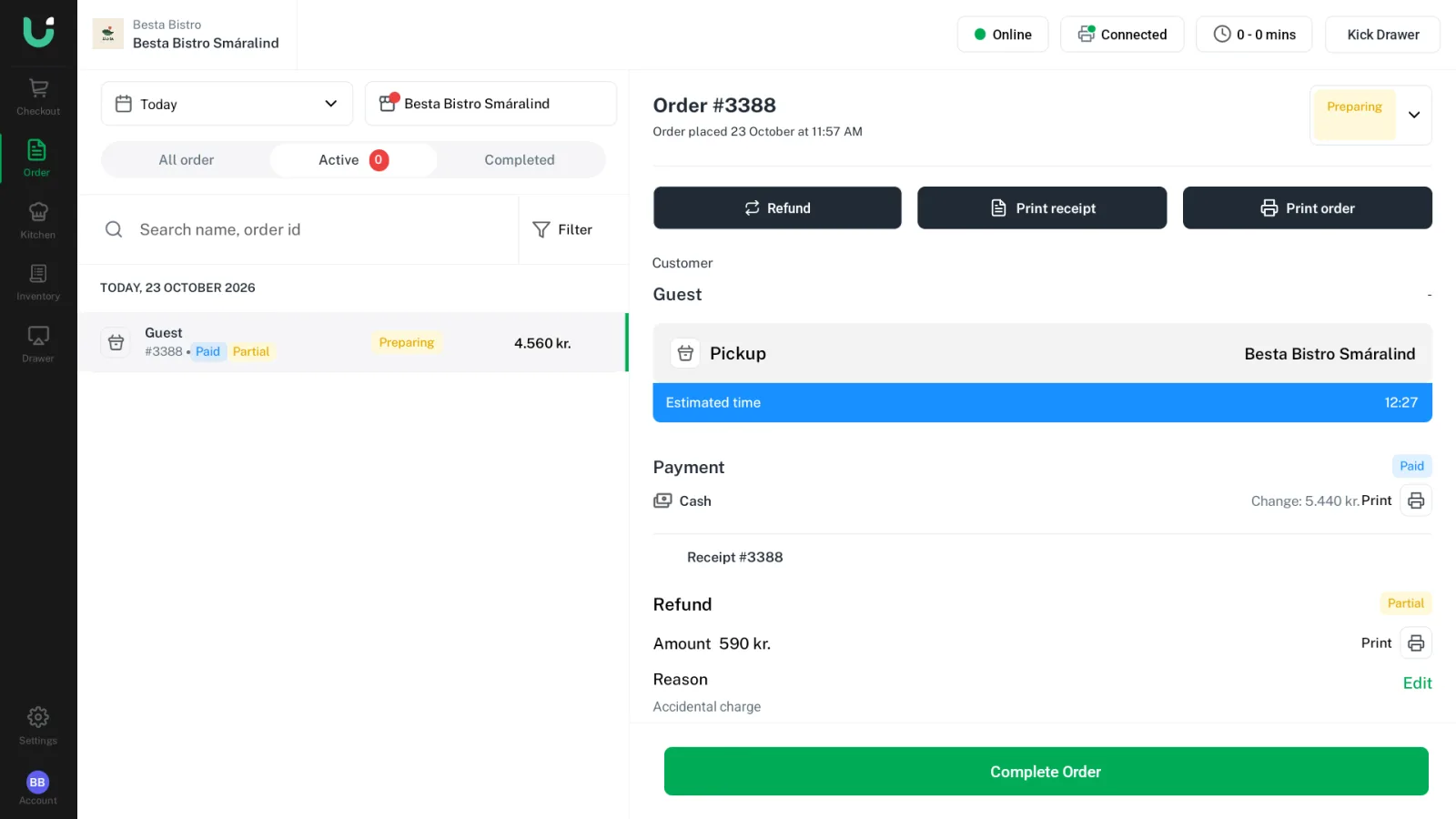
The example refunds a 590 kr. cola from order #3388, which was paid in cash. Further down you’ll see what changes when the order was paid by card or in the app or web shop.
Before you start
- The staff member needs permission to refund. Without it the POS says "You do not have permission to refund orders." Permissions are set per role in the dashboard.
- The POS must be online. Refunds can’t be made offline.
- 1
Find the order
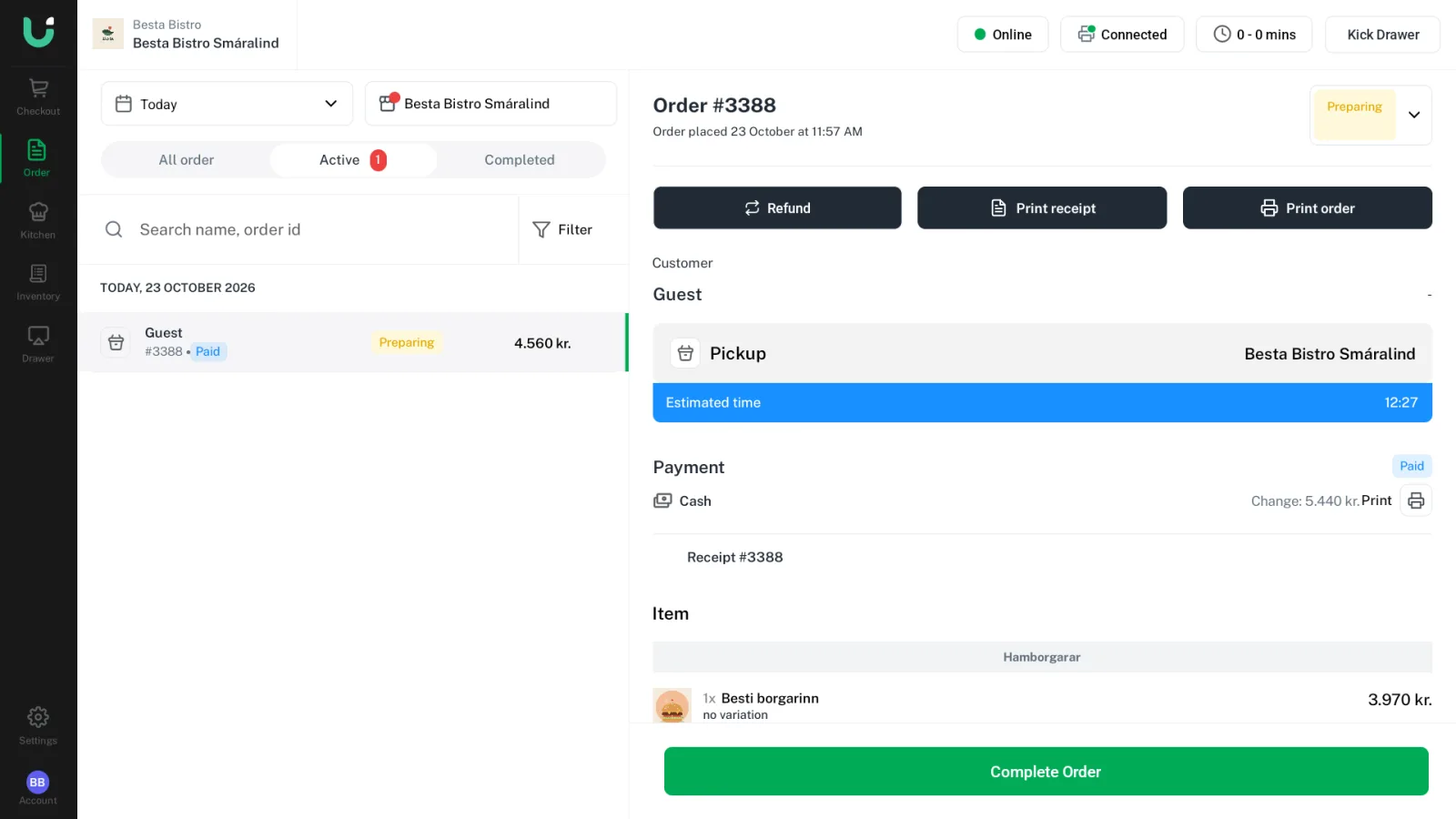
Tap Order in the side menu. Today’s orders are in the list on the left, split into All order, Active and Completed.
Search by name or order number with Search name, order id, or pick another day with the date button at the top.
Tap the order. On the right you see its items, the payment, and the Refund, Print receipt and Print order buttons.
No Refund button? It only shows on paid orders that haven’t already been fully refunded.
- 2
Tap Refund
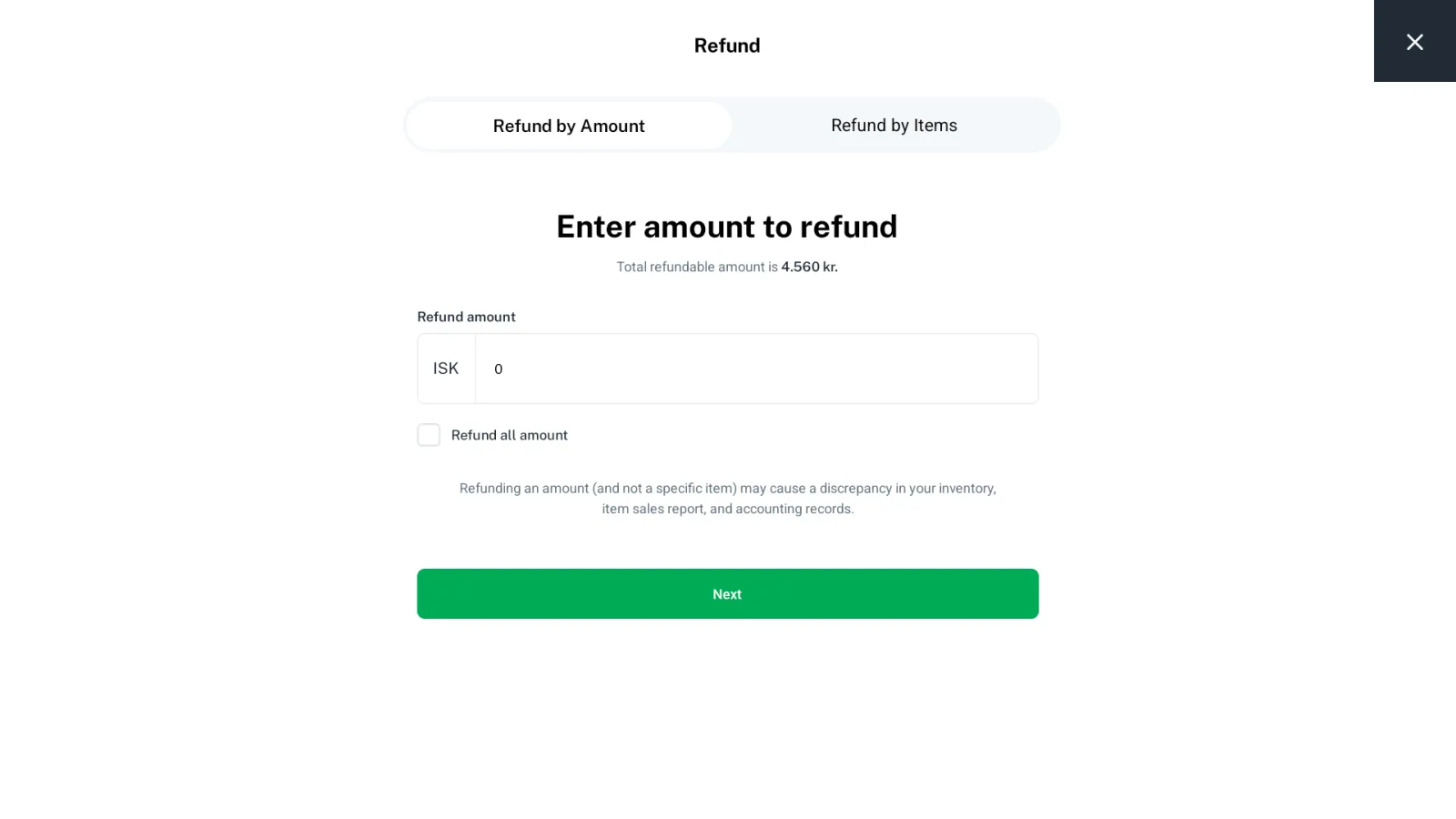
The refund window opens on Refund by Amount. Type an amount there, or tick Refund all amount to refund everything.
Refunding by amount doesn’t record which items came back, so item sales and stock in reports won’t quite add up. Use Refund by Items when you can.
- 3
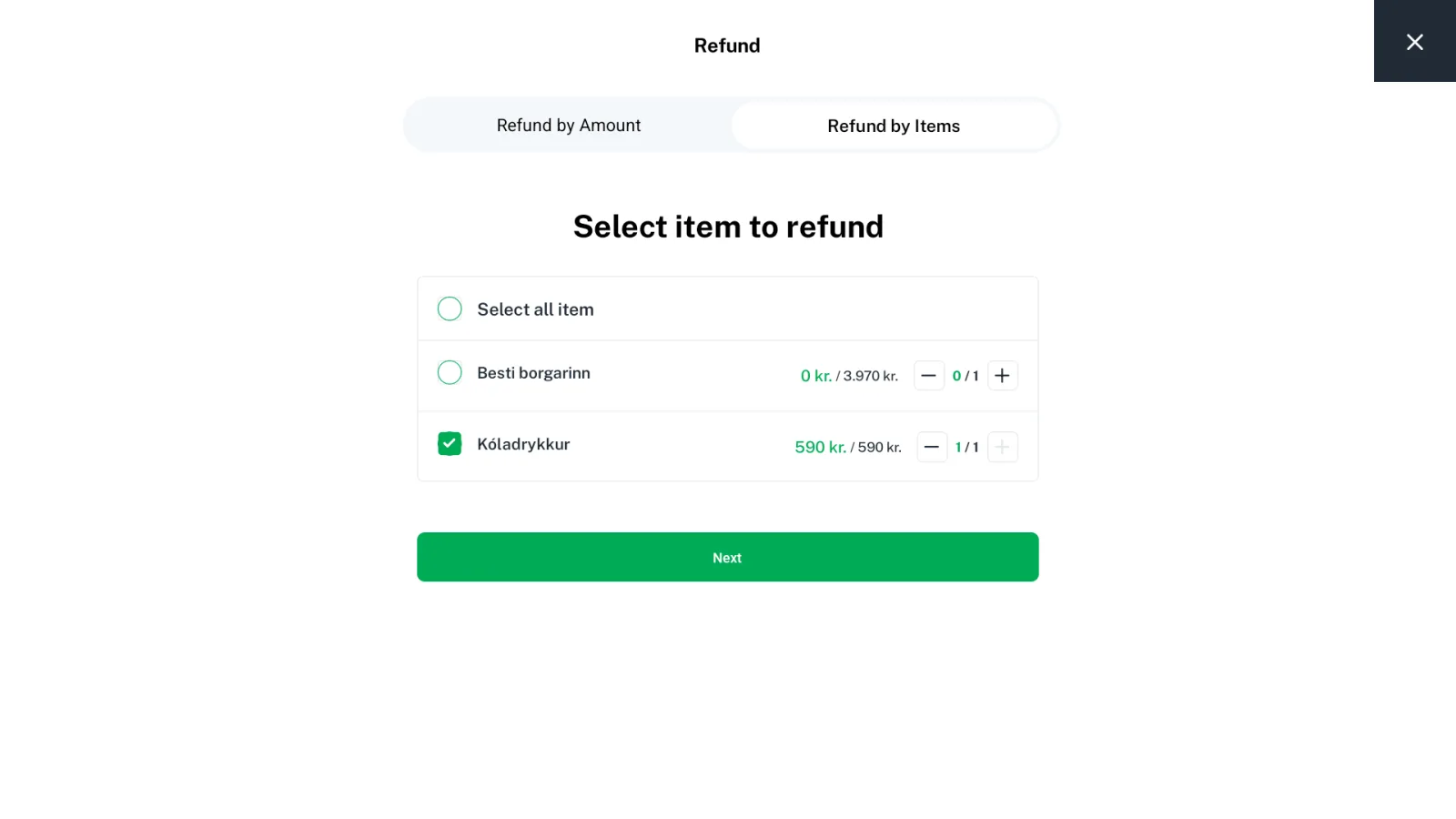
Pick the items
Tap Refund by Items. Raise the count with + next to each item to refund, or choose Select all item.
Tap Next.
Was the order split across several payments, such as a gift card and a card? Then you also choose which payment gets the refund, or Divide equally to all payments to share it between them.
- 4
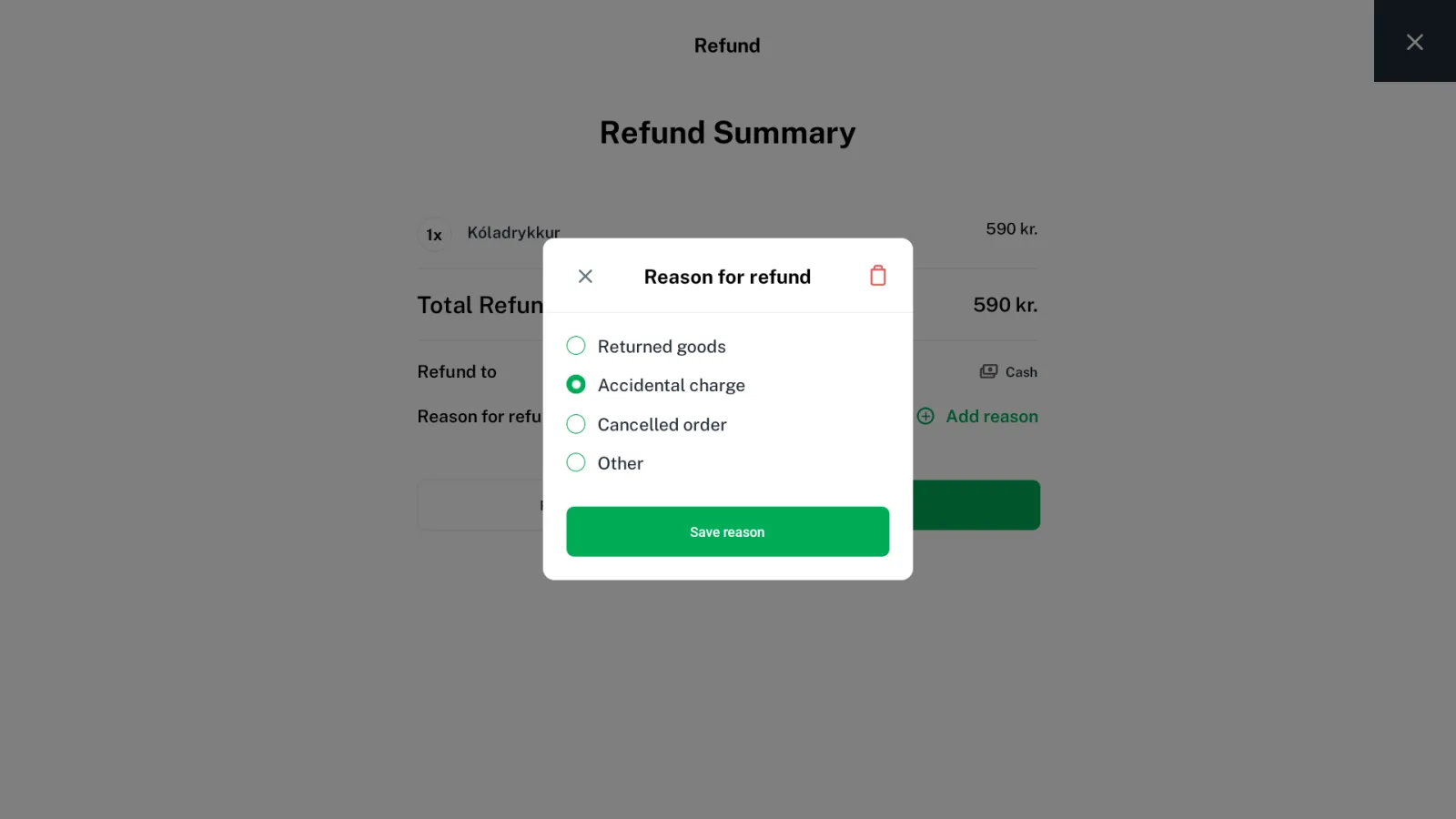
Give a reason
On Refund Summary, tap Add reason and choose one: Returned goods, Accidental charge, Cancelled order or Other. Tap Save reason.
Some stores require a reason. Then the Reason for refund * field is right on the summary and you type the reason there.
The reason is saved on the order and helps when refunds are reviewed later.
- 5
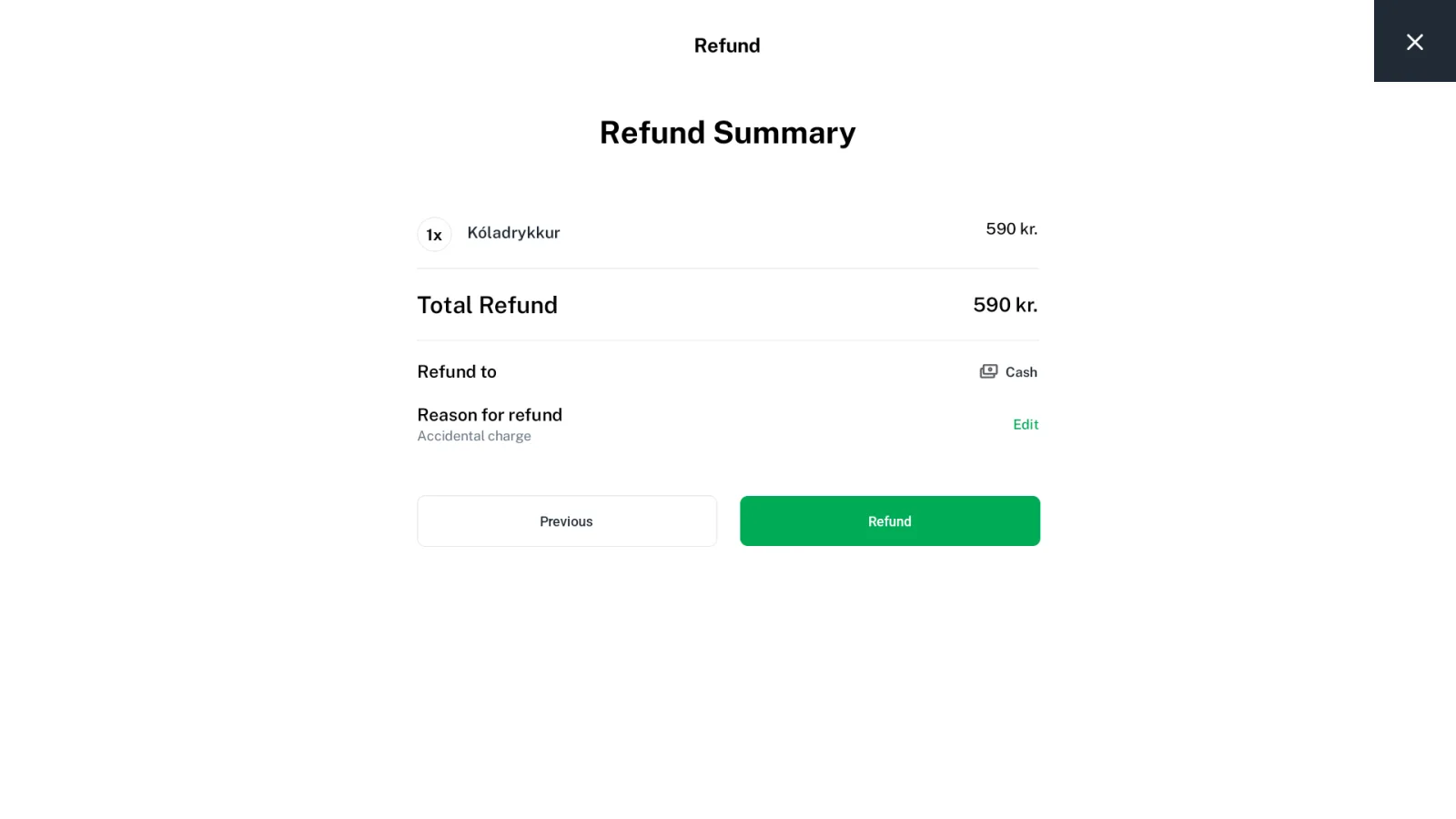
Confirm the refund
Check the summary: the items, Total Refund, where the money goes (Refund to) and the reason.
If it was paid by card you can choose under Refund to: Original refunds to the card, Cash means you hand the customer cash from the drawer instead.
Tap Refund.
- 6
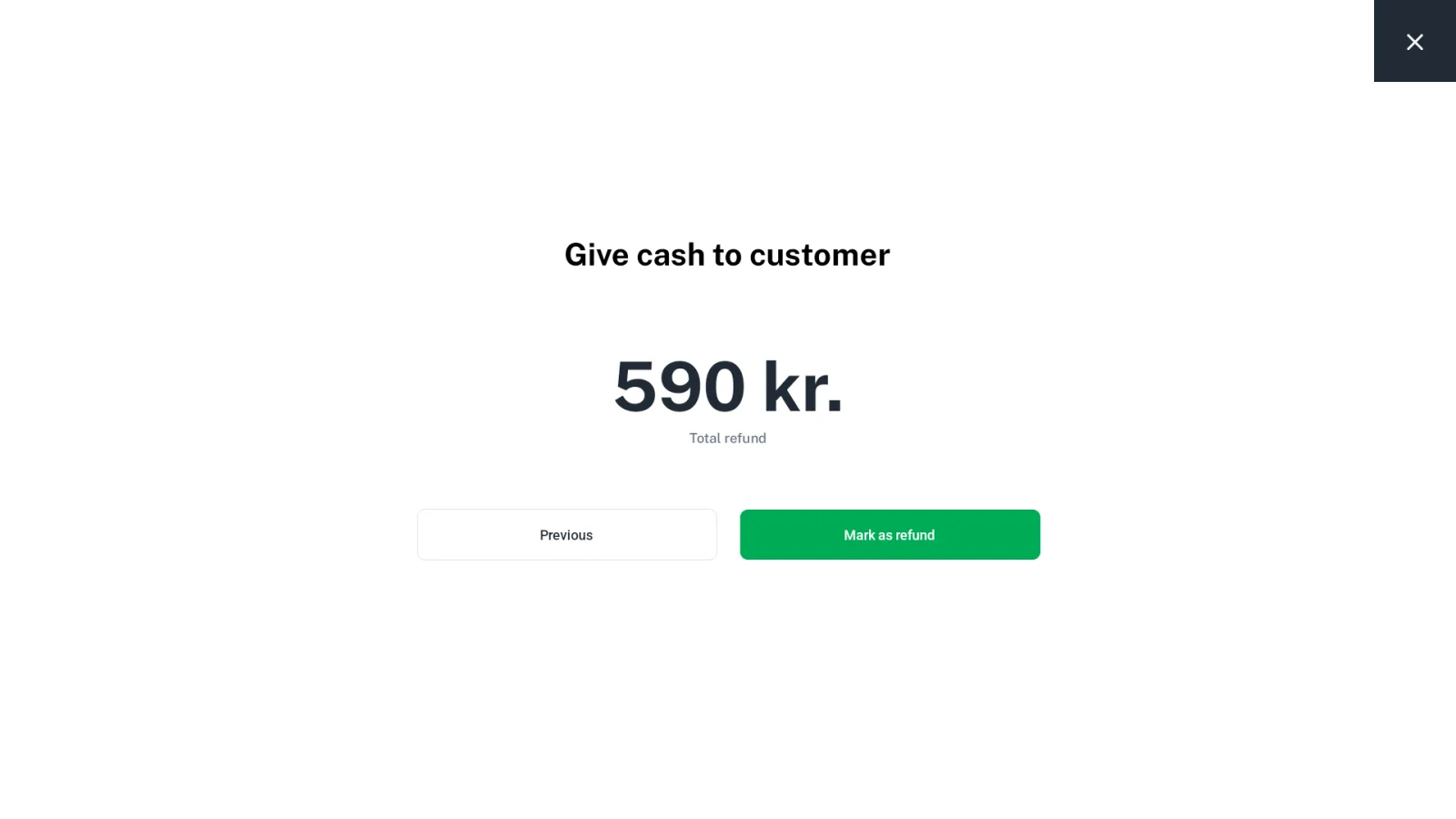
Pay the money back
Cash: the POS says Give cash to customer with the amount. Hand over the cash and tap Mark as refund. The amount is taken off the drawer.
Card: the amount goes to the card terminal. Follow the terminal until it confirms. If the payment was a Manual Card Payment, the terminal isn’t connected to the POS, so you make the refund on the terminal yourself.
App and web shop: the refund goes straight back to the customer’s card. Refund submitted means the payment provider still has to confirm it, and the order updates once it does.
At the end you can print a refund receipt with Print Refund Receipt. Tap Done.
Seeing Refund not confirmed? The terminal didn’t answer and the money may still have gone back. Check the terminal, then tap It was refunded or It was not refunded. Don’t refund again until you know which.
- 7
The refund shows on the order
The order is tagged Partial if part of it was refunded. Under Refund you see the amount and the reason. Edit changes the reason and the printer icon prints the refund receipt again.
Common questions
Can I refund yesterday’s order?
Yes. Pick the day with the date button at the top of Order, find the order and refund it the same way.
Can I refund the same order more than once?
Yes, as long as something is left. The POS shows how much can still be refunded, and Refund disappears once the order is fully refunded.
Where do I see today’s refunds?
Cash refunds show under Drawer, and every refund is on the end of day report.
Does the customer need a receipt for the original purchase?
Print receipt on the order prints it again, any time.
Didn’t find the answer?
We’re here. Give us a call or send a message.
Direct line
+354 519 2887
Call us when it’s urgent.
Live chat
Coming soon
Call or email us in the meantime.
hello@upsell.is
We reply the same day.