

All guides
Creating a gift card and putting it on sale
Set up a gift card with the amounts you sell, choose the channels, and sell it below its value, e.g. 10,000 kr for 8,000 kr.
6 steps · 3 min read · Updated 10 November 2026
Gift cards are created in the dashboard under Promotions. Each gift card has one or more amounts, and each amount has two prices: the value on the card and the price the customer pays. Set the sale price below the value and the gift card is on sale.
- 1
Open New Gift Card
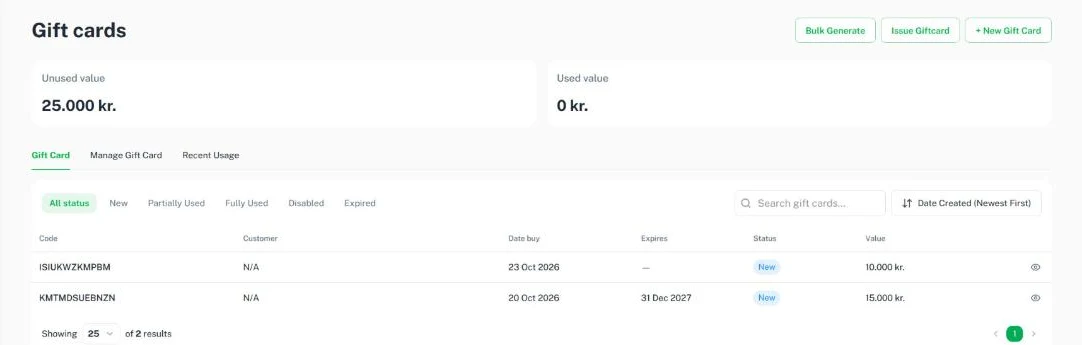
In the menu, open Promotions and then Giftcards. Click + New Gift Card at the top right.
- 2
Choose the type and name it
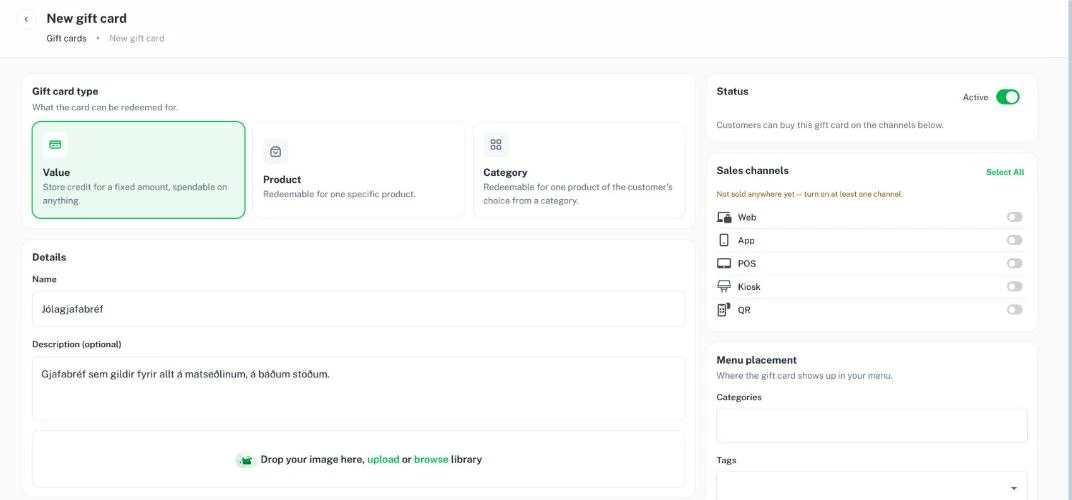
Under Gift card type, choose what the card is for. Value is store credit that can be spent on anything. Product is for one specific item, and Category for one item of the customer’s choice from a category.
Type a Name, e.g. Christmas gift card, and a short Description if you like. Customers see it when they buy. You can also add an image.
- 3
Add the amounts
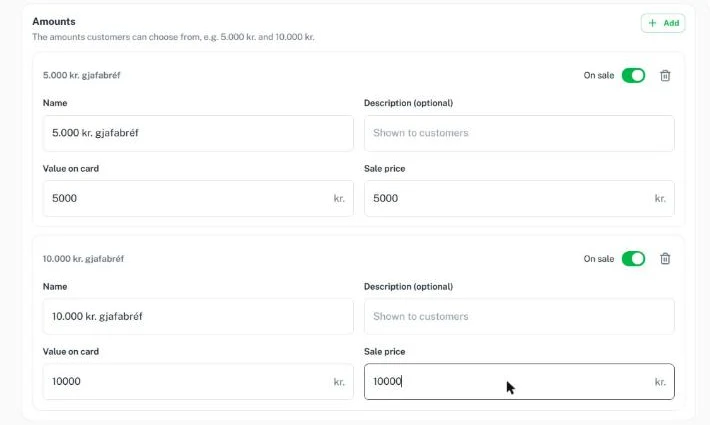
Under Amounts, click Add Amount (or Add) for each amount you want to offer.
Give each amount a name, e.g. 5,000 kr gift card. Value on card is what the customer gets to spend, and Sale price is what they pay. Usually they’re the same.
- 4
Choose the channels
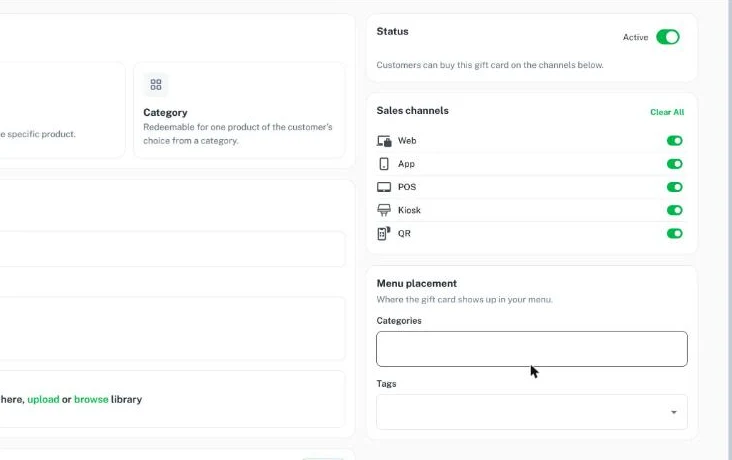
Under Sales channels on the right, switch on where the gift card is sold: website, app, POS, kiosk or QR. Select All turns them all on.
Under Menu placement you can choose a category the gift card shows in on your menu.
Status at the top decides whether the gift card is for sale at all. Leave it Active.
A new gift card isn’t sold anywhere until you switch on at least one channel.
- 5
Save
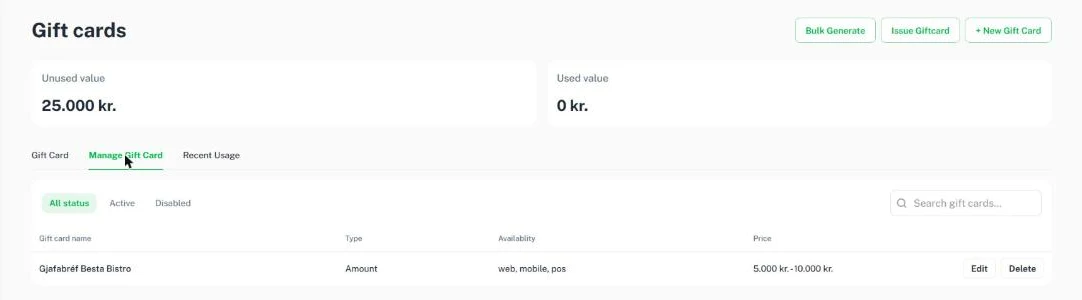
Click Save Gift Card at the bottom right. The gift card appears under the Manage Gift Card tab and is on sale straight away.
Change it there later with Edit.
- 6
Put the gift card on sale
Under Manage Gift Card, click Edit next to the gift card.
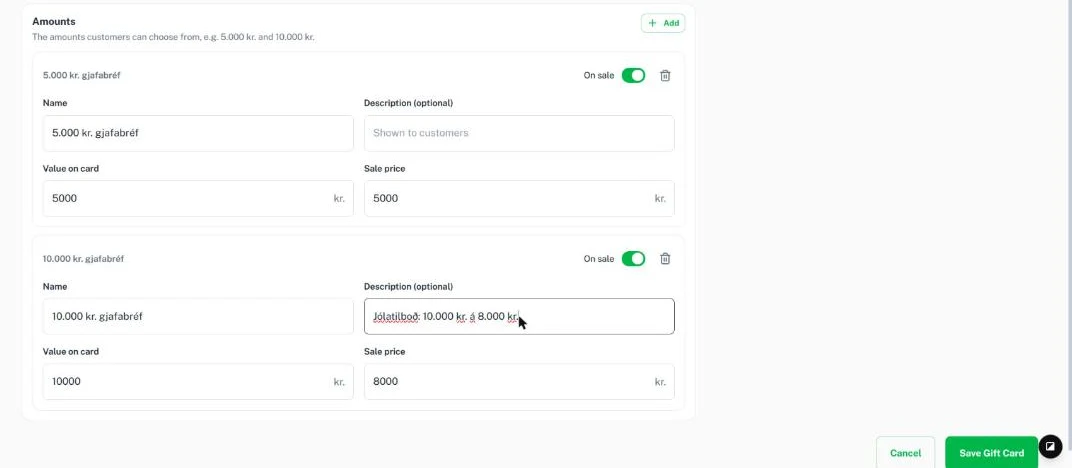
Lower the Sale price and leave Value on card as it is. For example a 10,000 kr gift card for 8,000 kr: the customer pays 8,000 kr and gets 10,000 kr to spend.
It helps to mention the offer in the amount’s description, e.g. Christmas offer: 10,000 kr for 8,000 kr. Then click Save Gift Card.
When the offer ends, set the Sale price back to the value and save. Cards already sold keep their full value.
The On sale switch on each amount doesn’t mean a discount: it decides whether that amount is offered at all. Switch it off to hide one amount.
Common questions
Can one amount be on sale and the others not?
Yes. Each amount has its own sale price, so lower only the one on offer. You can also add a separate offer amount with Add and hide it with its On sale switch when the offer ends.
How do I stop selling a gift card?
Open it with Edit and switch Status to Inactive. It disappears from every channel, and cards already sold keep working.
Where is the gift card sold?
On the channels you switched on. On the POS it’s sold like any other item, see Selling a gift card at the till.
Didn’t find the answer?
We’re here. Give us a call or send a message.
Direct line
+354 519 2887
Call us when it’s urgent.
Live chat
Coming soon
Call or email us in the meantime.
hello@upsell.is
We reply the same day.