

All guides
Adding a new item to your menu
Name, description, photo, category, price and channels, and the item is on your website, app and POS.
6 steps · 3 min read · Updated 20 October 2026
Every item is created in one place in the dashboard. Once saved, it shows straight away on the channels you choose: website, app, POS, kiosk, QR ordering and the ordering widget.
- 1
Open New Product
In the menu, open Menu and then Products. Click New Product at the top right.
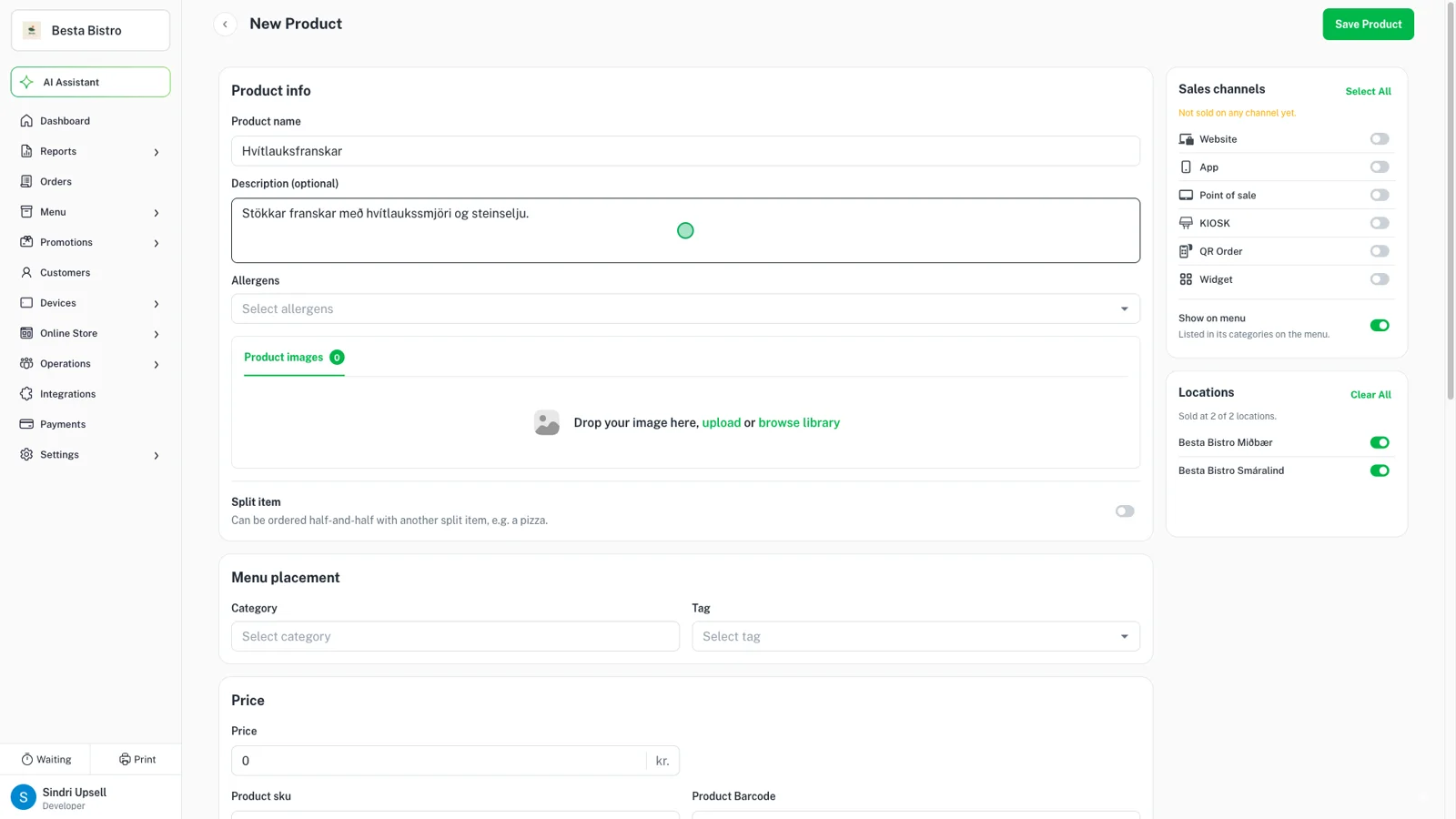
Give the item a name under Product name and a short Description. Customers see it on the menu.
- 2
Add a photo
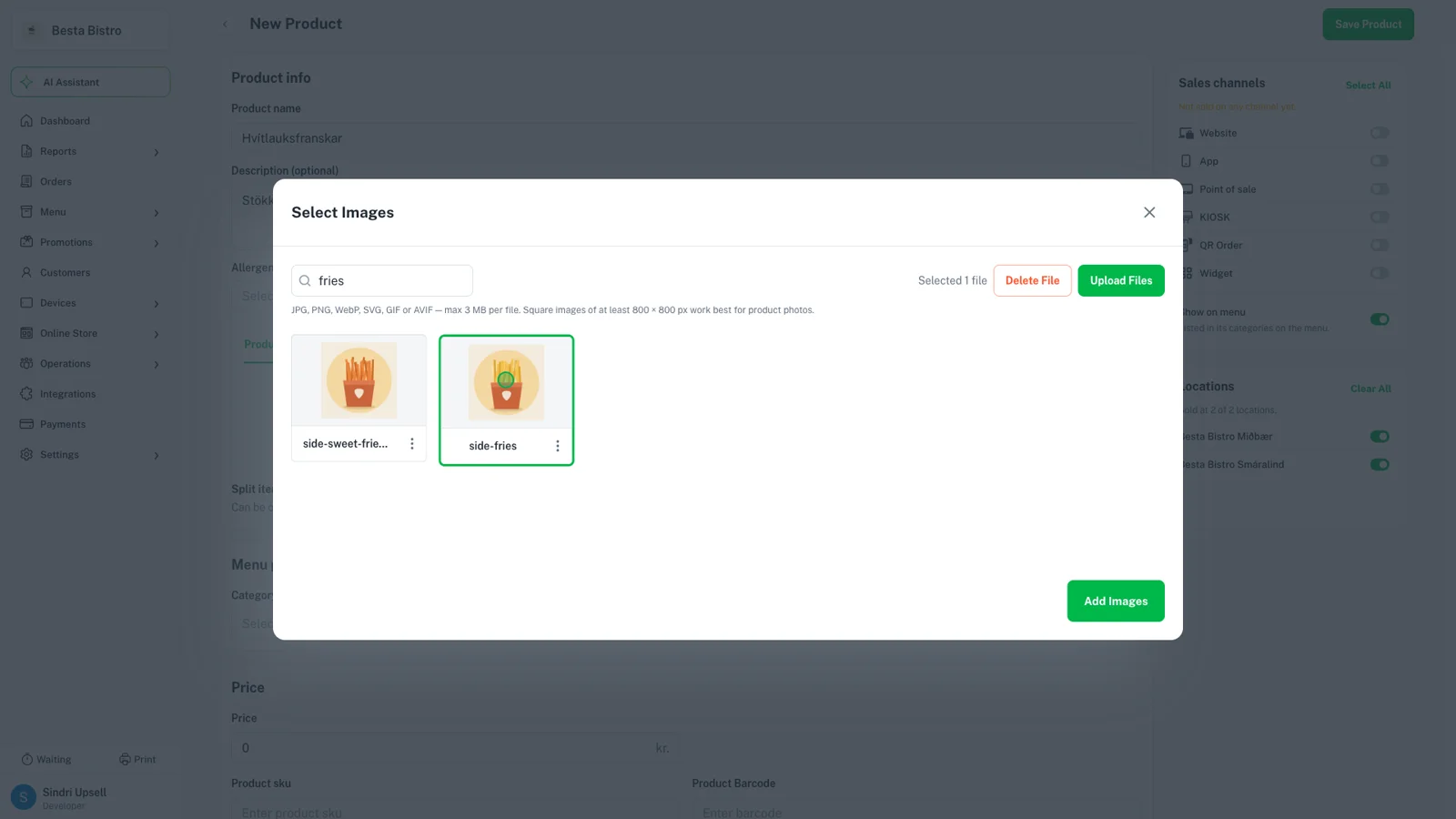
Drag a photo into the box, click upload to add a new one, or browse library to pick one you’ve already uploaded.
Square photos of at least 800 × 800 pixels look best.
- 3
Choose a category
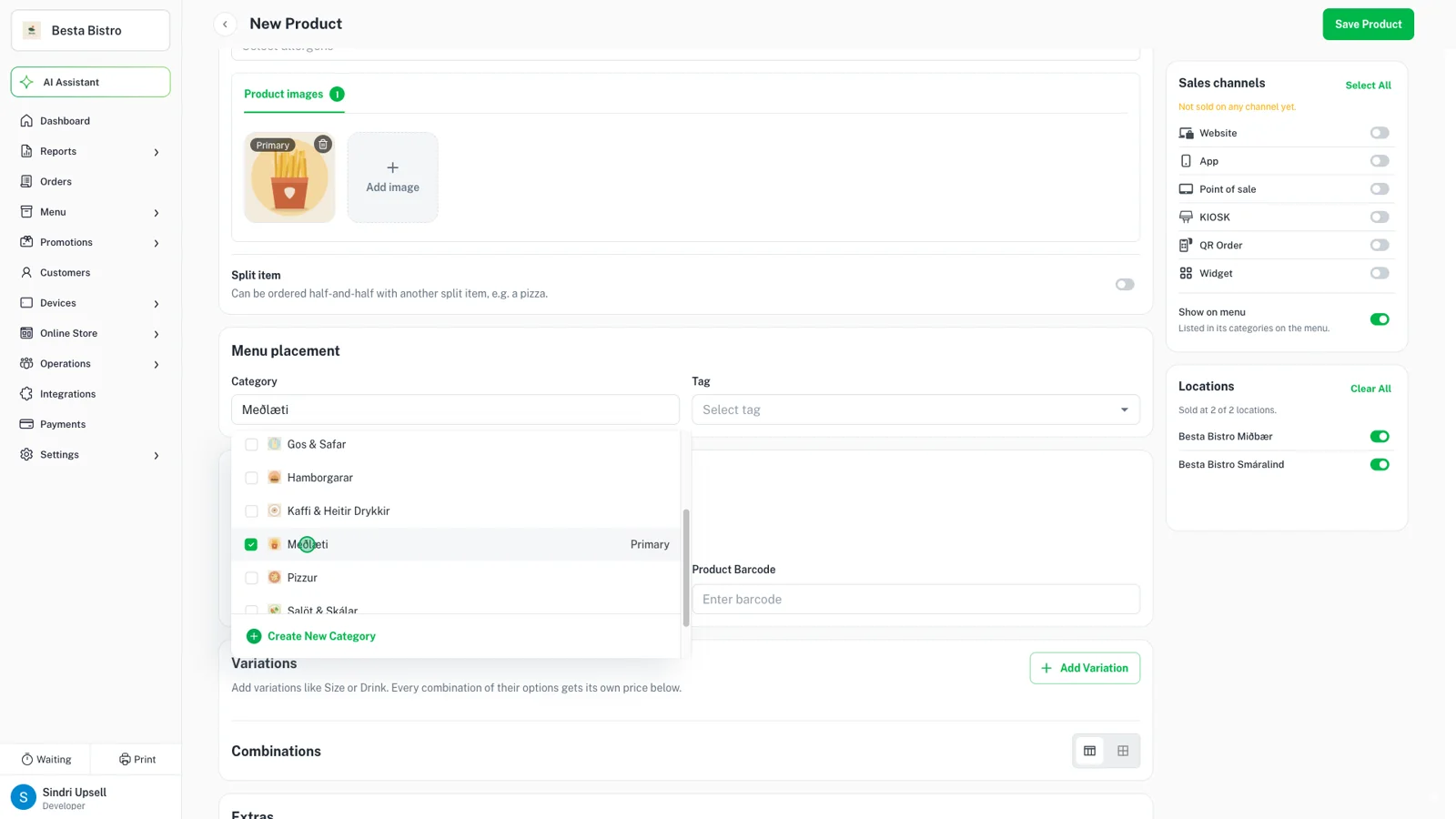
Under Menu placement, choose the category the item appears in on the menu. Type part of the name to find it.
Category missing? Create New Category at the bottom of the list makes one.
- 4
Set the price
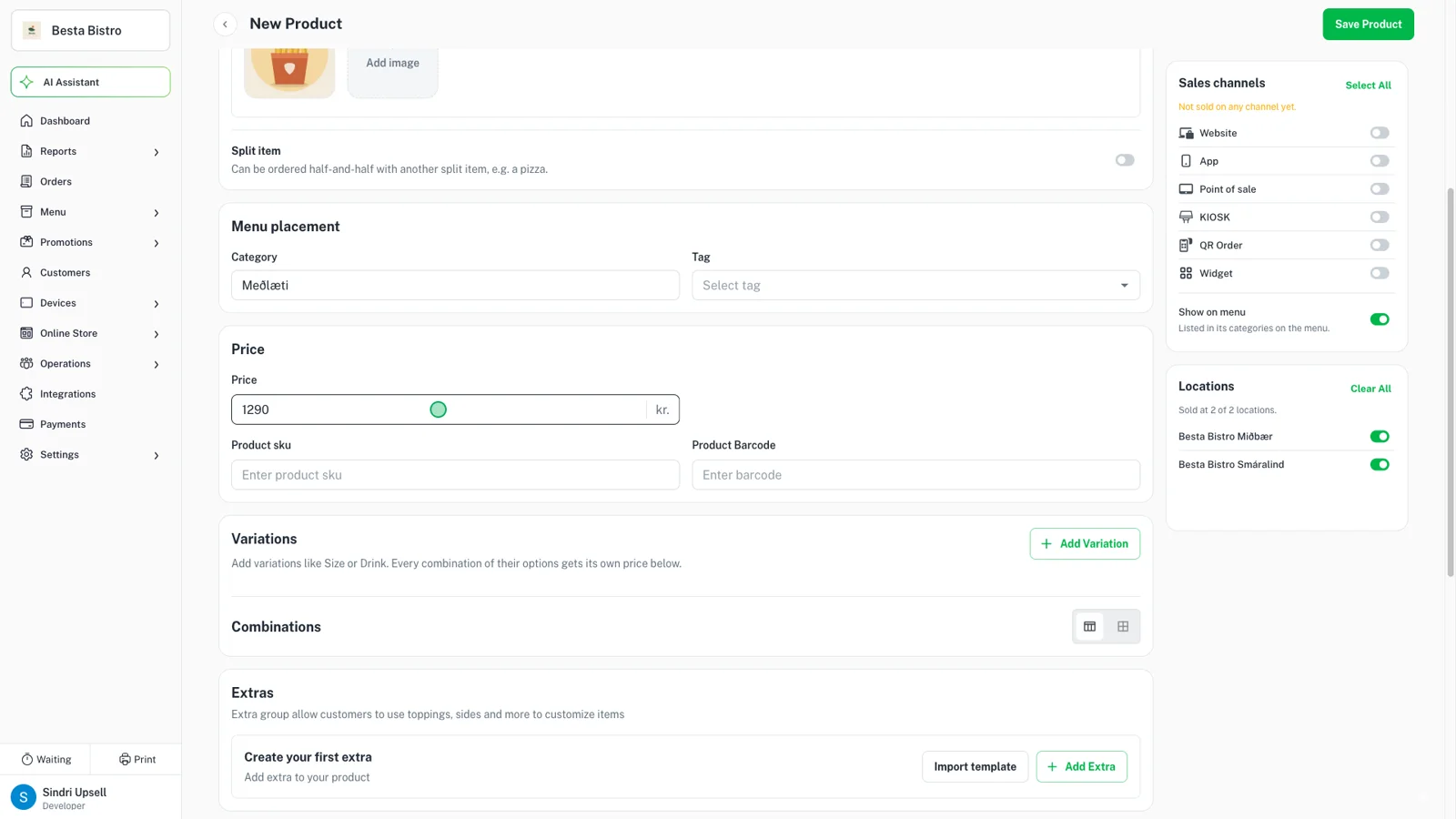
Enter the price customers pay under Price.
Under Variations you can add sizes or other versions with their own prices, and under Extras add-ons such as sauces.
- 5
Choose channels and branches
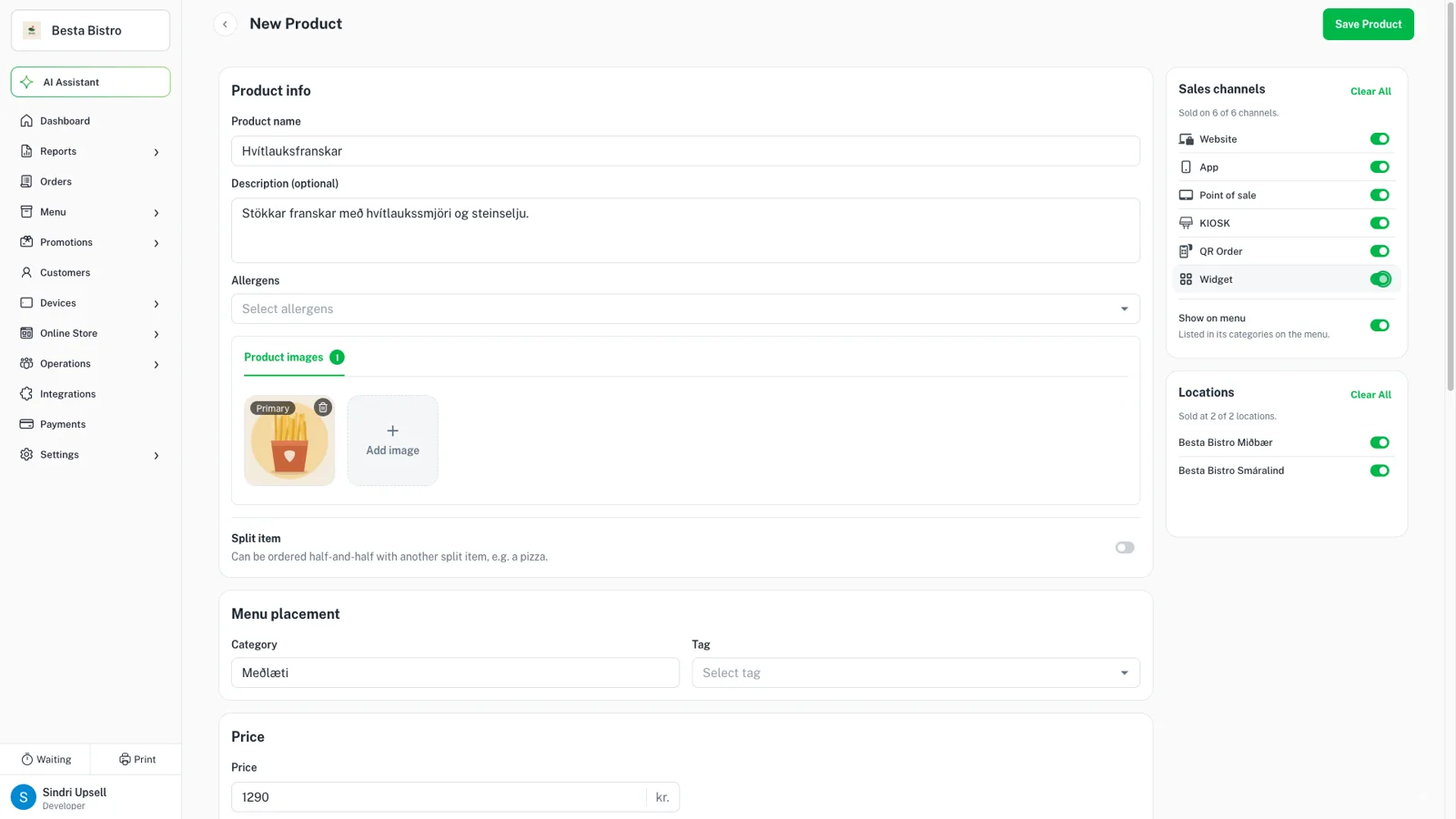
Under Sales channels on the right, switch on the channels it’s sold on. Select All turns them all on.
Under Locations, choose which branches sell it.
Show on menu decides whether it’s listed in its category on the menu.
A new item isn’t sold anywhere until you switch on at least one channel.
- 6
Save
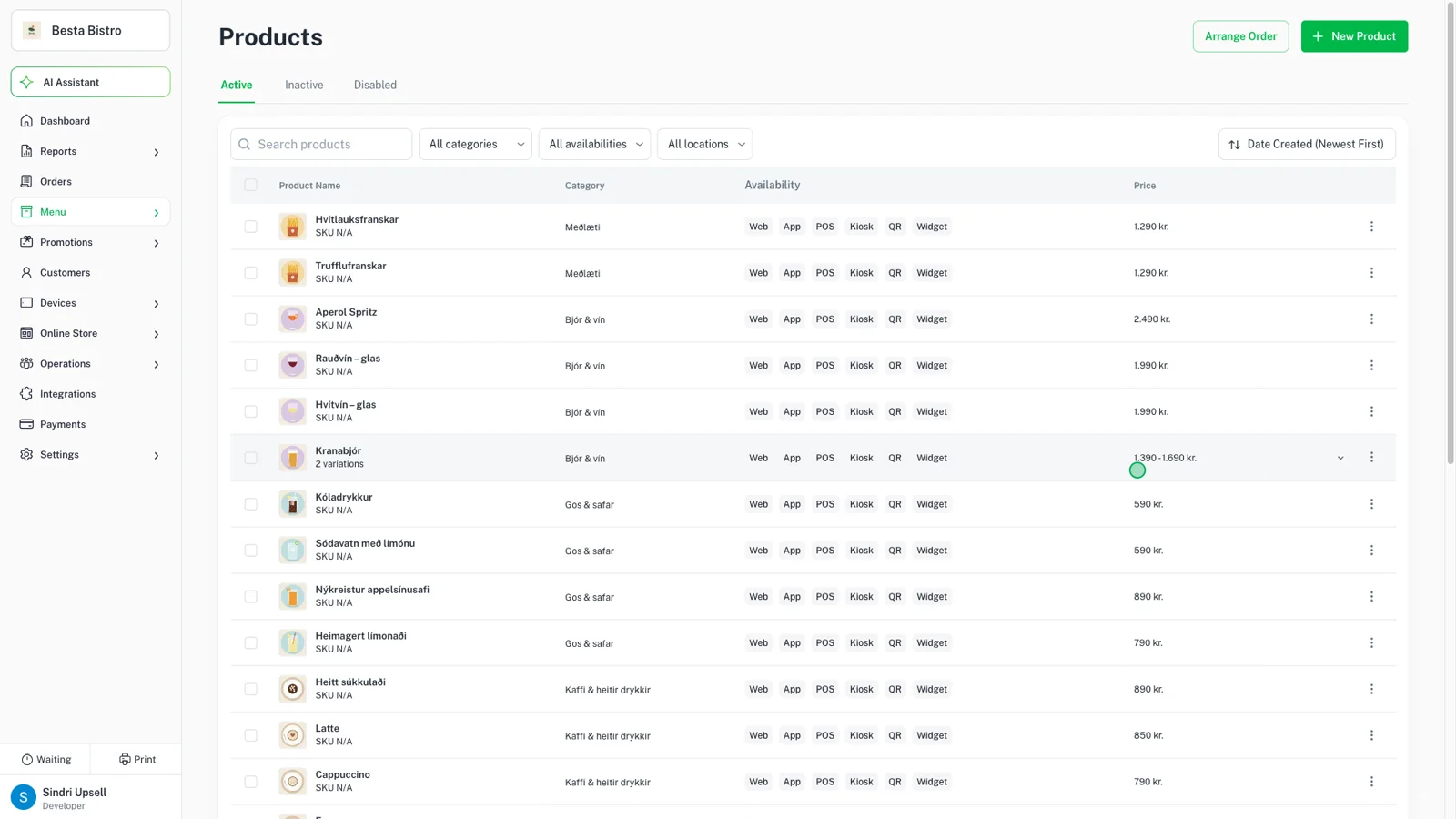
Click Save Product at the top right. The item appears at the top of the product list and is on the menu straight away.
Common questions
How do I take an item off the menu for a while?
At the till you can turn an item off under Inventory for a set time. In the dashboard, switch off its channels or Show on menu.
How do I change the order of items in a category?
Click Arrange Order at the top of the product list and drag the items into order.
Didn’t find the answer?
We’re here. Give us a call or send a message.
Direct line
+354 519 2887
Call us when it’s urgent.
Live chat
Coming soon
Call or email us in the meantime.
hello@upsell.is
We reply the same day.