

All guides
Splitting a payment by item
Pay some items one way and the rest another, for example a free coffee voucher and a card.
5 steps · 3 min read · Updated 20 October 2026
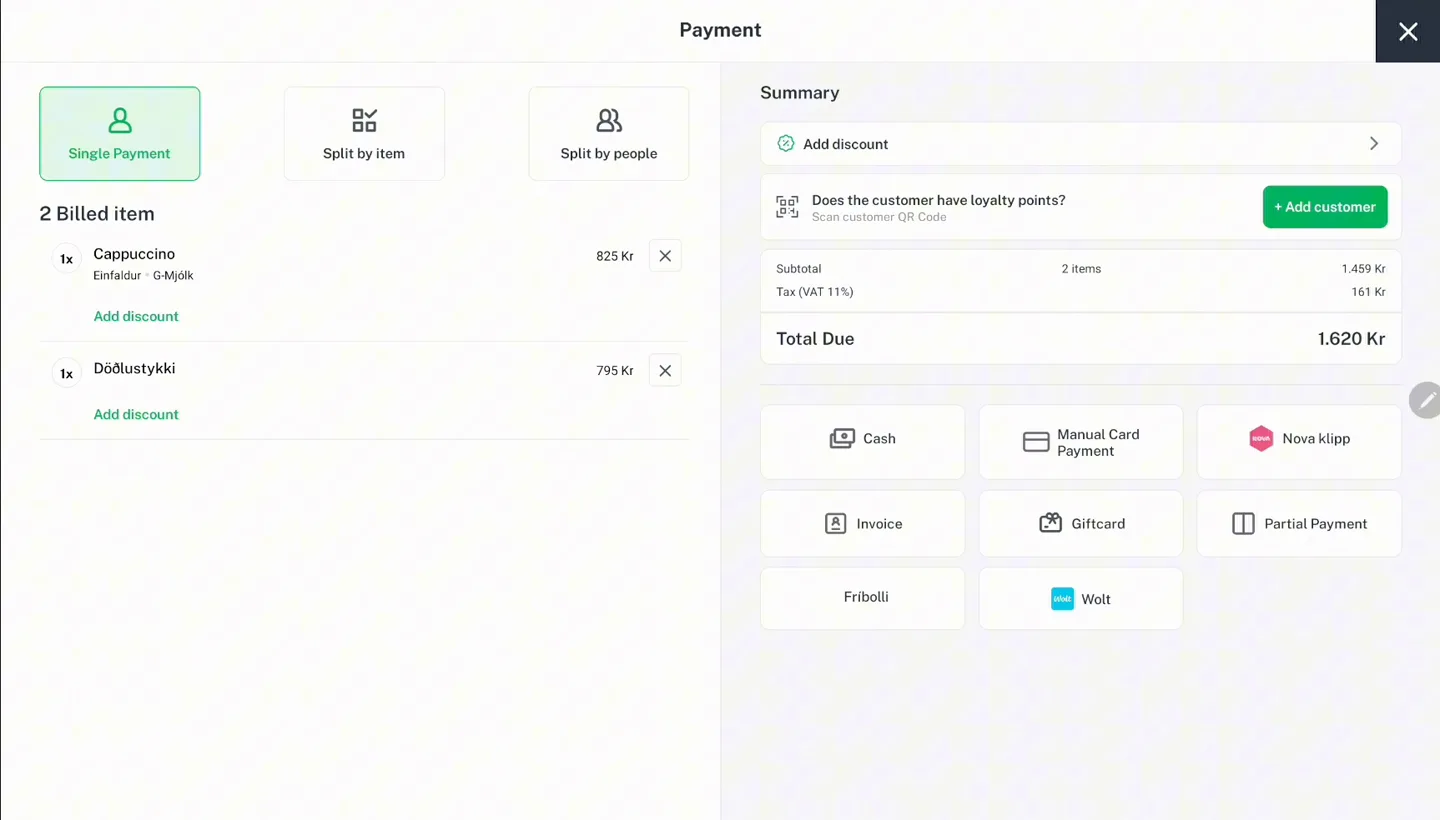
The payment screen has three modes: Single Payment (everything at once), Split by item (item by item) and Split by people (evenly between people). This guide covers Split by item.
The example uses "Fríbolli", a custom payment method the store set up in the dashboard, but the same works with every method.
- 1
Open the payment screen
Add the items and tap Pay. All the items are listed on the left.
- 2
Choose Split by item and the items
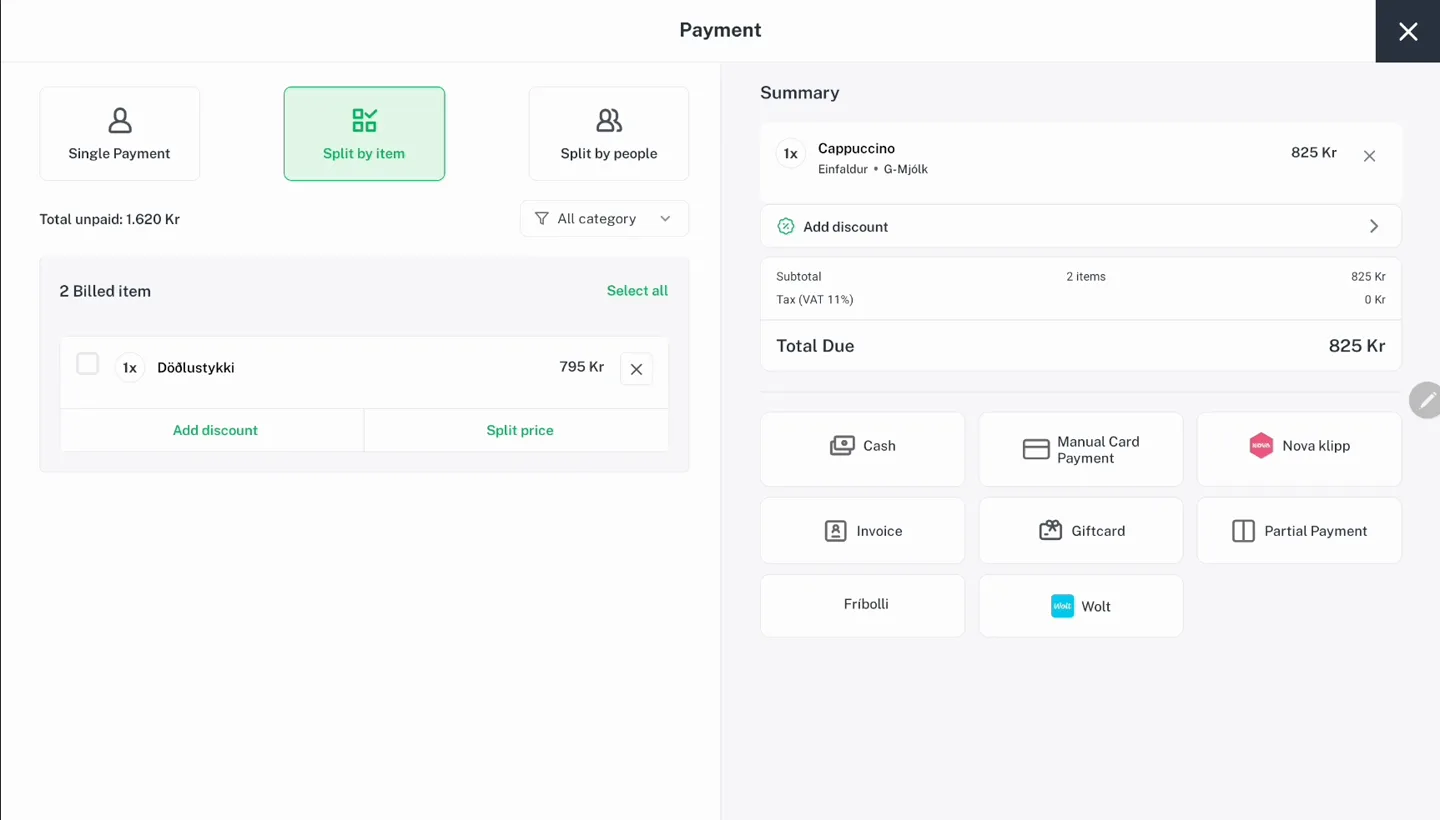
Tap Split by item. At the top you see Total unpaid, the amount still owed.
Select the items to pay first. They appear in the summary on the right and the payment methods become active.
Want to share one item between several people? Tap Split price on the item and choose how many.
- 3
Pay the first part
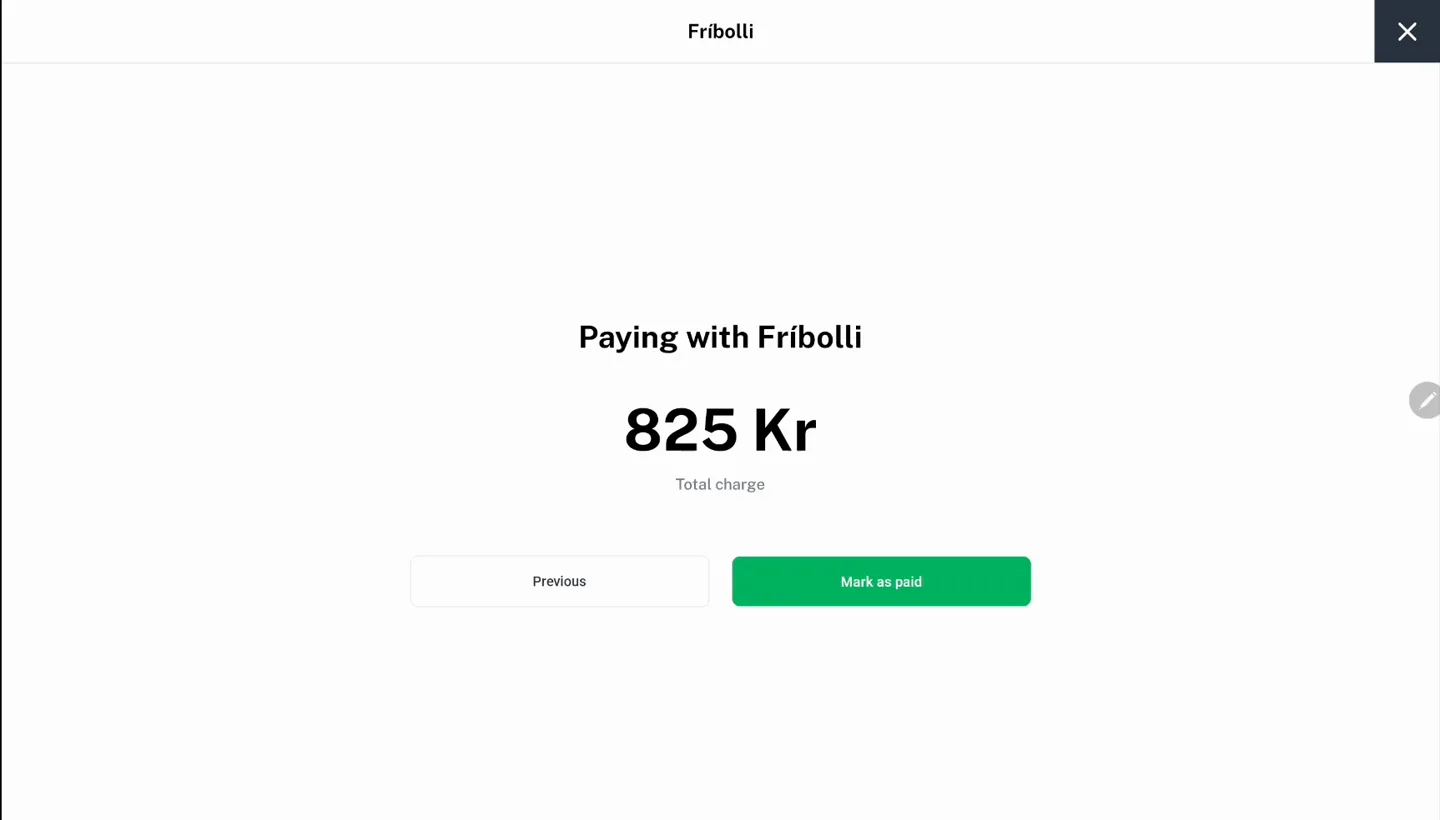
Choose a payment method for the selected items, here Fríbolli.
For custom methods you see "Paying with …" and the amount. Tap Mark as paid. There’s no terminal involved, so you just confirm it.
- 4
Pay the rest
You’re back on the payment screen with a blue banner: "You have made a payment for split items". After the first payment you can’t switch mode.
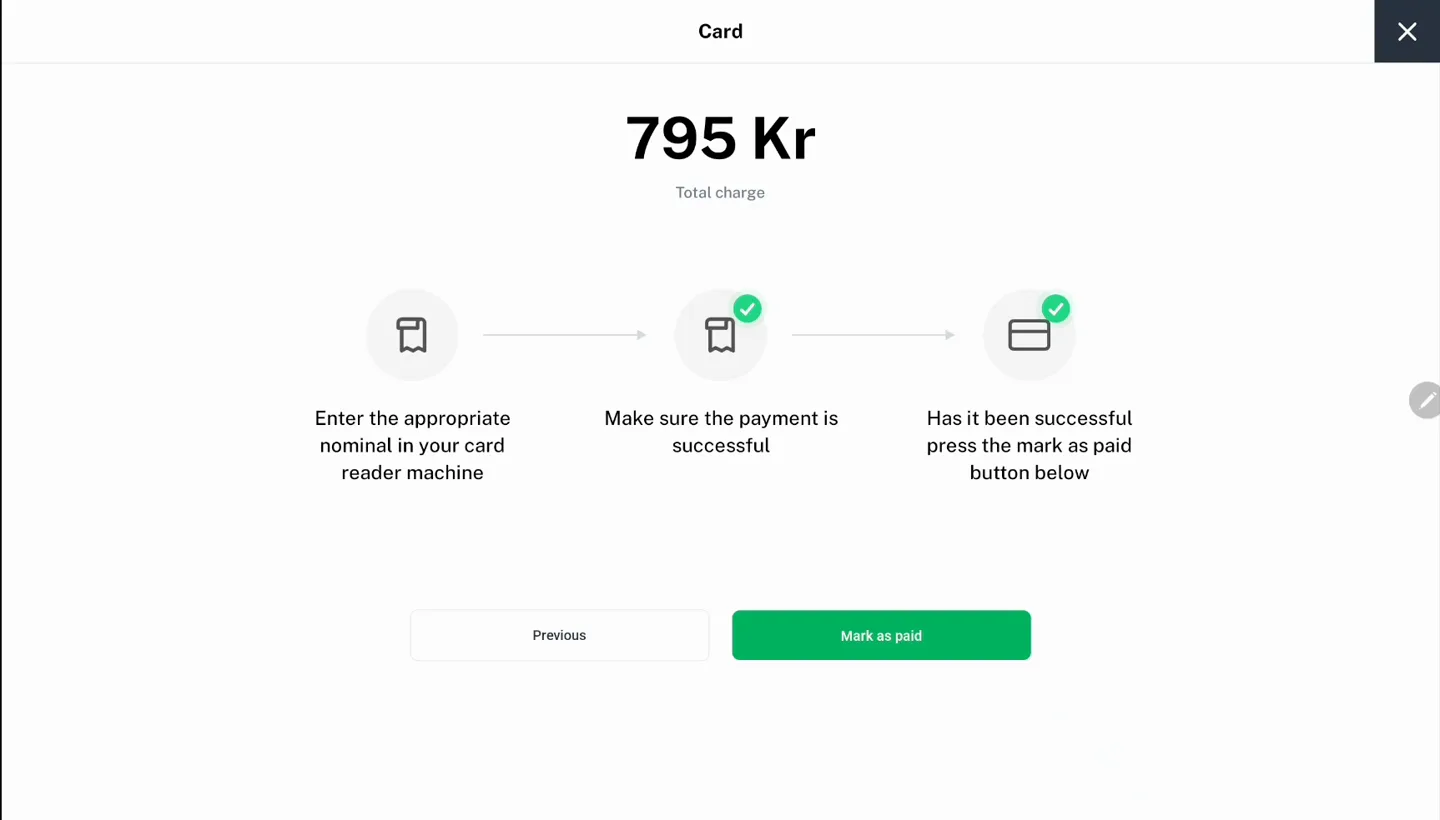
Select the remaining items and pay with another method, such as card.
With Manual Card Payment you key the amount into the terminal, check it went through, then tap Mark as paid. Connected terminals (Teya, Verifone and others) receive the amount automatically.
- 5
The order is paid
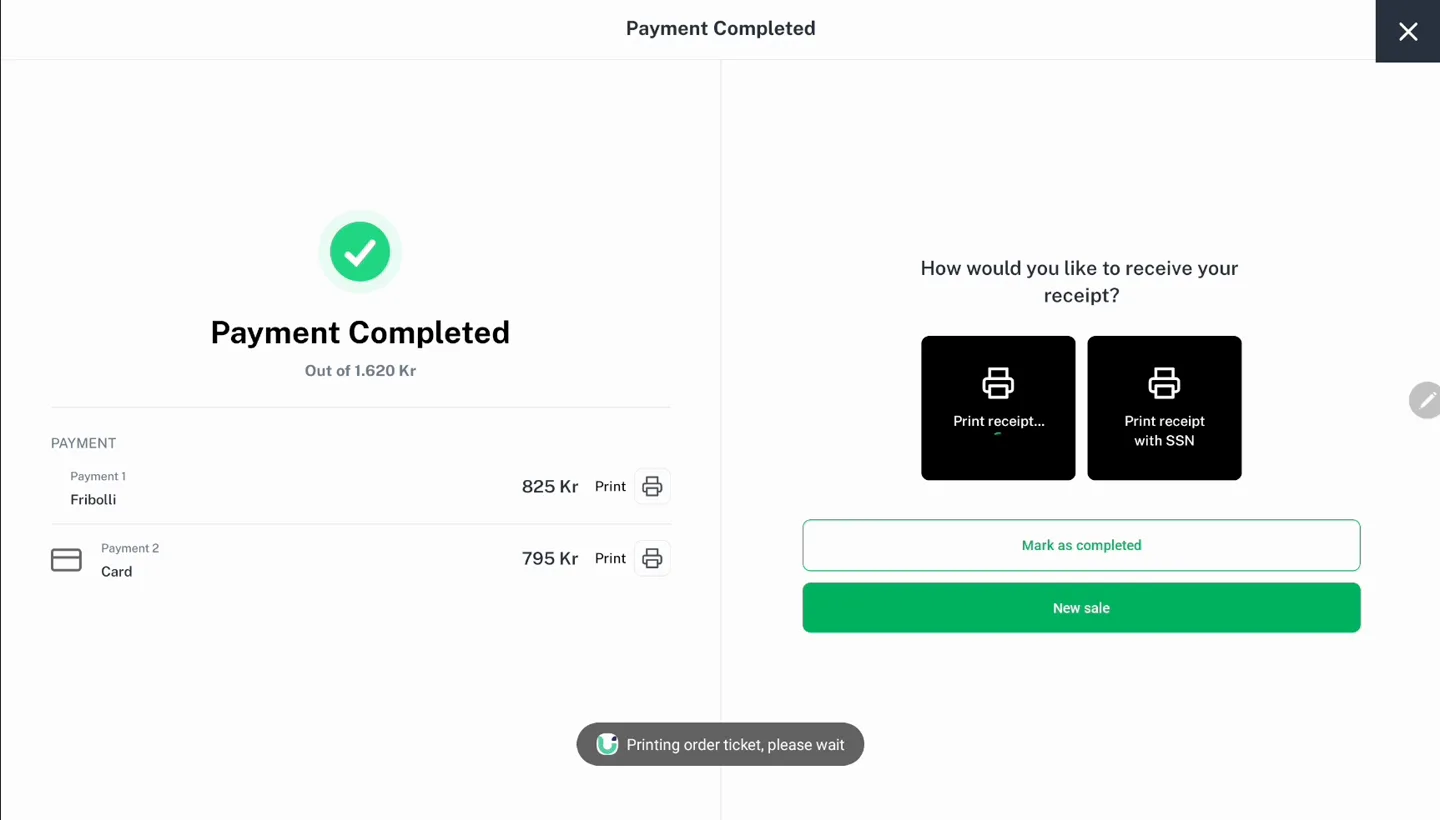
Once every item is paid you see Payment Completed with each payment: Payment 1, Payment 2 and the method for each.
Print a receipt and tap New sale to carry on.
Common questions
What’s the difference between Split by people and Partial Payment?
Split by people divides the total evenly between a number of people. Partial Payment lets you type any amount, pay it, then the next, until everything is paid.
How do I create a custom payment method like Fríbolli?
In the dashboard under Payment → Manual Payment → Add custom payment. Give it a name and an icon and switch it on. Contact us if it doesn’t show at the till. Custom methods have to be enabled for the store.
Didn’t find the answer?
We’re here. Give us a call or send a message.
Direct line
+354 519 2887
Call us when it’s urgent.
Live chat
Coming soon
Call or email us in the meantime.
hello@upsell.is
We reply the same day.