

All guides
Connecting a new POS device
Create a six-digit code in the dashboard and type it on the device. Takes about a minute and is done once.
7 steps · 2 min read · Updated 20 October 2026
Every device running the Upsell POS is connected to one branch. Orders taken on the device go to that branch. You connect it once and it stays connected after that.
Before you start
- Have a computer ready where you can log in to the dashboard at app.upsell.is.
- The device needs an internet connection and Upsell POS installed.
- 1
Open the POS on the device
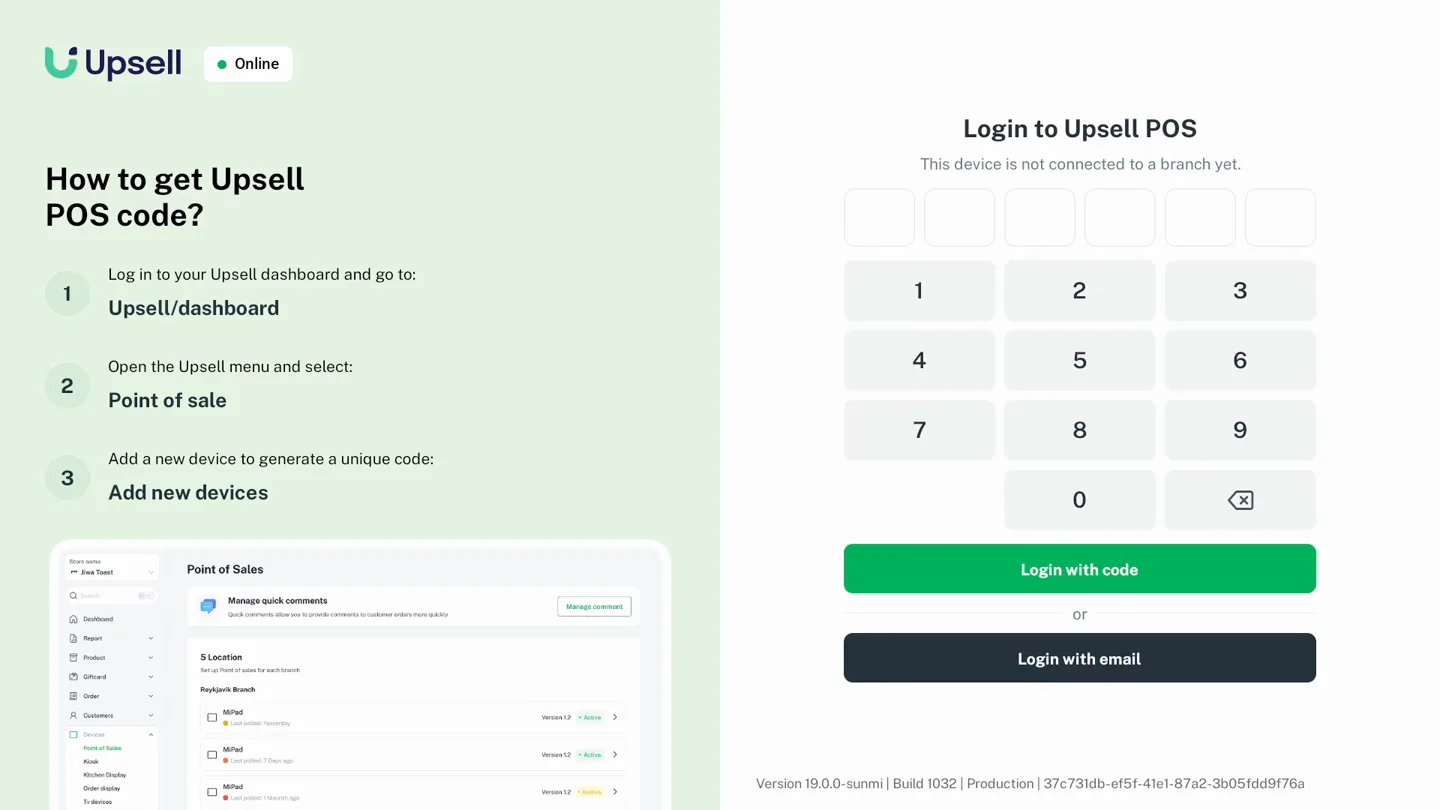
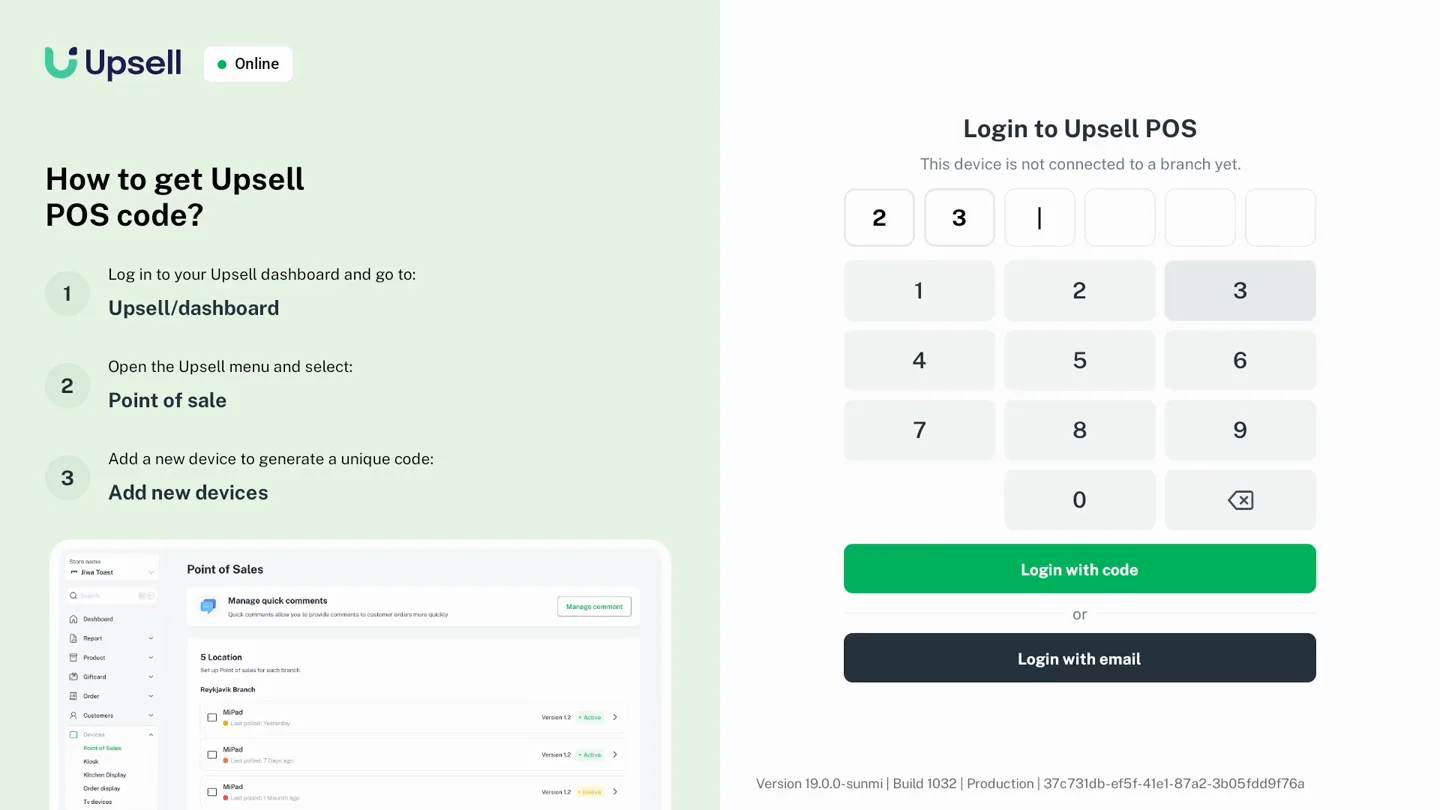
When you open Upsell POS on a new device you see Login to Upsell POS and "This device is not connected to a branch yet".
To connect it you need a six-digit code from the dashboard.
- 2
Open Point of Sale in the dashboard
Log in to the dashboard on the computer.
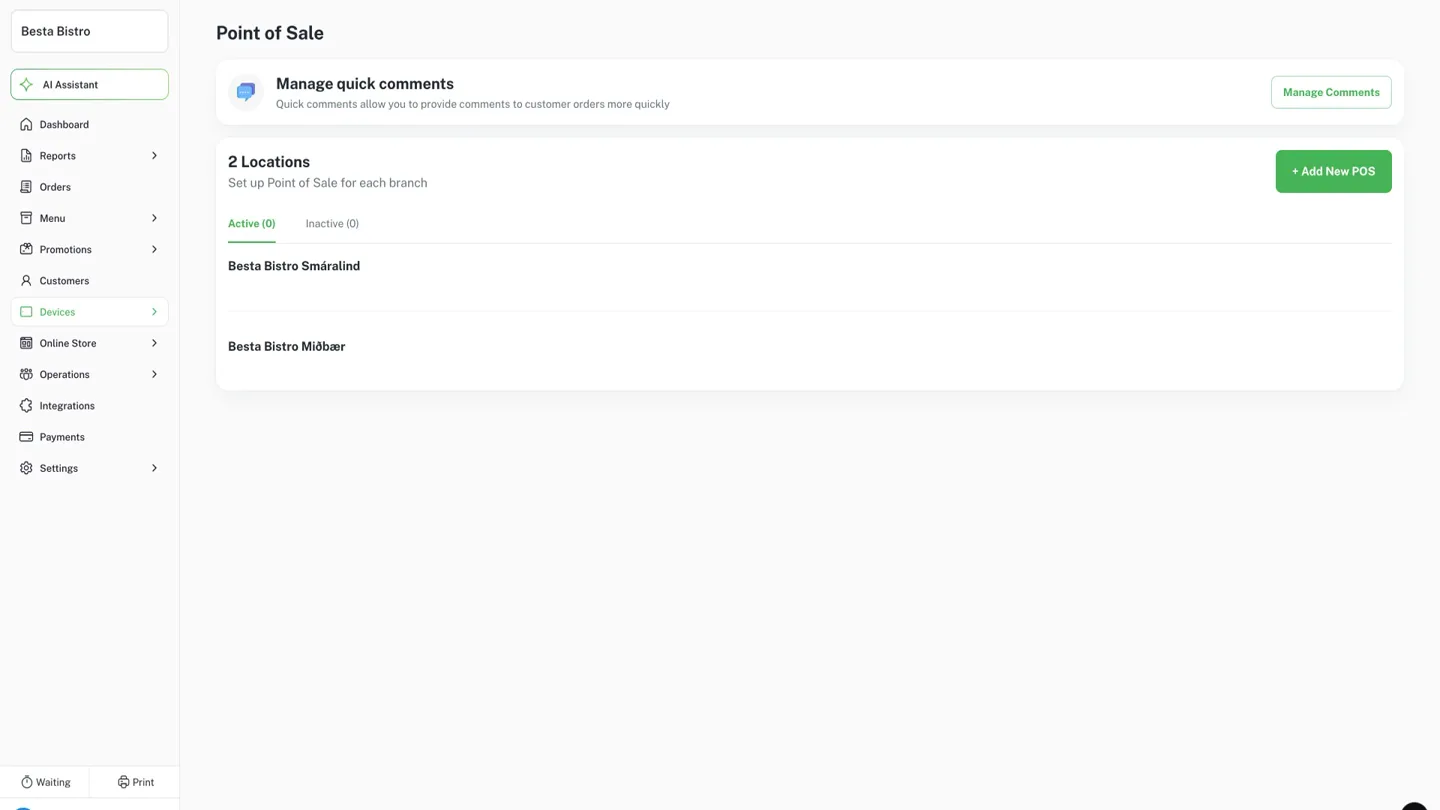
In the left-hand menu, open Devices and then Point of Sale. You see your branches and the devices already connected.
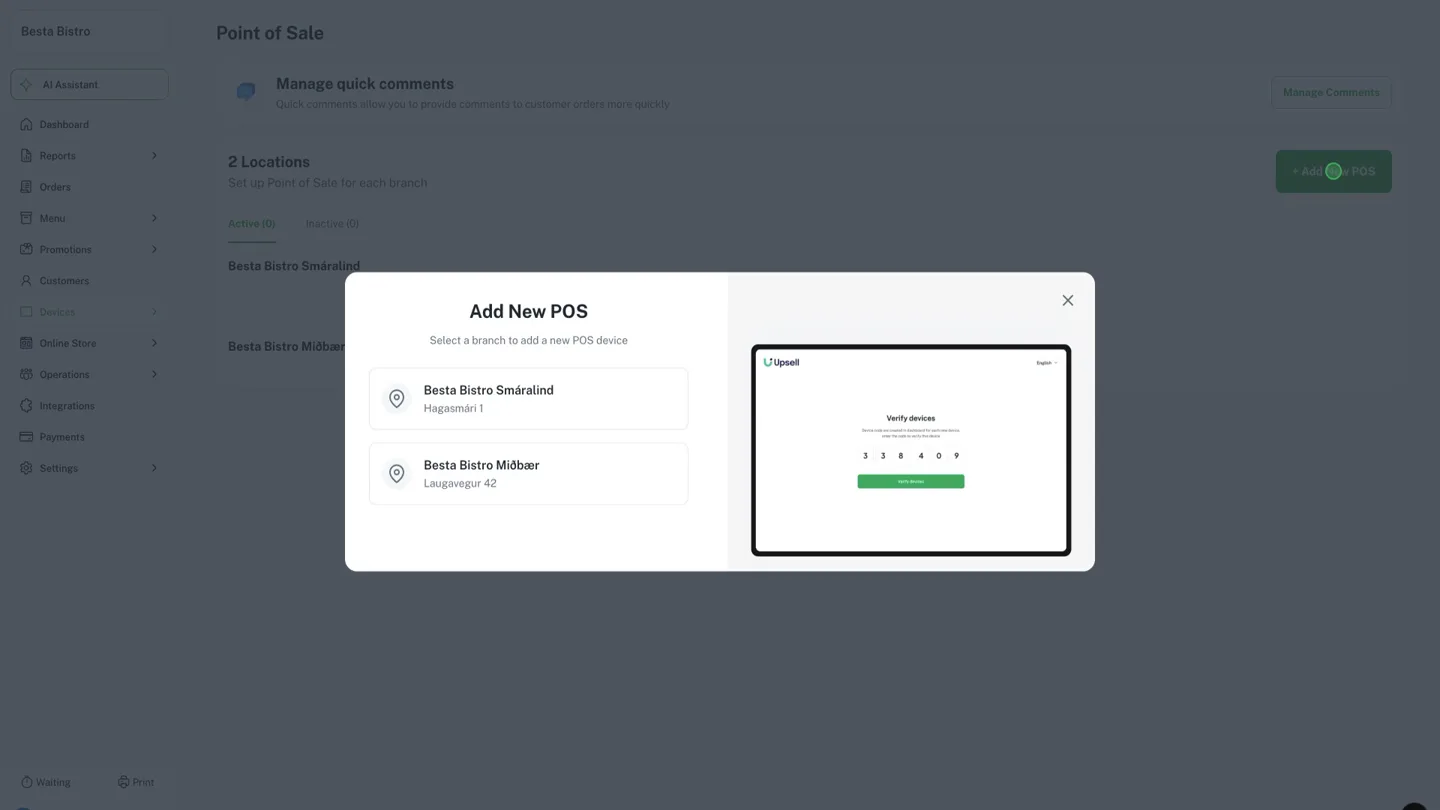
Click Add New POS.
- 3
Choose the branch
Choose the branch the device belongs to. Every order taken on the device goes to it.
- 4
Get the code
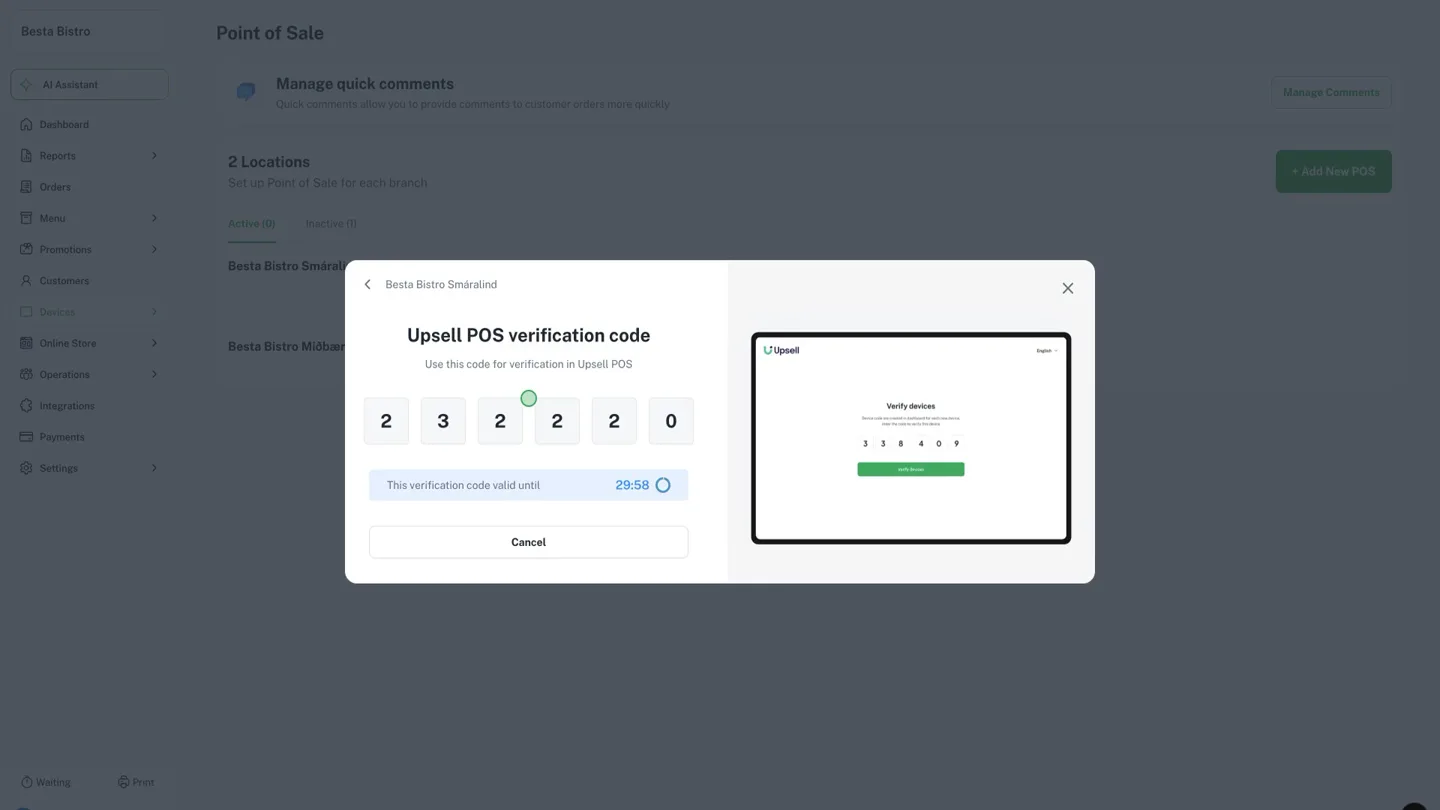
The dashboard now shows the Upsell POS verification code, six digits. Leave the window open.
The code is valid for 30 minutes. If it runs out you can create a new one.
- 5
Type the code on the device
On the device, type the code on the number pad. You don’t need to tap Login with code. The device logs in as soon as the sixth digit is in.
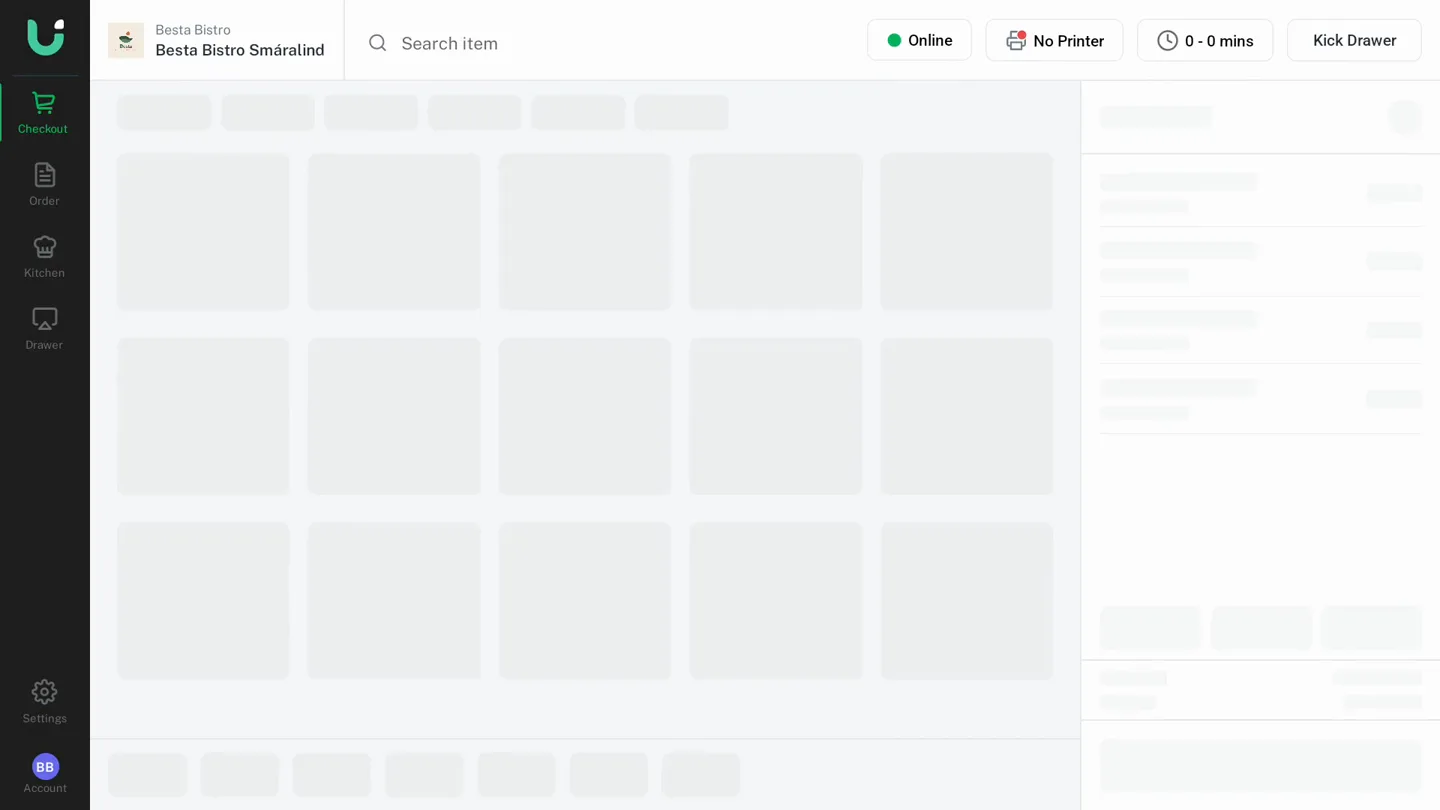
The POS verifies the device and loads your menu.
- 6
Name the device
The dashboard shows Device connected. Click Continue, give the device a name, such as "Counter 1", and save.
The name helps you tell your devices apart later.
- 7
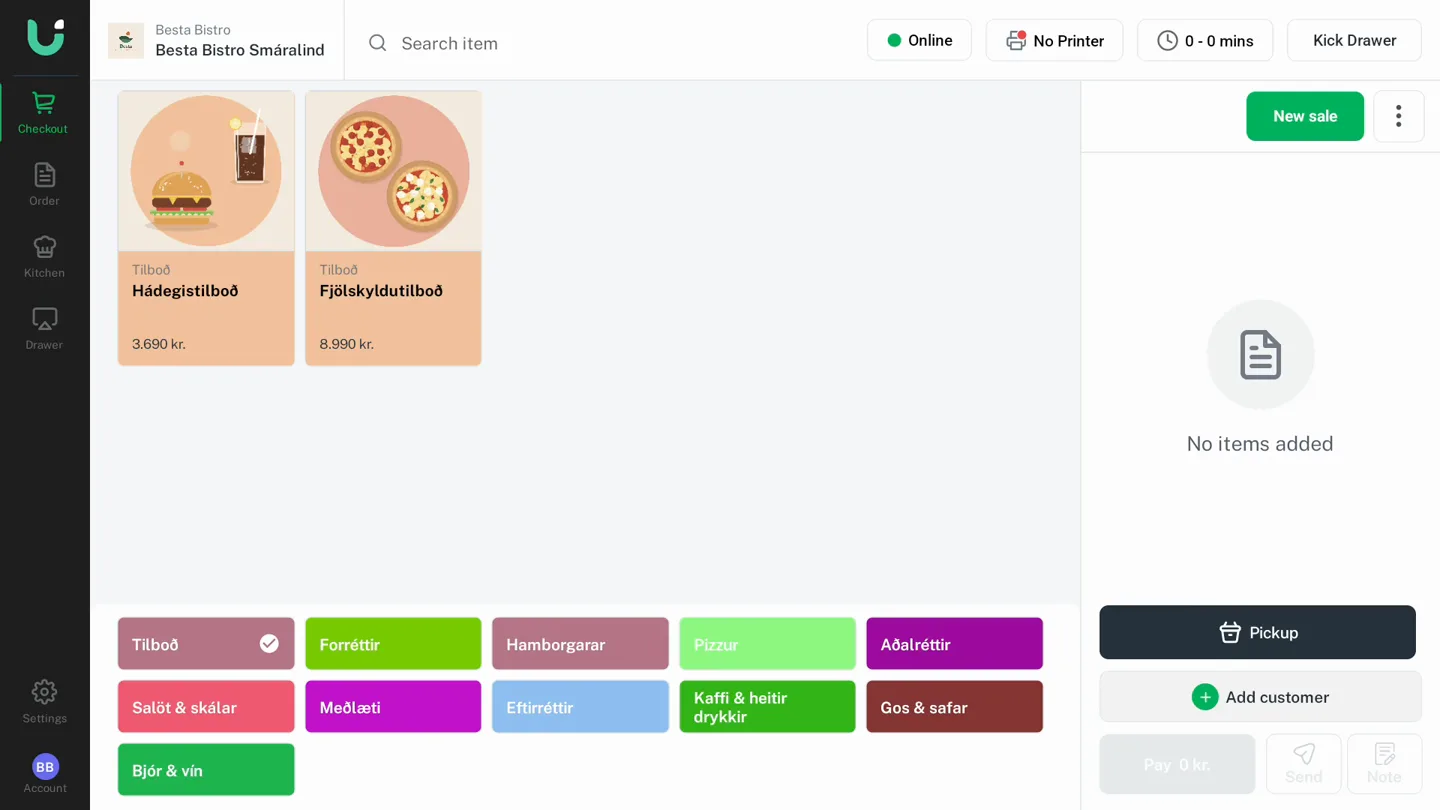
Ready
The device is connected and shows the branch’s menu. It’s ready to take orders.
Common questions
The code doesn’t work.
The code is valid for 30 minutes and only once. Create a new code in the dashboard and type it again.
I don’t see Devices in the menu.
You need admin access to connect devices. Ask the account owner or an admin to do it, or contact us.
The device is connected to the wrong branch.
Log the device out in the POS (Account → LOG OUT) and connect it again with a code for the right branch.
Didn’t find the answer?
We’re here. Give us a call or send a message.
Direct line
+354 519 2887
Call us when it’s urgent.
Live chat
Coming soon
Call or email us in the meantime.
hello@upsell.is
We reply the same day.