

All guides
Changing your opening hours
Each day’s hours, closing over lunch, days off, and special hours for holidays.
9 steps · 4 min read · Updated 20 October 2026
Opening hours are set per branch. The website and app show them to customers and follow them when people order online.
For holidays and days off, use special opening hours, which automatically replace the usual hours on that day.
- 1
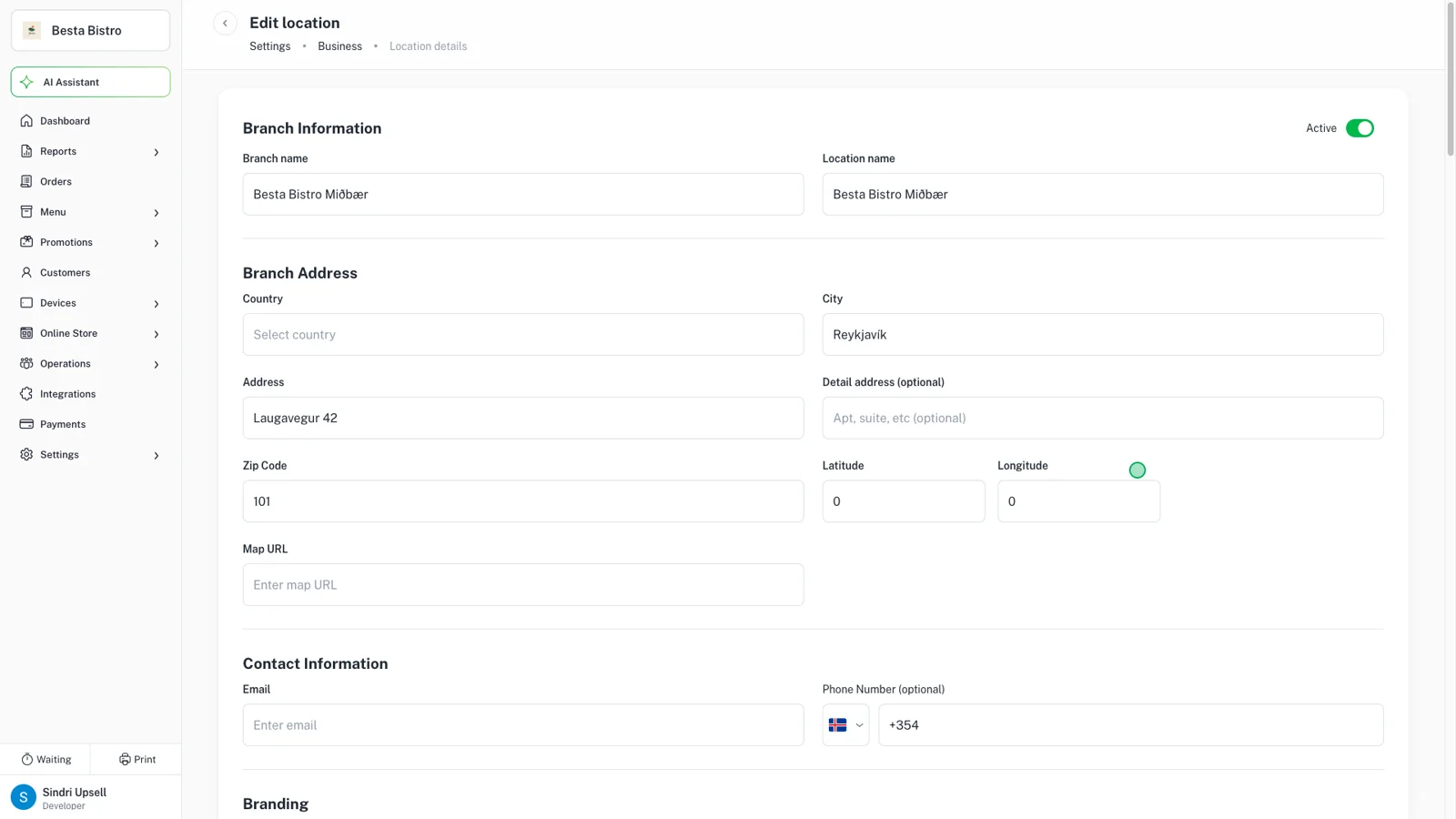
Open the branch
In the menu, open Settings and then Business. Choose the Branch tab and click the branch to change.
- 2
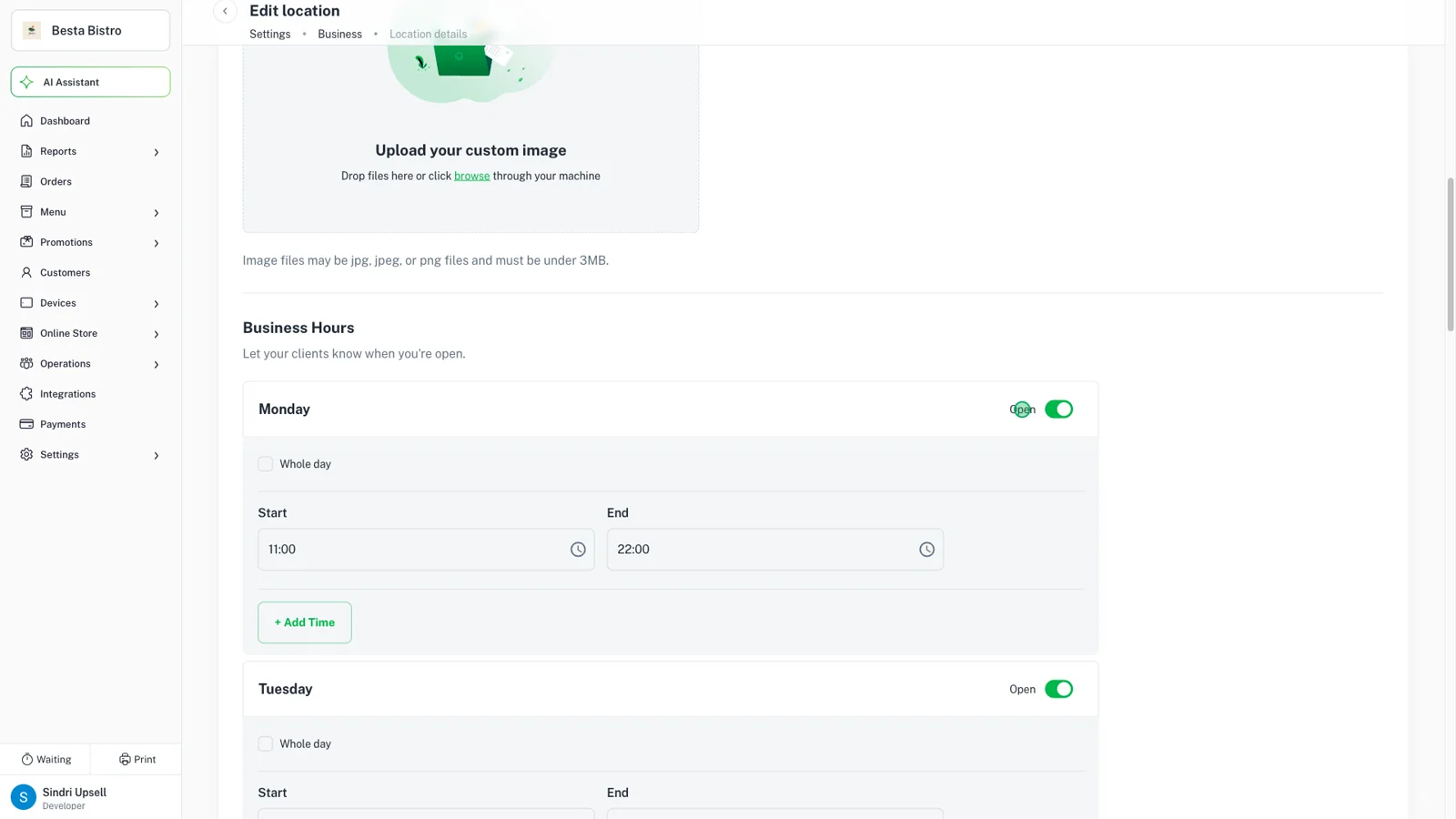
Each day’s hours
Under Business Hours, each day has a Start (opens) and an End (closes).
- 3
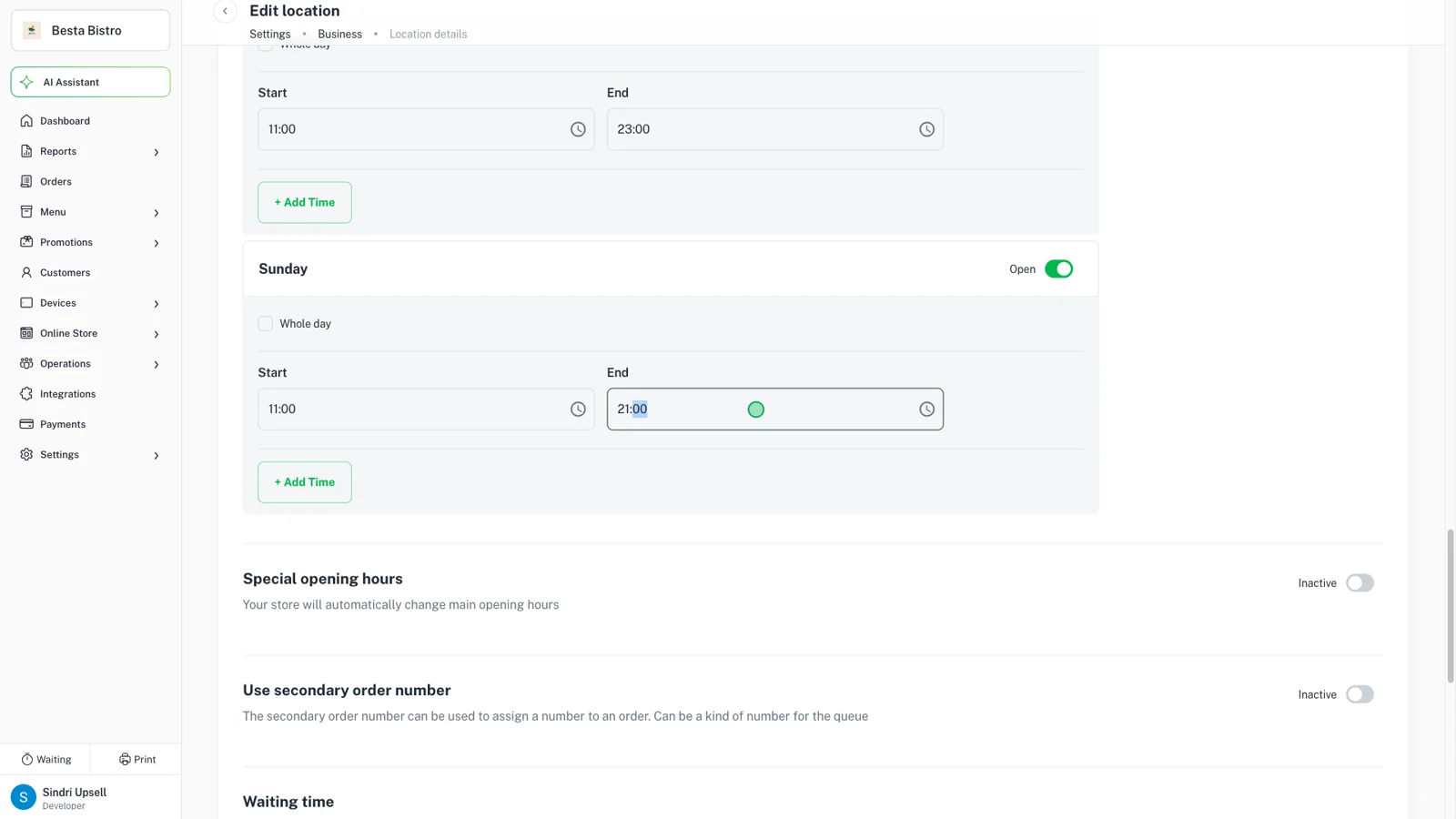
Change a time
Click the time and type a new one. Here, Sunday closes at 21:00 instead of 22:00.
- 4
Closed over lunch
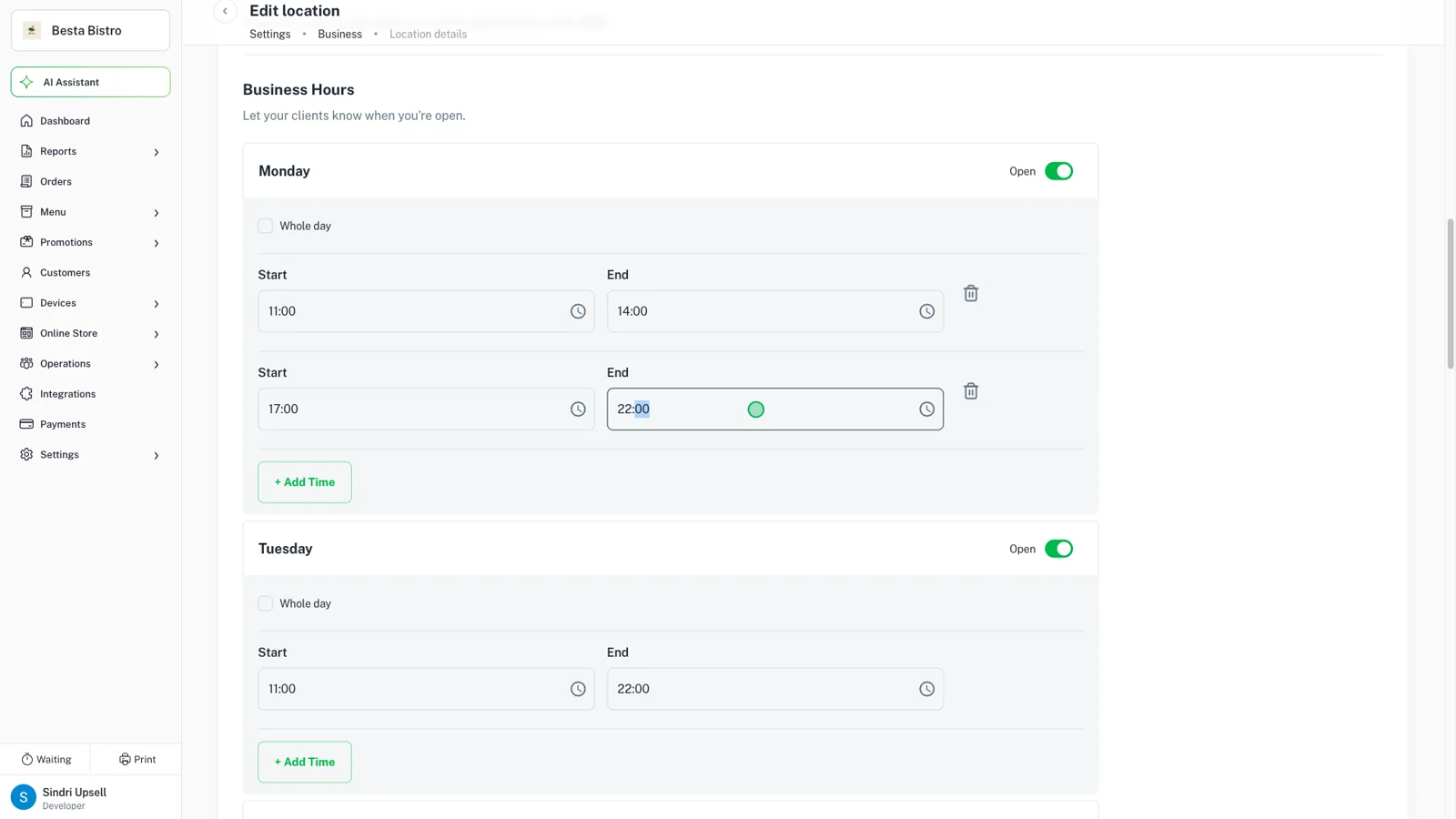
If you close for part of the day, split the day into two openings.
Make the first one end when you close, e.g. 11:00–14:00. Then click + Add Time and enter the second opening, e.g. 17:00–22:00.
The bin icon next to a time removes it again.
- 5
Days off and open all day
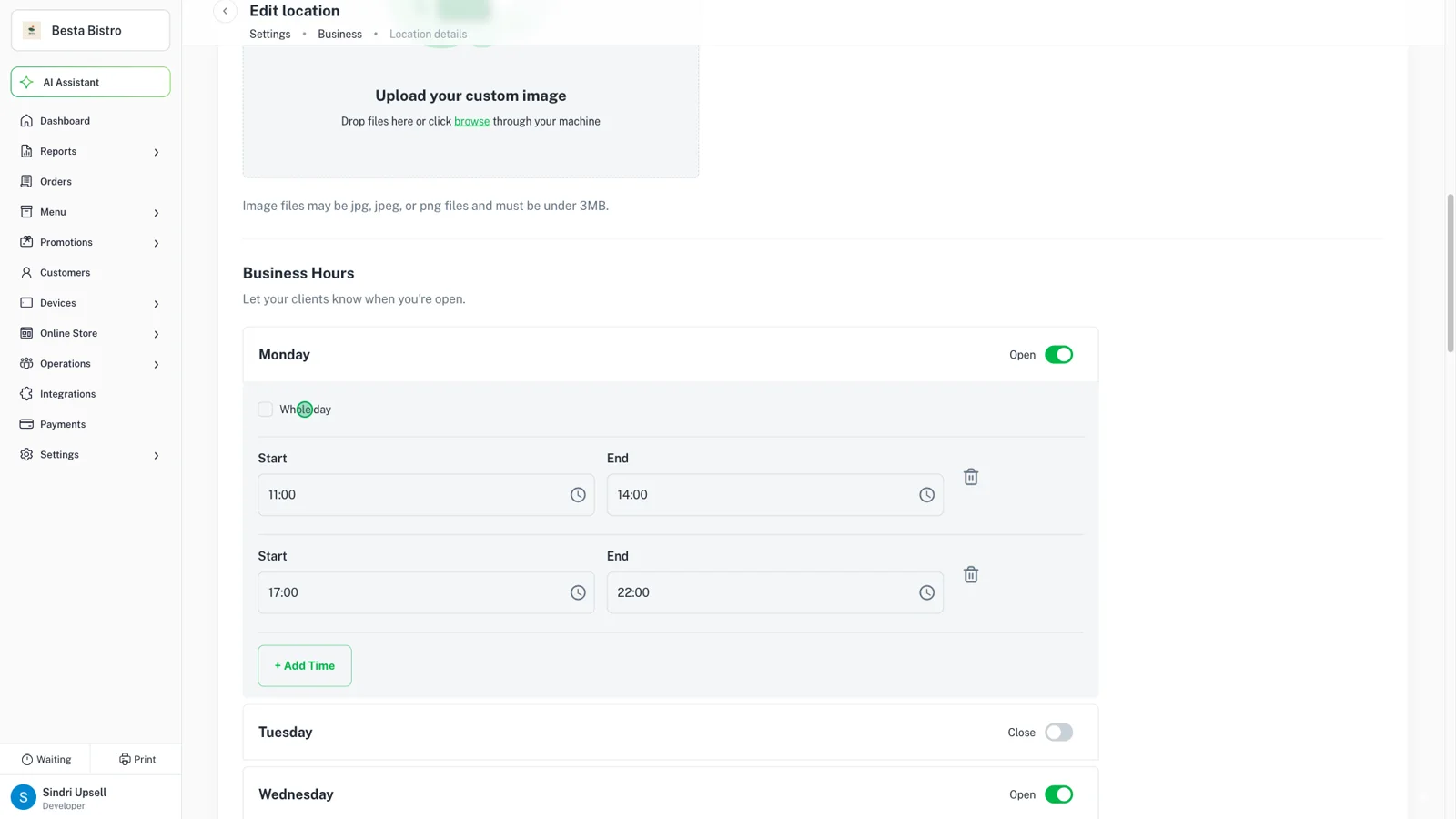
Switch Open off on days you’re normally closed; the day then reads Close.
If you’re open around the clock, tick Whole day.
- 6
Special opening hours
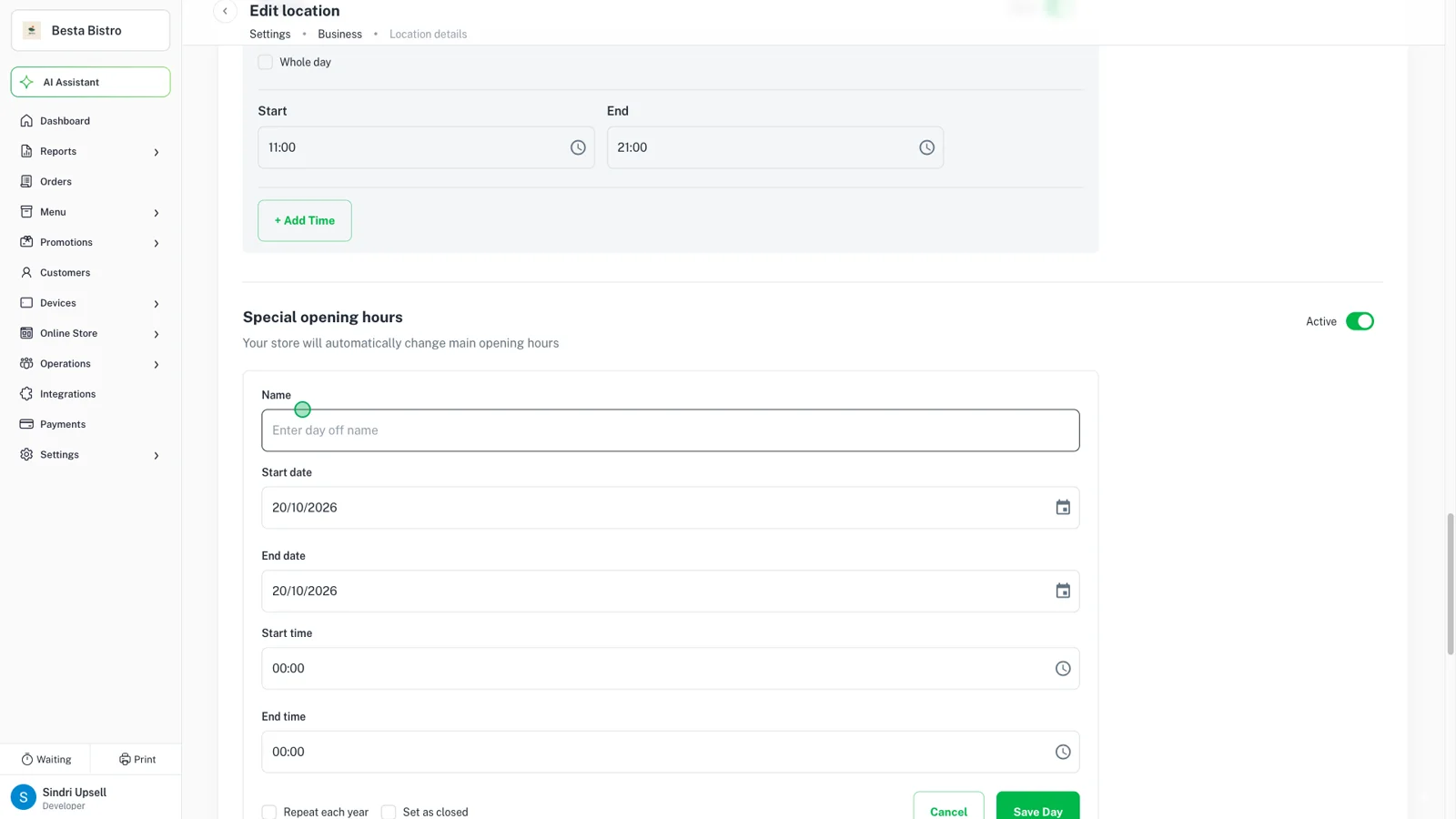
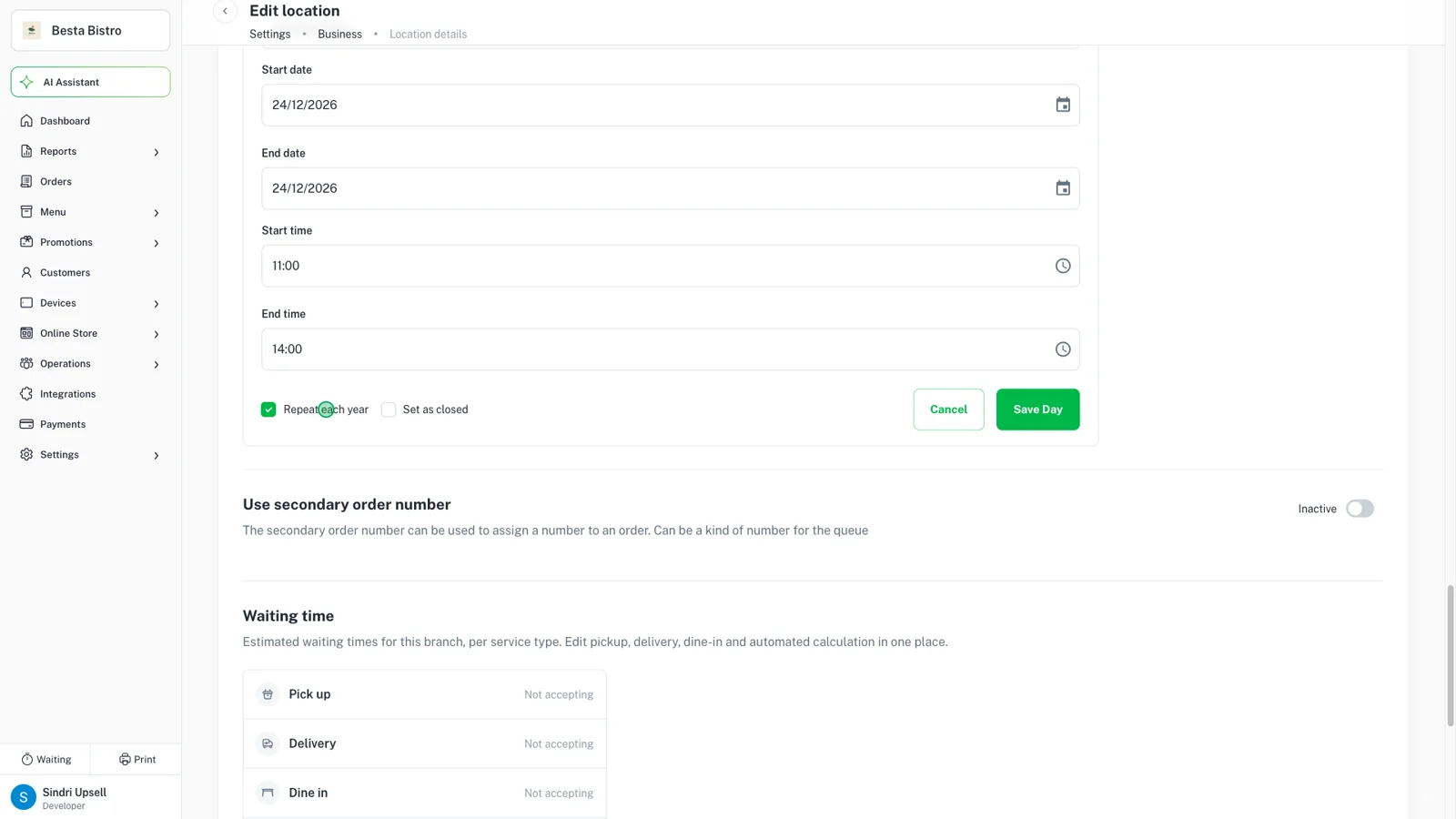
For holidays, switch on Special opening hours and click + Add Other Day.
- 7
Shorter hours on a holiday
Name the day, e.g. "Aðfangadagur" (Christmas Eve), set Start date and End date, and the hours in Start time and End time, e.g. 11:00–14:00.
Tick Repeat each year so you don’t have to add it again next year, and click Save day.
- 8
Closed on a holiday
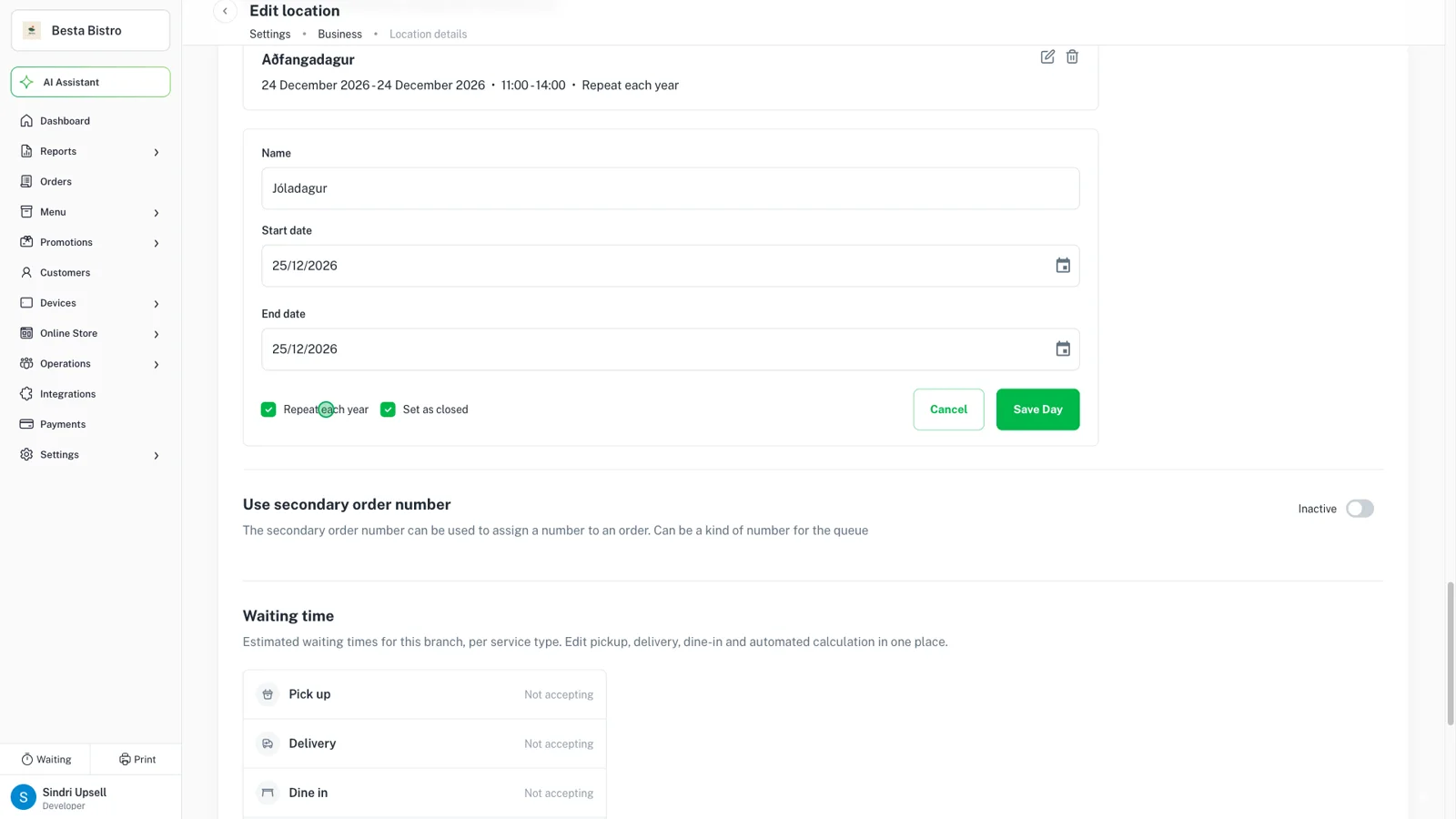
For a day you’re fully closed, e.g. Christmas Day, click + Add Other Day again, give it a name and date and tick Set as closed. No times needed.
The days are listed above; the pencil edits one and the bin removes it.
- 9
Save
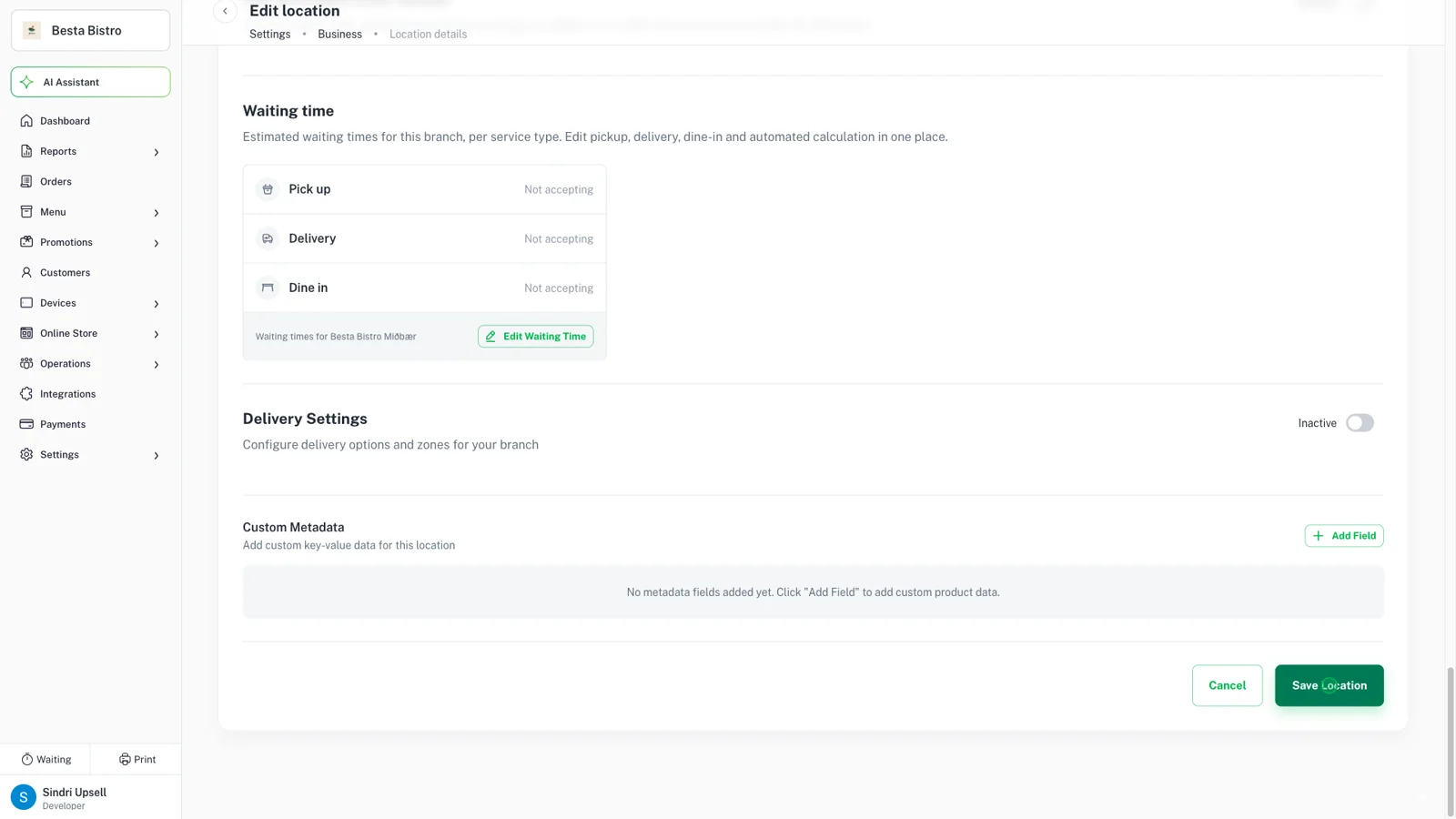
Click Save Location at the bottom of the page. The changes apply straight away, and special hours take over by themselves on the day.
Save day doesn’t save on its own. Nothing changes until you click Save Location.
Common questions
I have two branches. Do I change both?
Yes, hours are set per branch. Open the other branch under Branch and repeat.
Where do I set order waiting times?
On the same page, under Waiting time → Edit Waiting Time, for pickup, delivery and dine-in.
Didn’t find the answer?
We’re here. Give us a call or send a message.
Direct line
+354 519 2887
Call us when it’s urgent.
Live chat
Coming soon
Call or email us in the meantime.
hello@upsell.is
We reply the same day.