

All guides
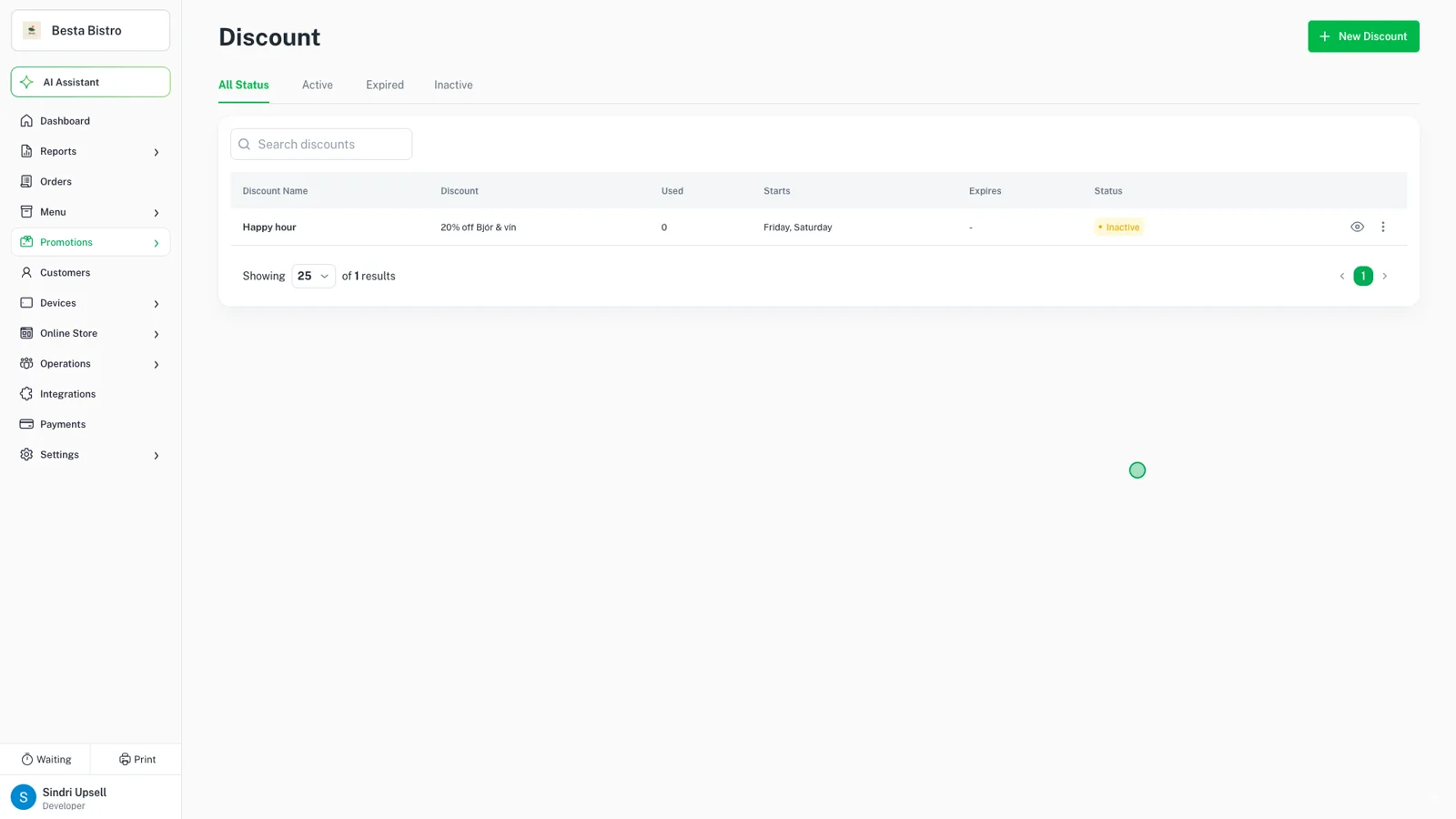
Discounts on products and categories, like a happy hour
Create a discount that applies automatically to chosen products or categories: always, for a set period, or at fixed times each week.
7 steps · 4 min read · Updated 20 October 2026
Dashboard discounts apply automatically to orders that meet the conditions, so no code is needed. You choose which branches, channels and items it covers, and when.
Want a code the customer types in instead? Use Coupons under Promotions.
- 1
Open New Discount
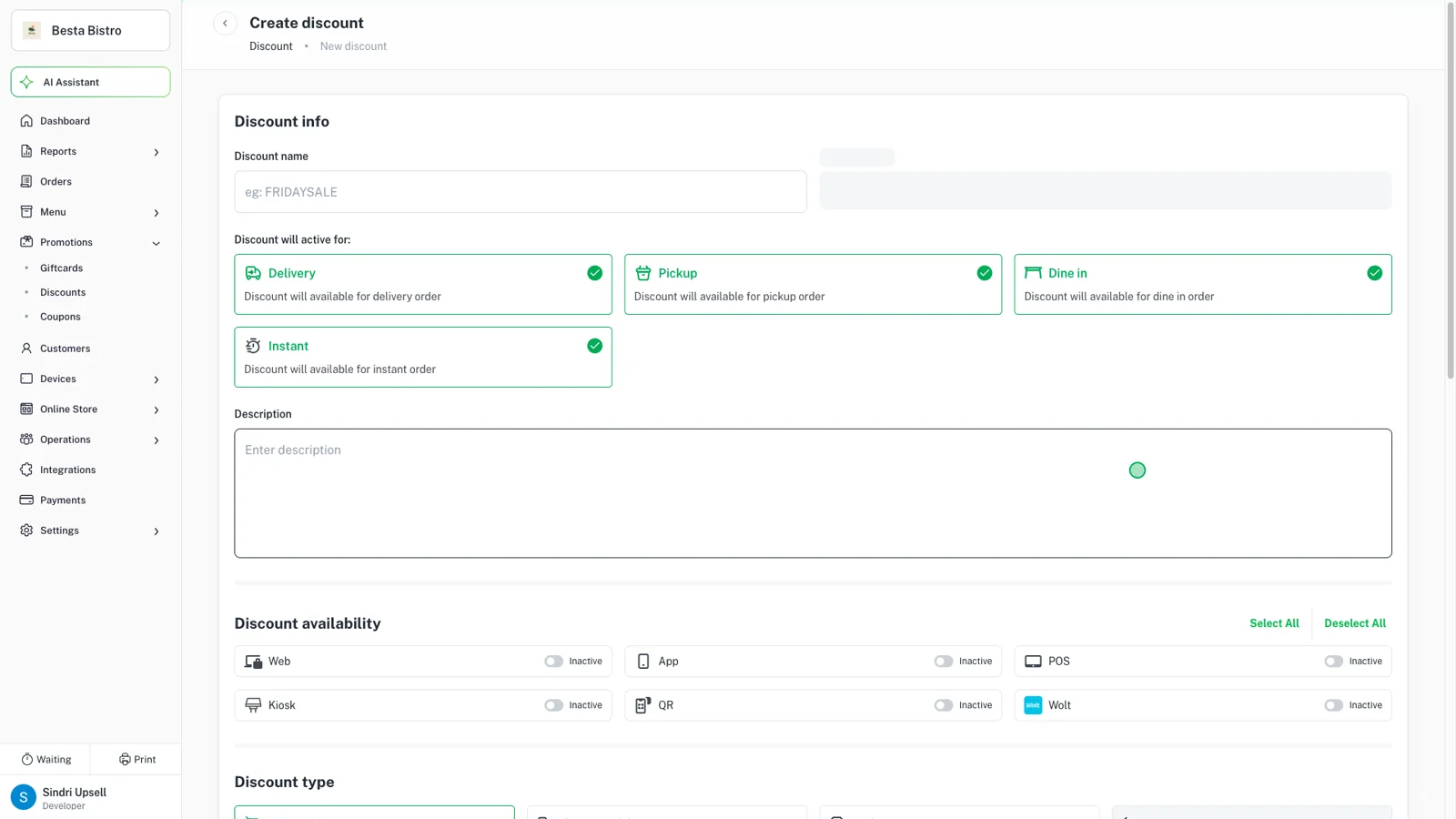
In the menu, open Promotions and then Discounts. It lists every discount.
Click New Discount.
- 2
Name, branches and order types
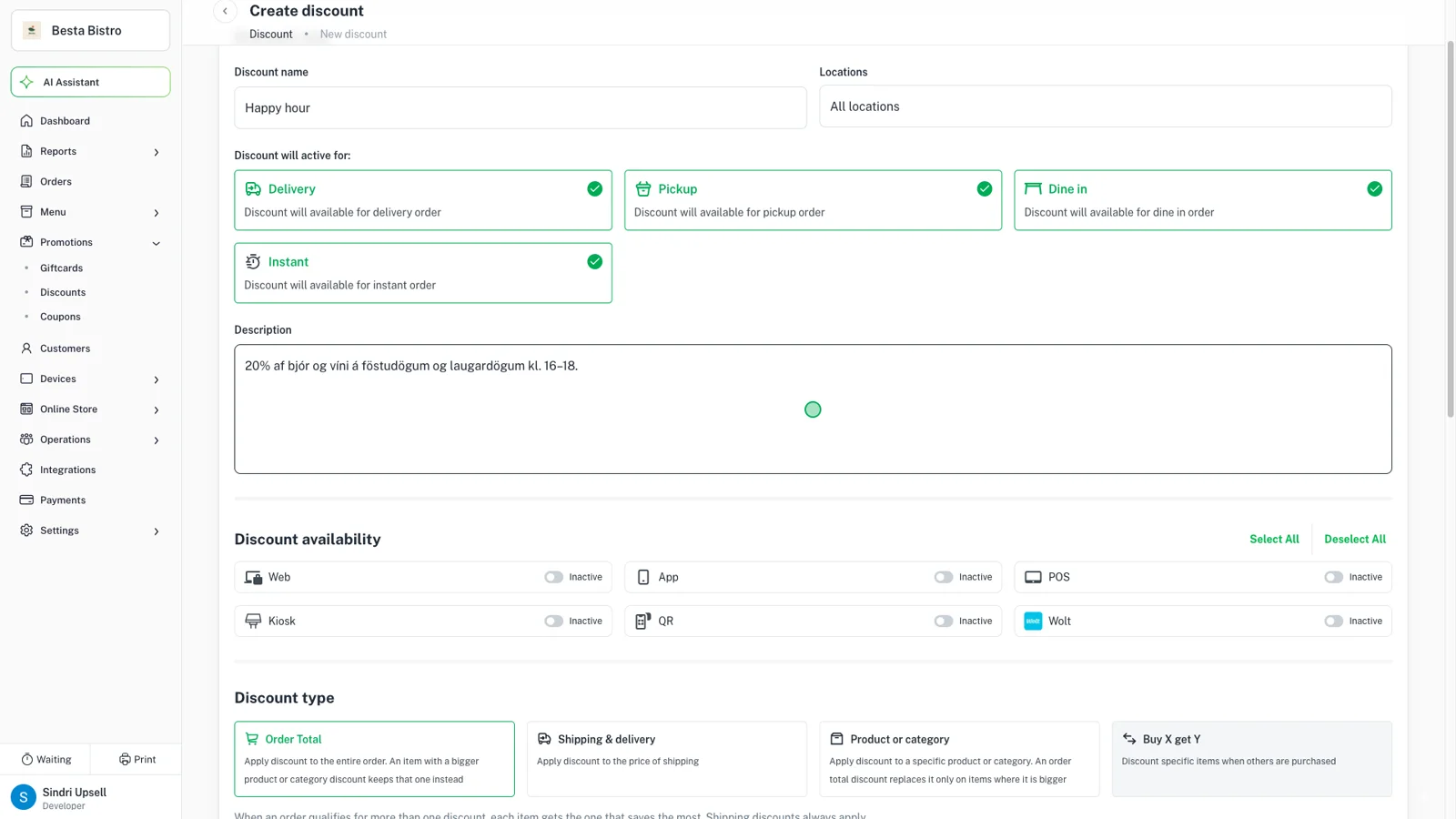
Give the discount a name under Discount name. It shows on receipts and in reports.
Pick the branches under Locations, e.g. All Locations.
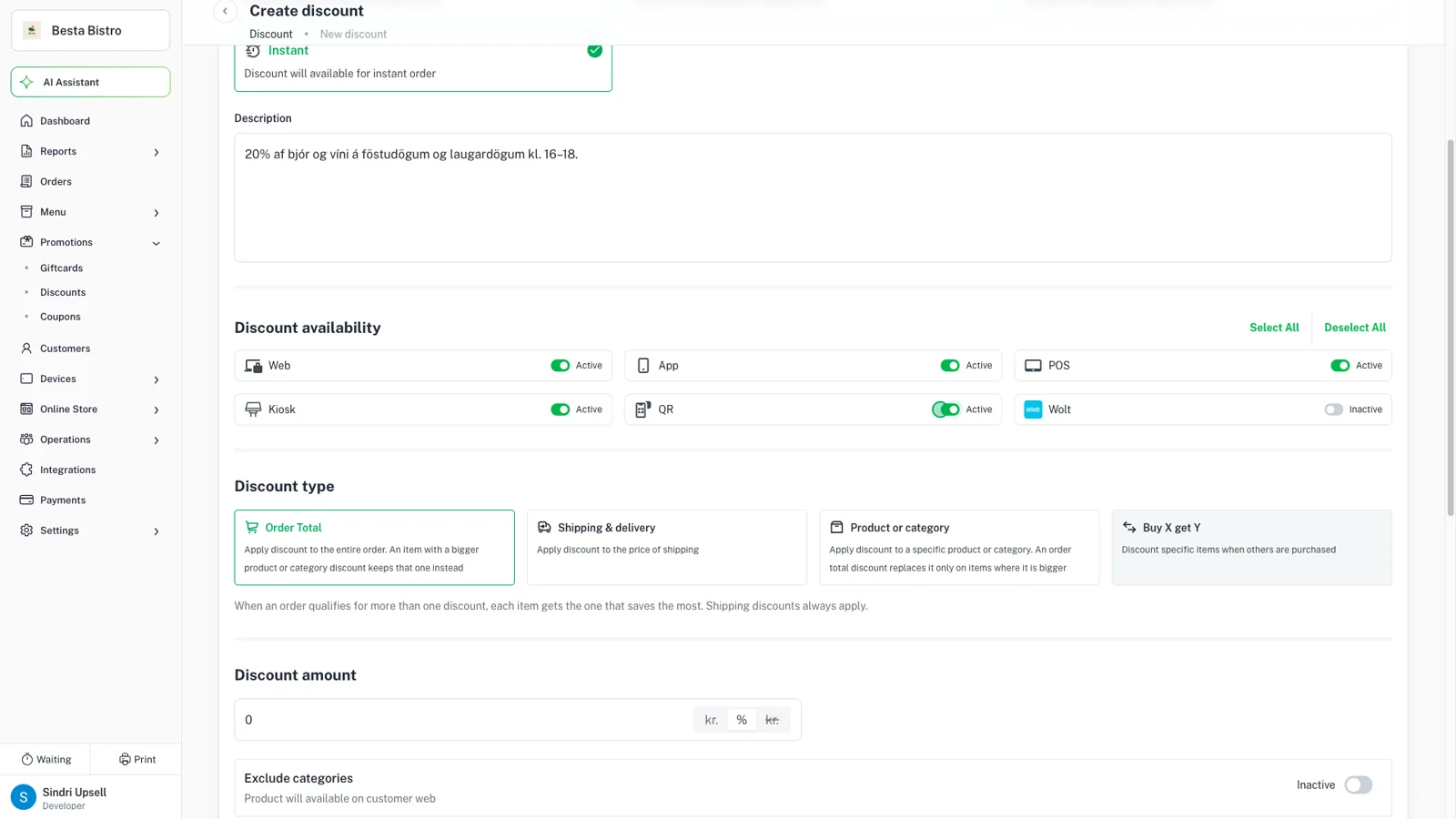
Under "Discount will active for:" choose which orders get it: Delivery, Pickup, Dine in and Instant. All are selected to begin with.
- 3
Switch on the channels
Under Discount availability, switch on the channels it applies to: Web, App, POS, Kiosk, QR and Wolt.
They all start off. The discount works nowhere until at least one is on.
- 4
Choose Product or category and the amount
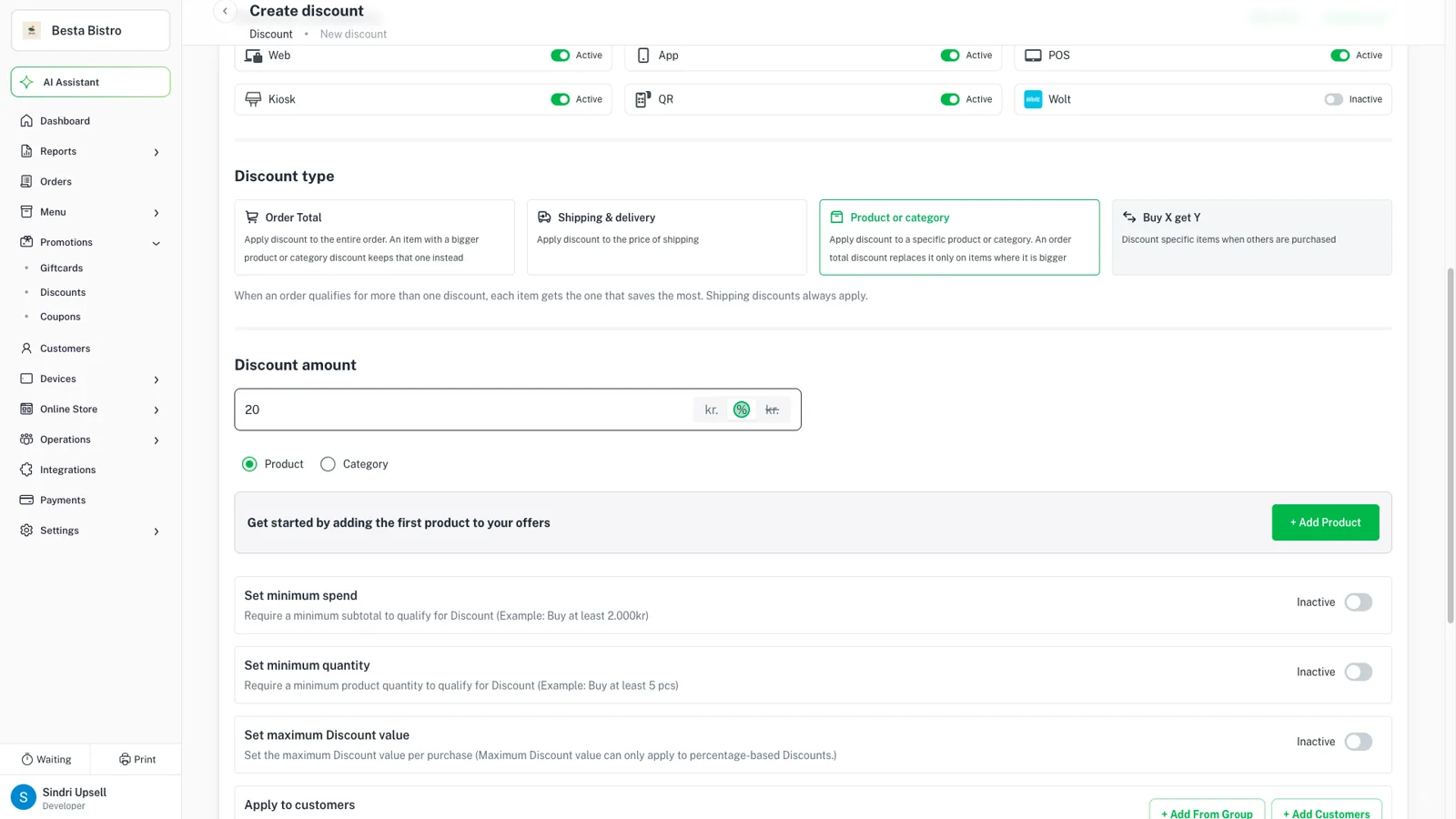
Under Discount type, choose Product or category.
Enter the amount under Discount amount and pick the unit: % (percentage), kr. (fixed amount off) or struck-through kr. (the item sells at exactly that price).
- 5
Add products or categories
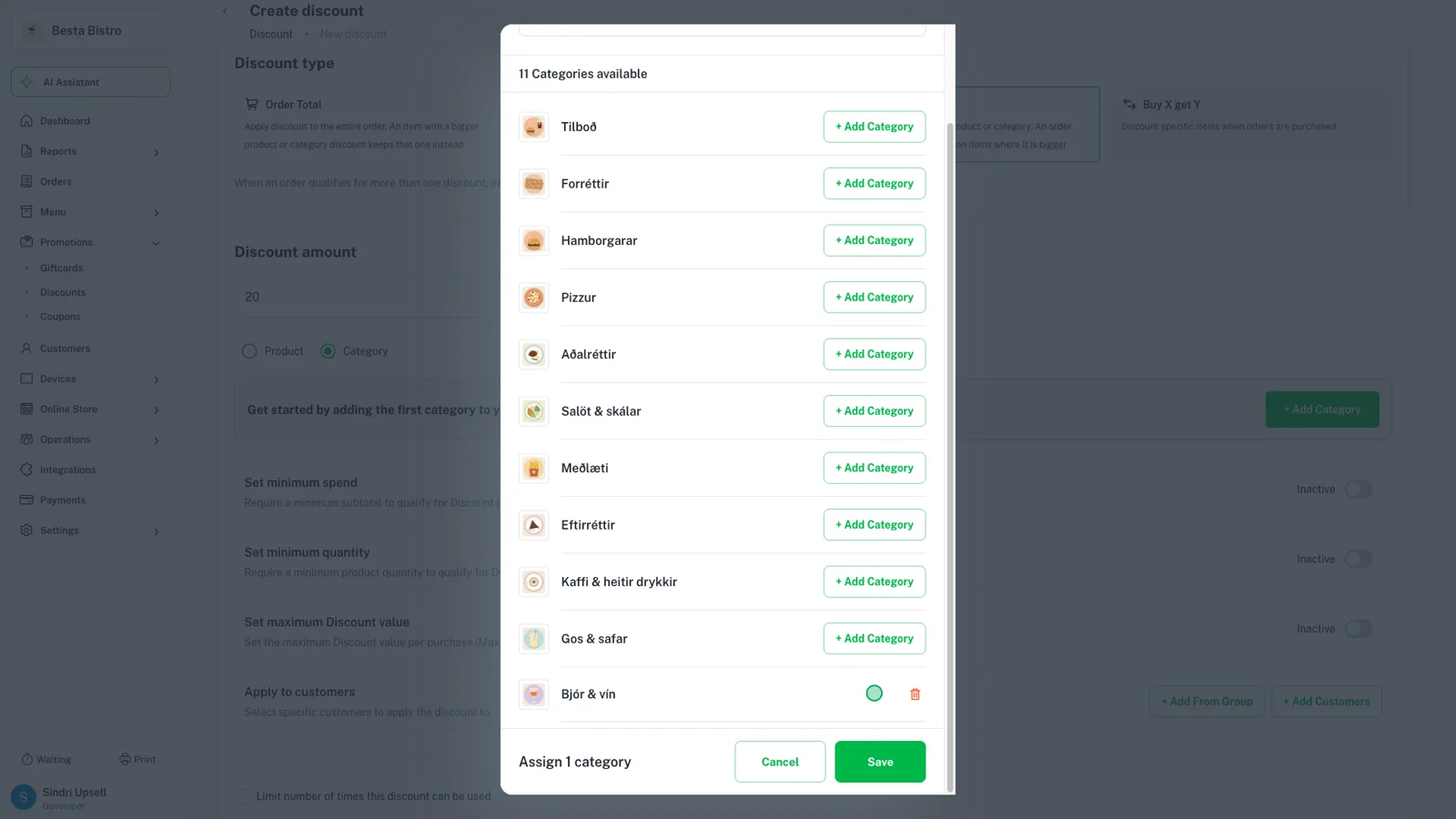
Choose Product to pick single items, or Category for whole categories.
Click + Add Category (or + Add product), then + Add Category next to each one to include, then Save.
With categories you can leave single items out under Exclude product.
- 6
When does it apply?
With Active date off, the discount always applies.
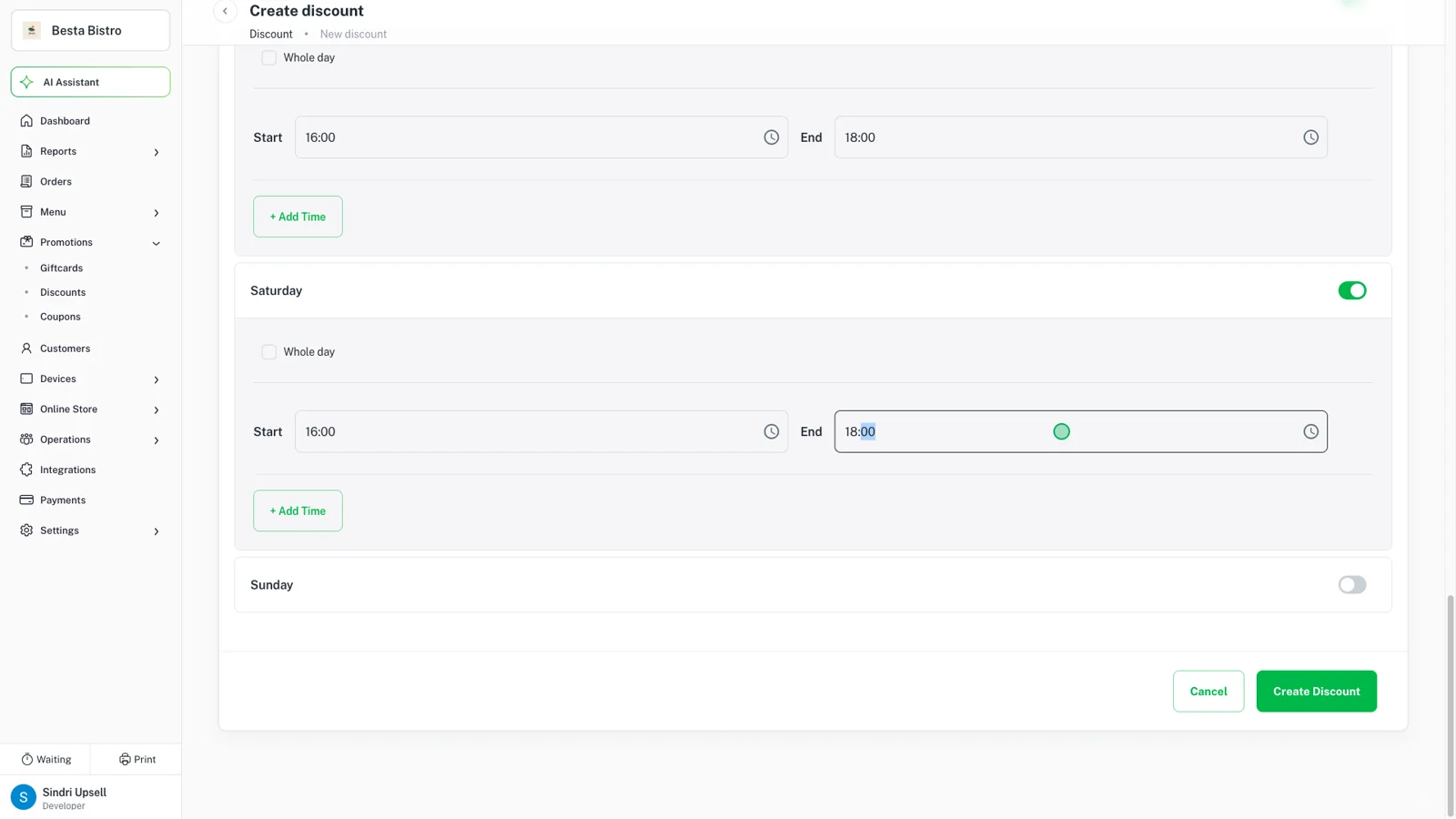
Switch on Active date and choose Periods for set dates (e.g. 1–15 December) or Schedule for fixed times each week.
With Schedule, switch on the days and set Start and End, e.g. 16:00–18:00, or tick Whole day. + Add Time adds more windows on the same day.
- 7
Save
Optional: Set minimum spend, Set minimum quantity, a maximum discount value and limits on how many times it can be used.
Click Create Discount. It appears in the list and applies by itself to every matching order.
A scheduled discount reads Active in the list only during its hours; outside them it reads Inactive.
Common questions
The discount doesn’t show at the till.
Check that POS is on under Discount availability, the right branch is selected, the order type (e.g. Pickup) is ticked and the time matches Active date.
What if an order qualifies for more than one discount?
Each item gets the discount that saves the most. Shipping discounts always apply on top.
How does the customer see it online?
It’s applied automatically and shows as an "Afsláttur" line in the order summary.
Didn’t find the answer?
We’re here. Give us a call or send a message.
Direct line
+354 519 2887
Call us when it’s urgent.
Live chat
Coming soon
Call or email us in the meantime.
hello@upsell.is
We reply the same day.