

All guides
Creating a punch card (klippikort)
Sell prepaid punch cards, e.g. 10 burgers for the price of 9, that customers use one klipp at a time at the till, online or in the app.
5 steps · 4 min read · Updated 11 November 2026
A klippikort is a bundle of klipp the customer pays for up front. Each klipp is good for one item from a list you choose, such as one burger or one coffee.
You first create a template with the products, pack sizes and prices. Customers then buy the card themselves, or you issue one by hand in the dashboard.
Before you start
- Klippikort shows up under Promotions → Klippikort once it has been switched on for your store. If you don’t see it, contact us.
- All products on the card need the same VAT rate, e.g. all at 11%.
- 1
Open New Klippikort
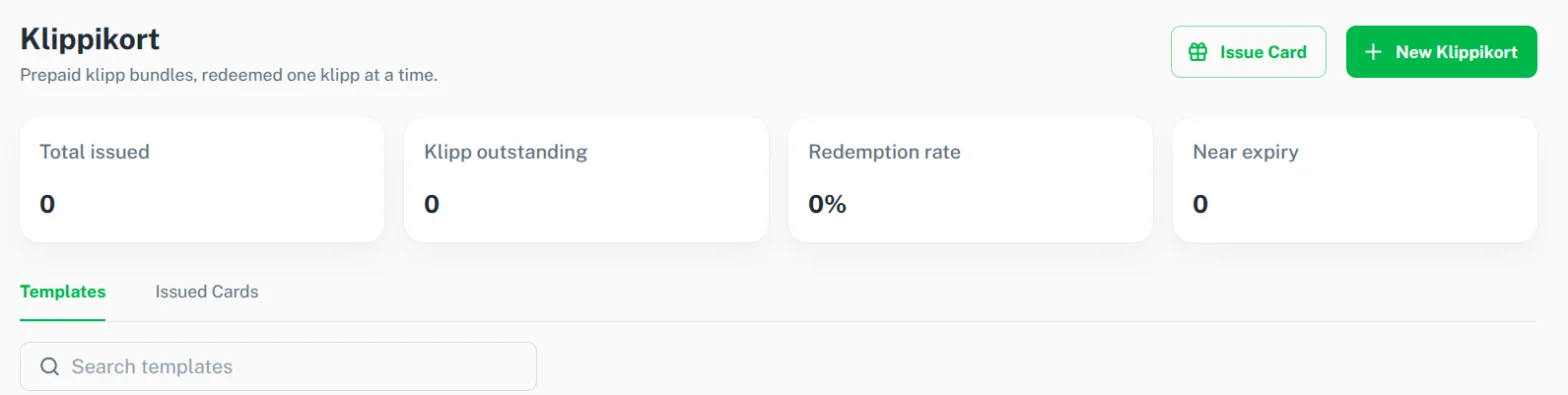
In the menu, open Promotions → Klippikort and click + New Klippikort at the top right.
The tiles at the top show how many cards have been issued (Total issued), how many klipp are unused (Klipp outstanding), the share used (Redemption rate) and cards about to expire (Near expiry).
- 2
Name, visibility and channels
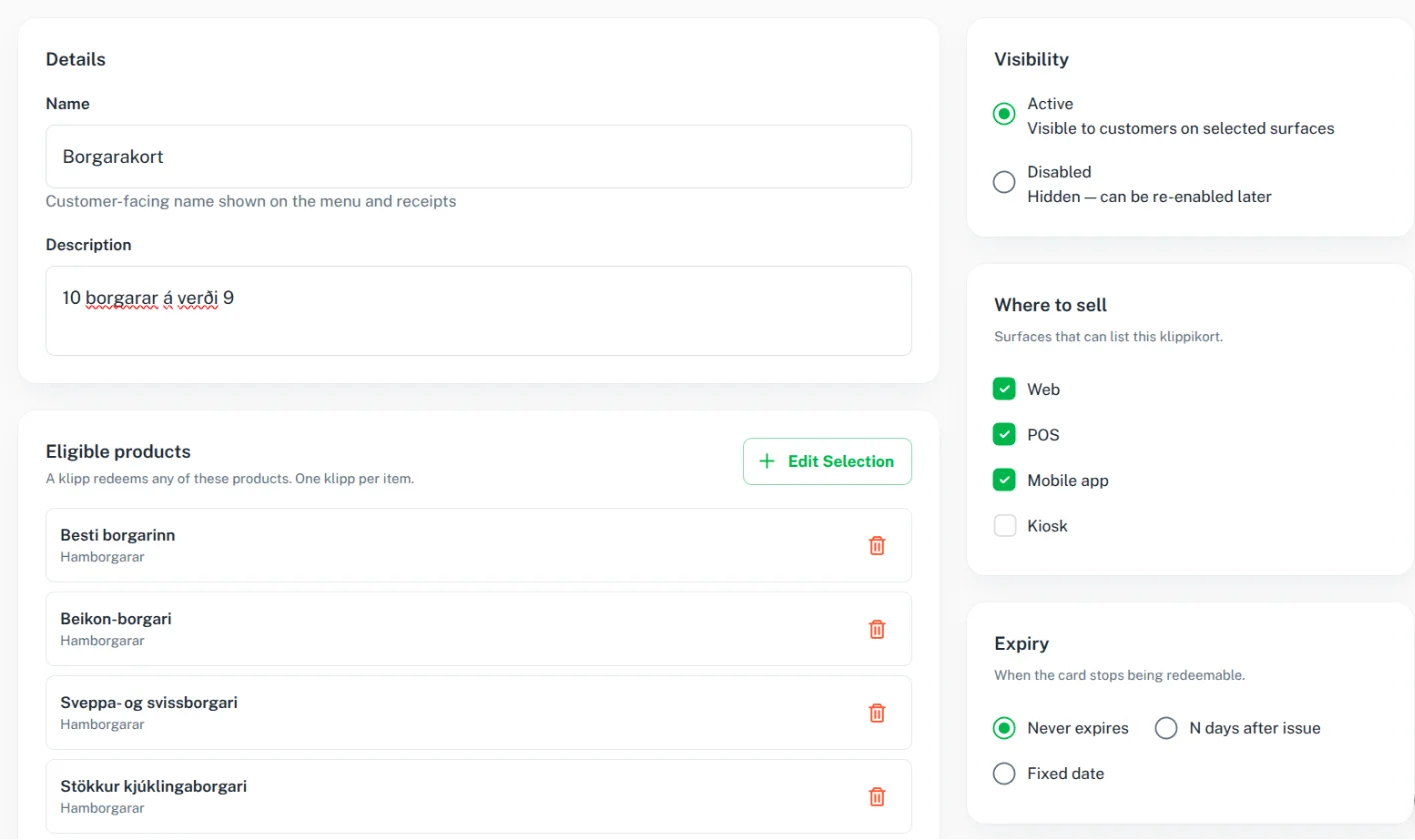
Give the card a Name, e.g. Burger card. It shows on the menu and on receipts. Description is a short line for customers and is optional.
Under Visibility, Active puts the card on sale. Disabled takes it off sale, and it can be switched back on later.
Under Where to sell, tick where the card is sold: Web, POS, Mobile app and Kiosk.
- 3
Choose the products
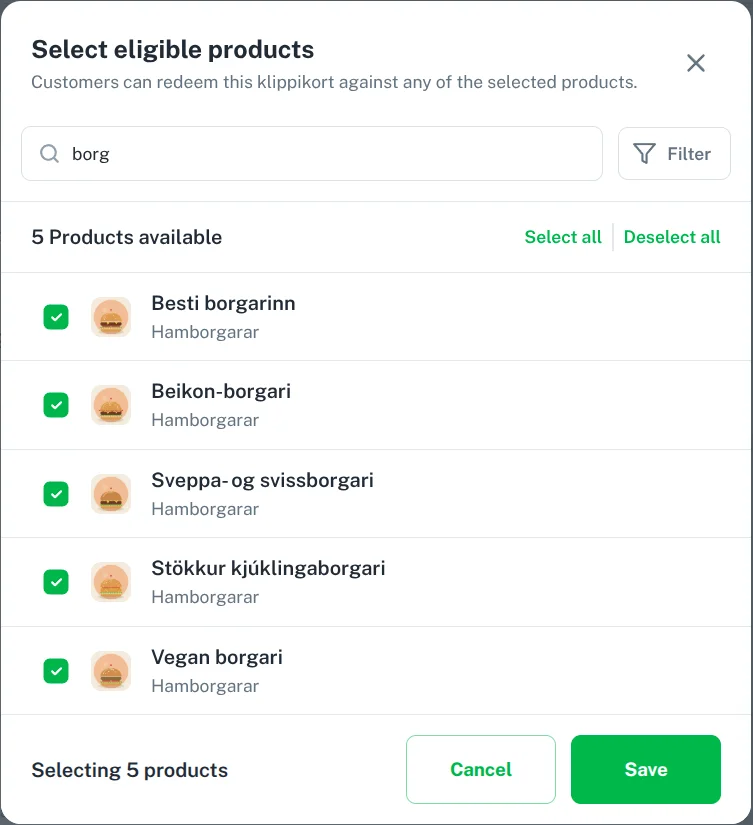
Under Eligible products, click + Select Products. Search, e.g. "burger", tick the products (or Select all) and click Save.
Each klipp is good for one item from the list. If the card should cover every size or variant, select them all.
If the products don’t share one VAT rate a warning appears, and you remove products until they do.
- 4
Packs, prices and expiry
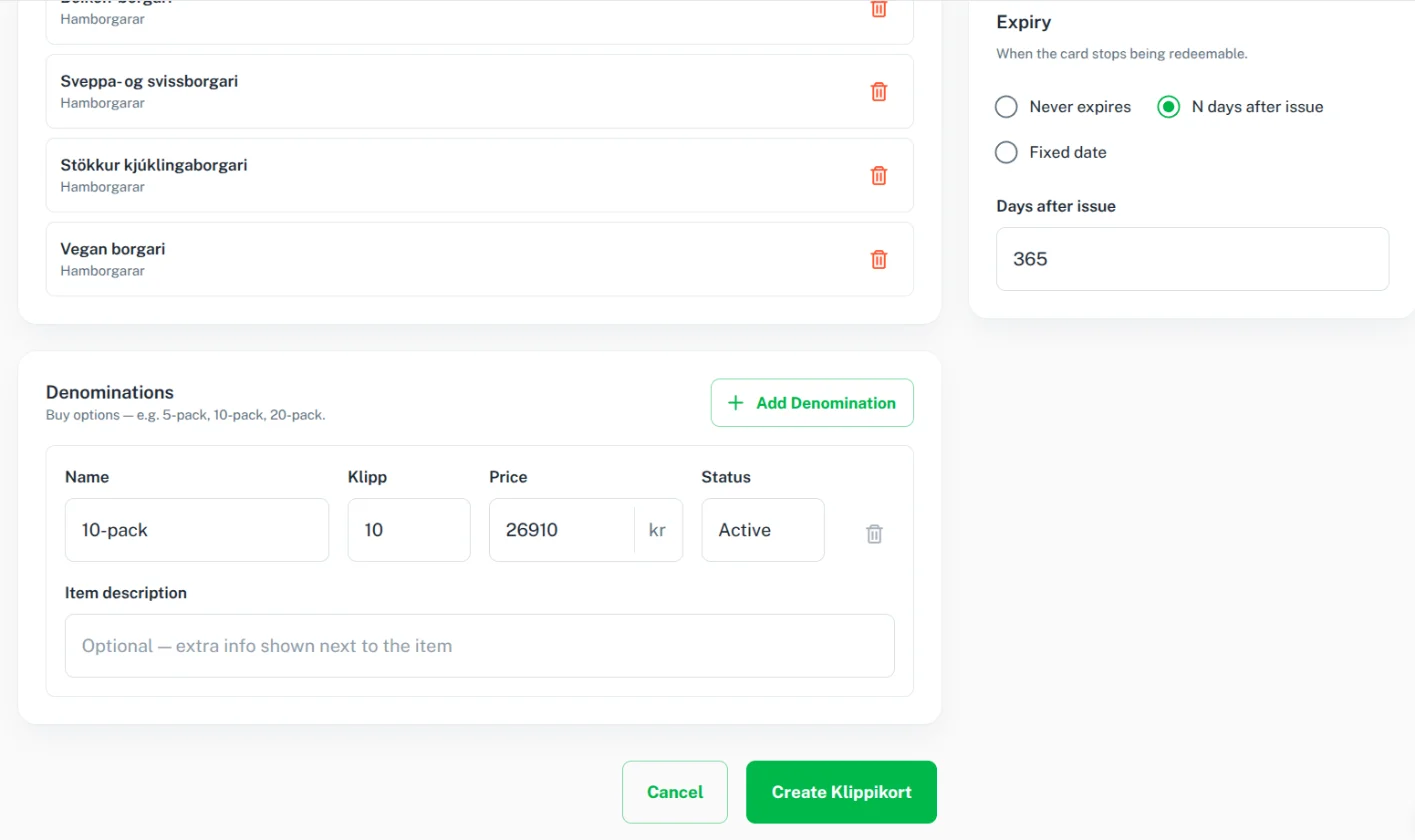
Under Denominations, set up the packs you sell. For each: Name (e.g. 10-pack), Klipp (how many klipp) and Price (what the customer pays for the whole pack).
Example: a burger costs 2,990 kr and you want every 10th free. Set Klipp to 10 and Price to 26,910 kr (9 × 2,990).
+ Add Denomination adds more sizes, e.g. a 5-pack and a 20-pack.
Under Expiry, choose when the card stops working: Never expires, N days after issue (e.g. 365 days after purchase) or Fixed date.
Click Create Klippikort.
- 5
Issue a card by hand (optional)
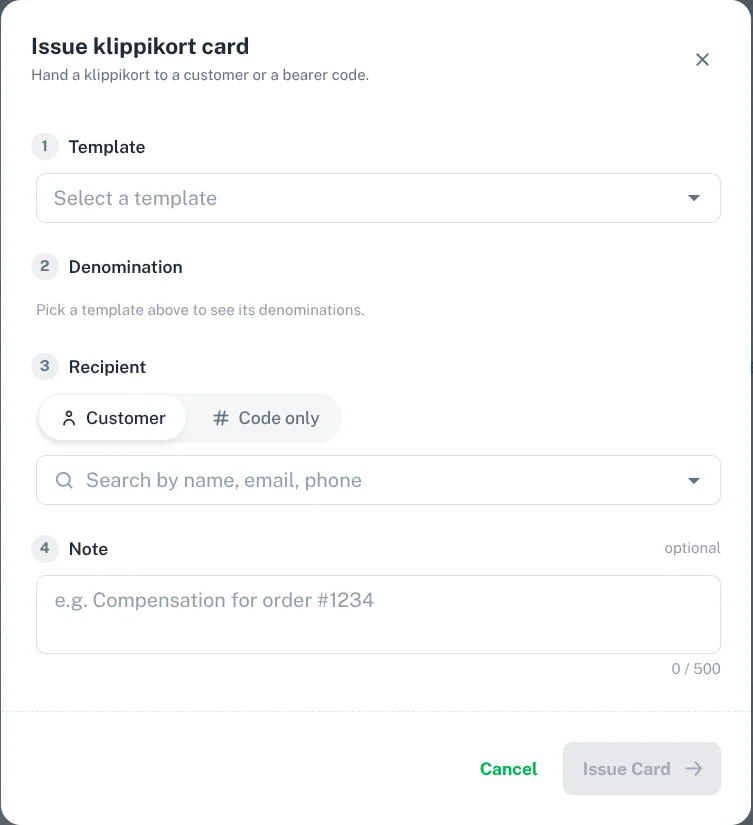
Customers buy the card themselves wherever it’s on sale. To give one away, e.g. as compensation or a gift, click Issue Card.
Pick the template under Template and the pack under Denomination.
Under Recipient, choose Customer to link the card to a customer, or Code only for a code anyone can use. Add a Note if you like and click Issue Card.
Common questions
How is a klippikort used at the till?
Add the item to the cart and tap Pay. Under Klippikort, scan the card’s QR code or type the code (Enter klippikort code). One klipp is taken for each eligible item. Redeem klipp before splitting the bill.
How do I check a customer’s card?
Open the Issued Cards tab and search by code, template or customer. The card’s page shows Klipp remaining and its history. You can also add klipp to the card there, or turn it off with Disable card.
Can I change the price or products later?
Yes, click the template under Templates. Cards already issued keep their own product list and klipp count, so changes apply to cards sold from then on.
Where do I see klippikort sales?
Under Reports → Sales by klippikort.
Didn’t find the answer?
We’re here. Give us a call or send a message.
Direct line
+354 519 2887
Call us when it’s urgent.
Live chat
Coming soon
Call or email us in the meantime.
hello@upsell.is
We reply the same day.