

How can we help?
Step-by-step guides for the POS and the dashboard.
POS
Checkout, payments, gift cards and end of day.
Connecting a new POS device
Create a six-digit code in the dashboard and type it on the device. Takes about a minute and is done once.
Accepting a gift card as payment
Type or scan the code, check the balance and pay, including when the balance doesn’t cover everything.
Selling a gift card at the till
Pick an amount, give the card your own code if you like, and print it with a QR code.
Putting an order on an invoice
Charge an order to a company account, record who ordered, and print a receipt with the company ID.
Splitting a payment by item
Pay some items one way and the rest another, for example a free coffee voucher and a card.
Refunding an order
Find the order under Order and refund all of it, part of the amount or single items.
Turning off an item that has run out
Take an item off sale for 30 minutes, an hour, the rest of the day or until you turn it back on.
Running the end of day report
Count the drawer, run close of day and print the report, step by step.
Dashboard
Sales and reports, your menu, opening hours, discounts and codes.
See how your sales are doing
The key numbers on the dashboard home and the day-by-day sales report, and how to get them into a spreadsheet.
Adding a new item to your menu
Name, description, photo, category, price and channels, and the item is on your website, app and POS.
Changing your opening hours
Each day’s hours, closing over lunch, days off, and special hours for holidays.
Creating a company account
Add a company in the dashboard so its orders can be put on an invoice, at the till or online.
Discounts on products and categories, like a happy hour
Create a discount that applies automatically to chosen products or categories: always, for a set period, or at fixed times each week.
A discount for selected customers
Give specific customers or companies a discount that applies automatically when they order.
Creating a coupon code
A code customers type in at checkout, with a minimum spend and a per-customer limit.
Creating a gift card and putting it on sale
Set up a gift card with the amounts you sell, choose the channels, and sell it below its value, e.g. 10,000 kr for 8,000 kr.
Creating a punch card (klippikort)
Sell prepaid punch cards, e.g. 10 burgers for the price of 9, that customers use one klipp at a time at the till, online or in the app.
Videos
Watch how it’s done. Every video is under two minutes.
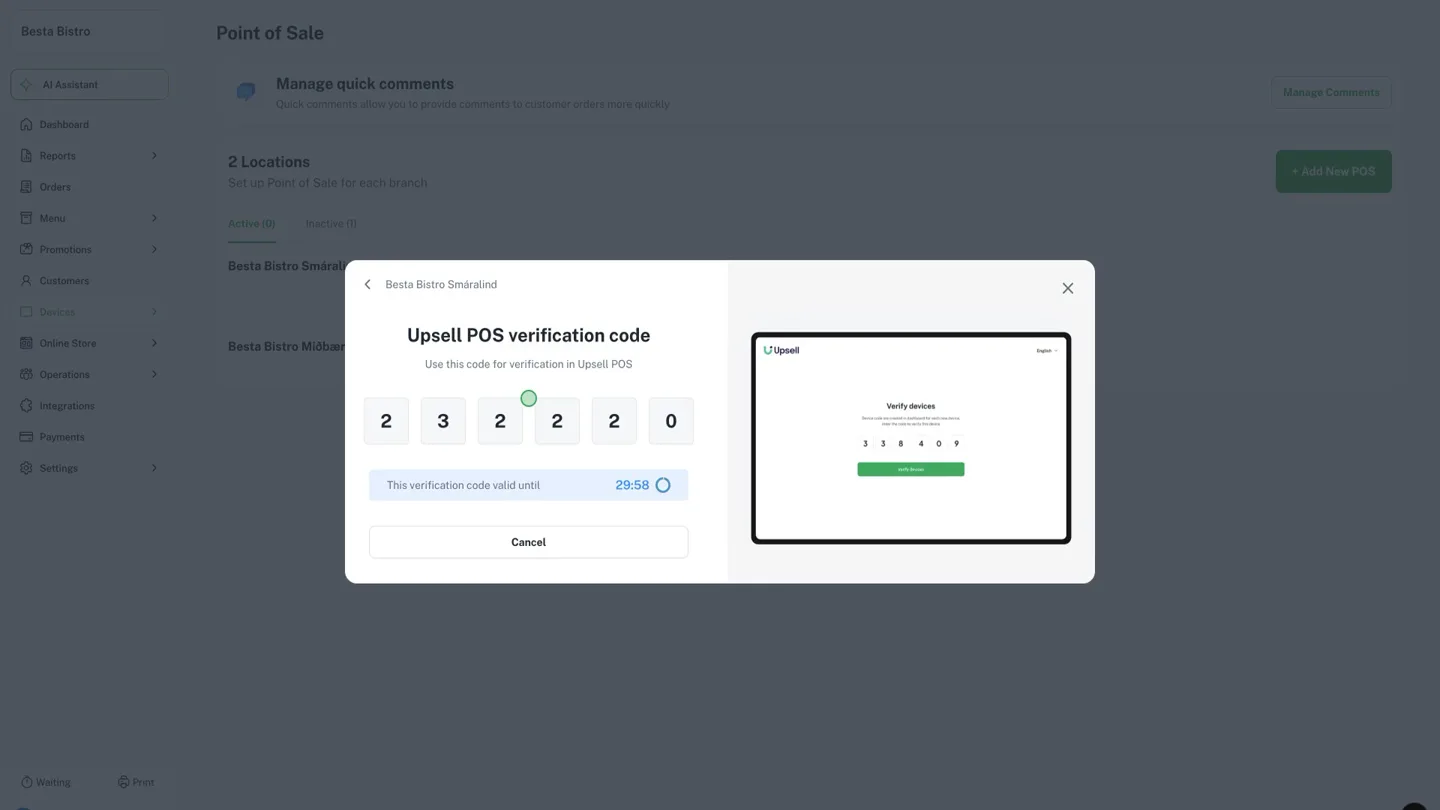
Connecting a new POS device
POS · 7 steps
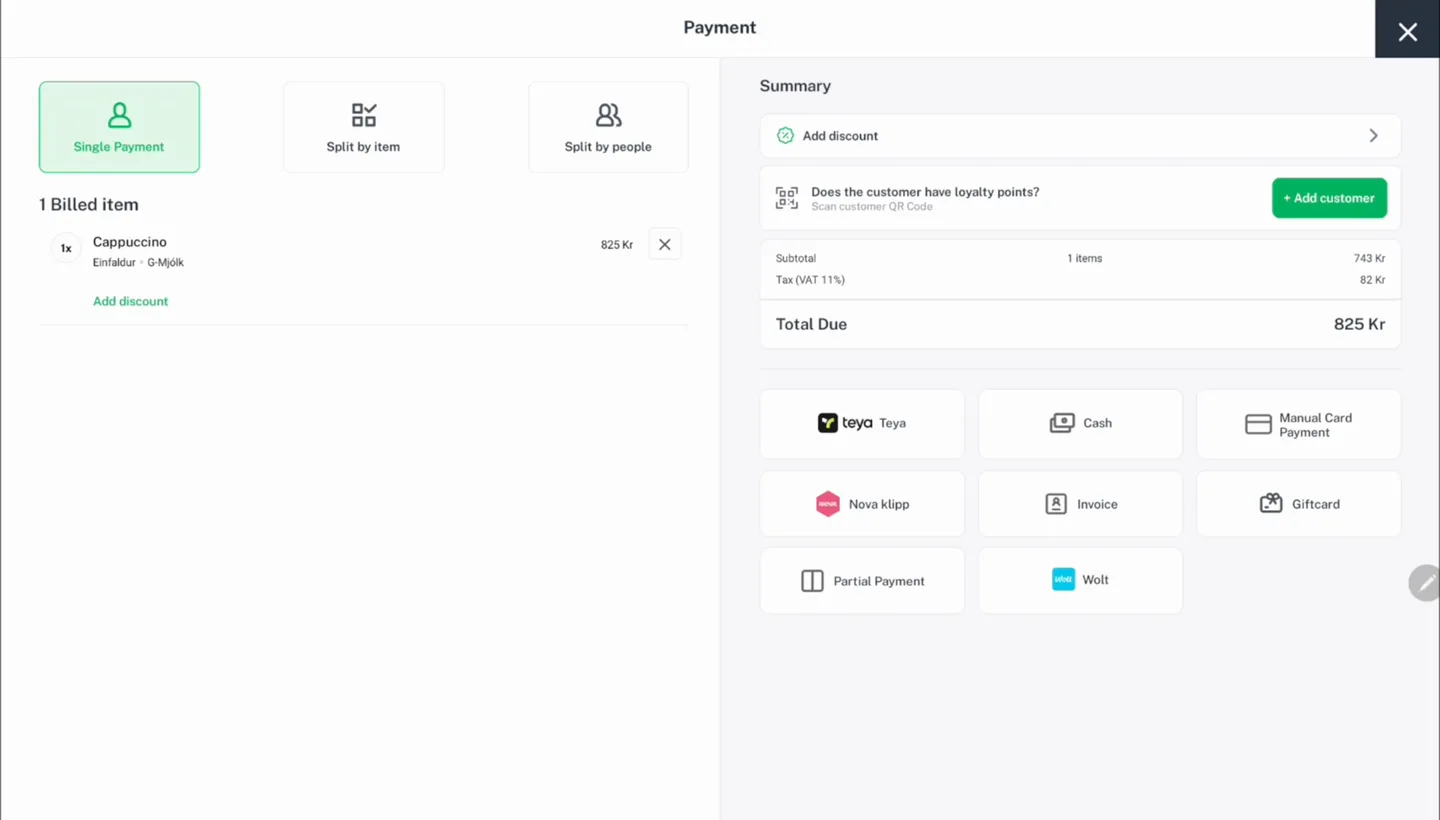
Accepting a gift card as payment
POS · 4 steps
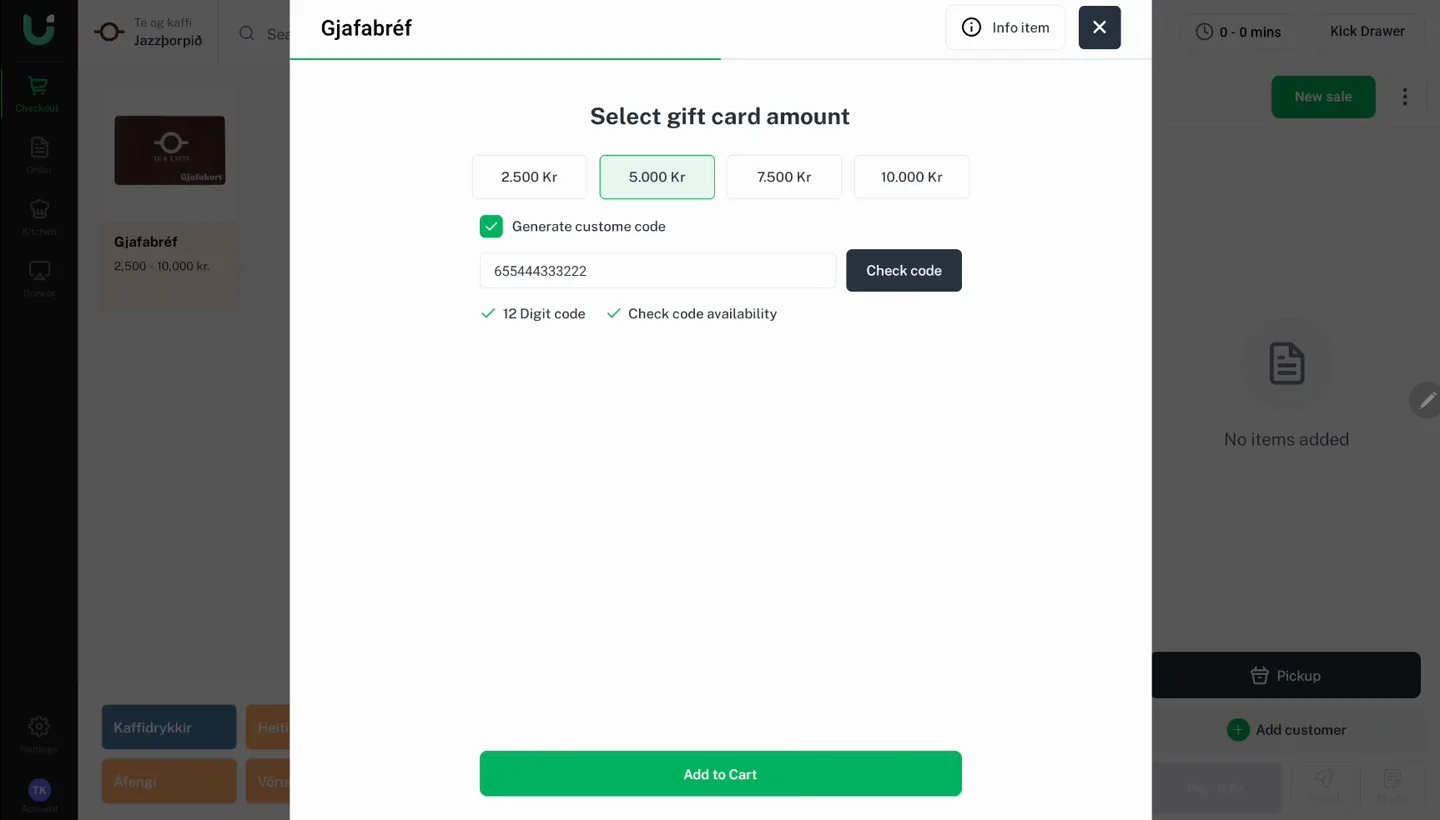
Selling a gift card at the till
POS · 5 steps
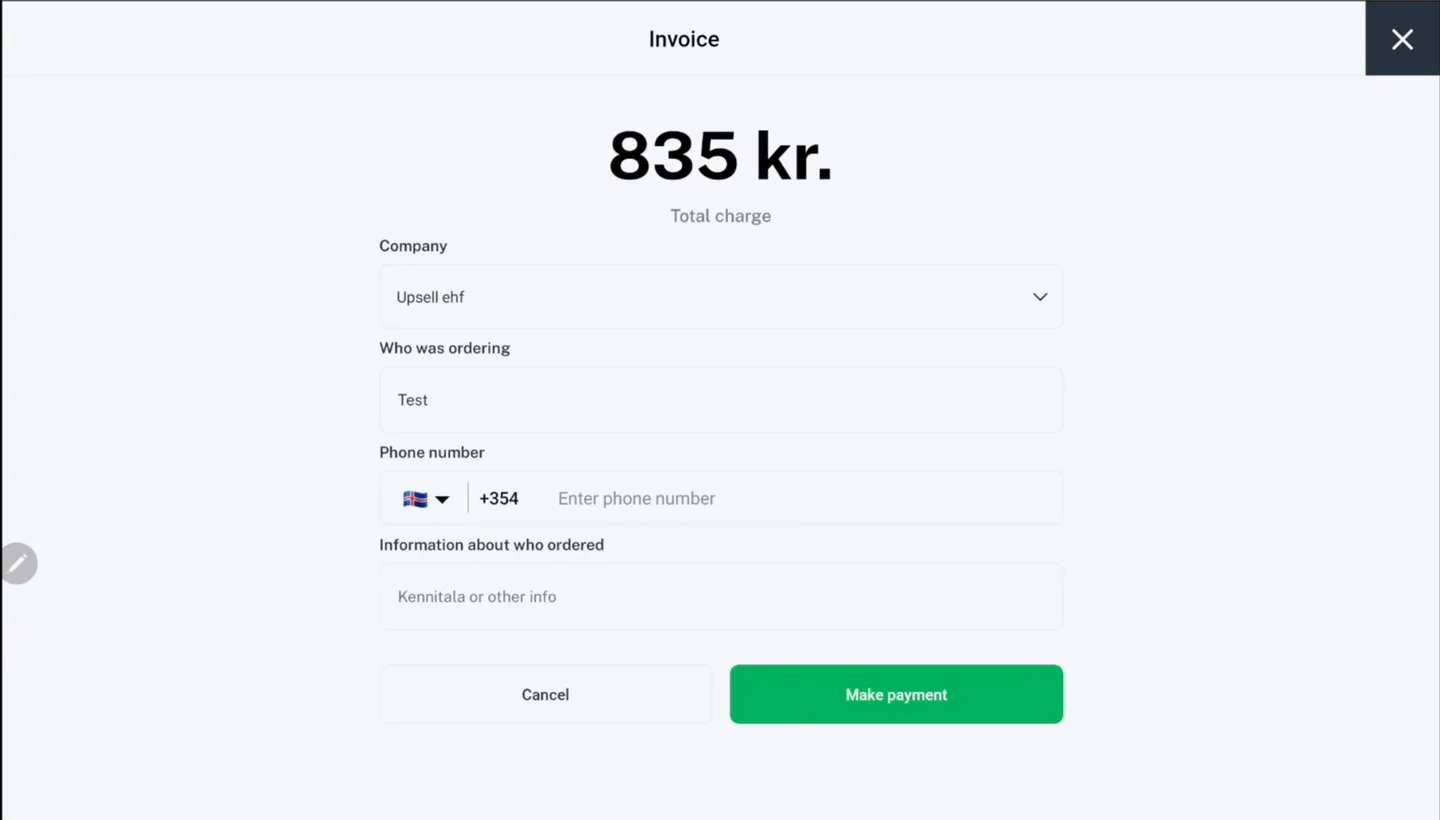
Putting an order on an invoice
POS · 4 steps
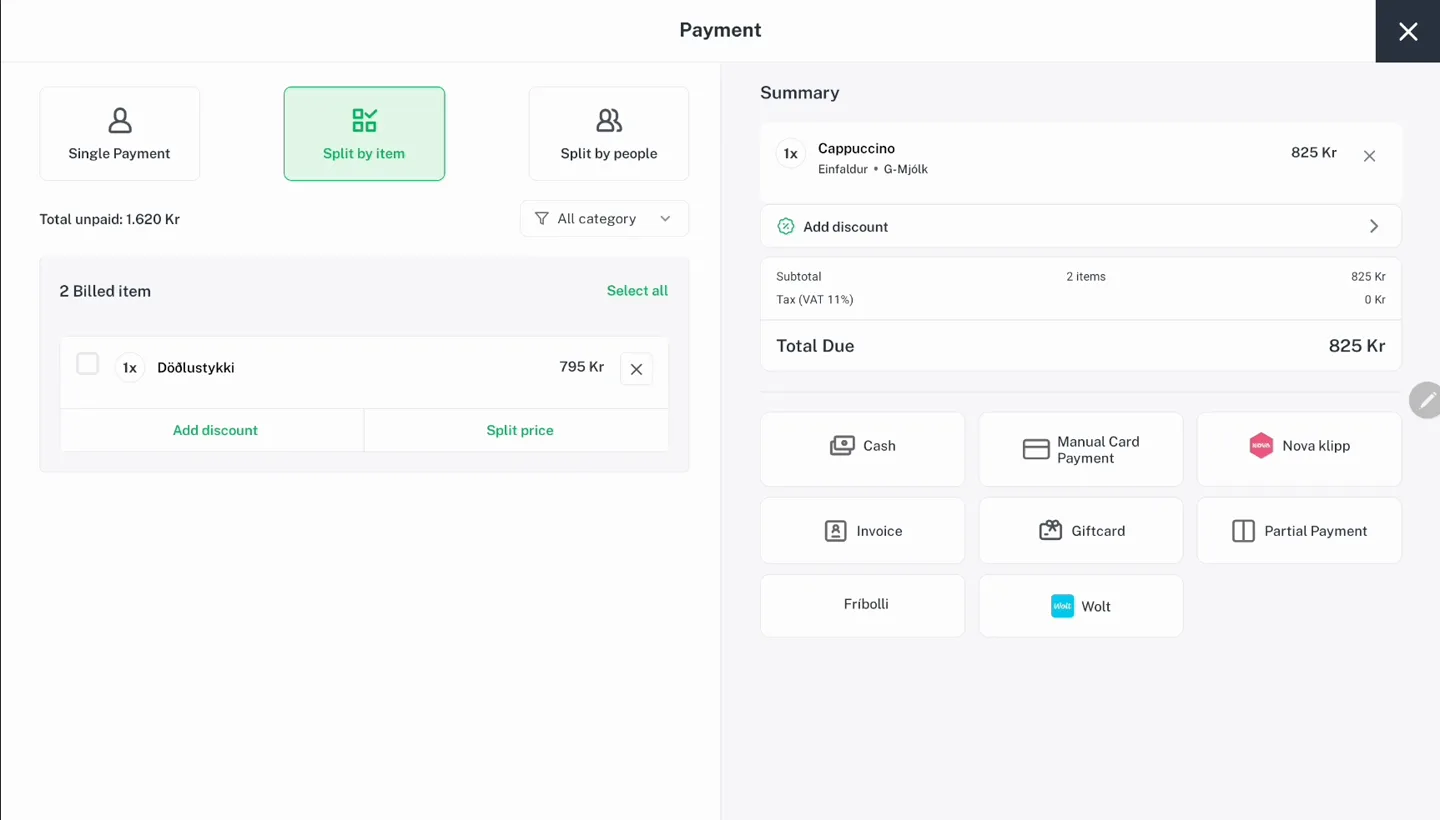
Splitting a payment by item
POS · 5 steps
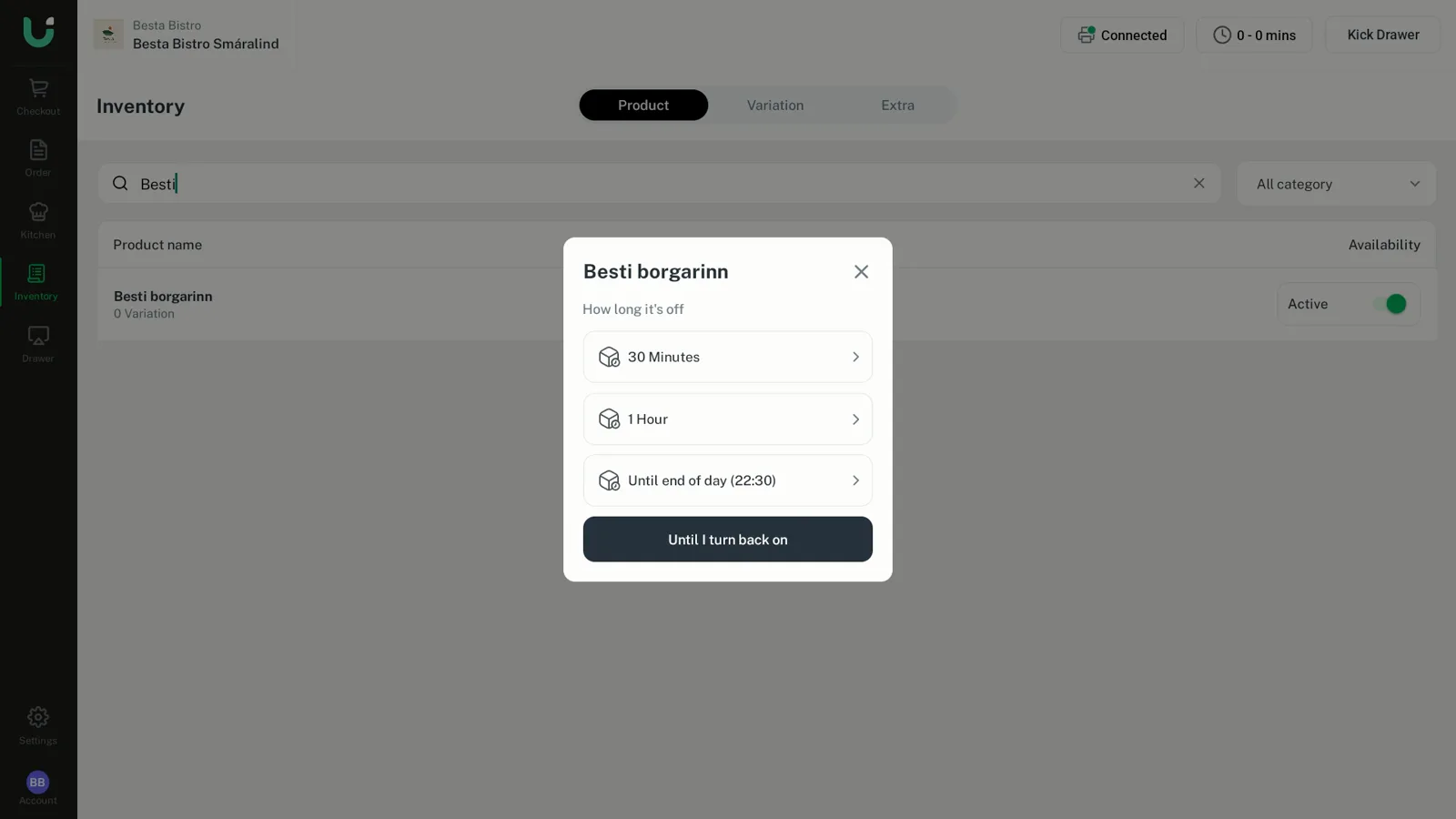
Turning off an item that has run out
POS · 6 steps
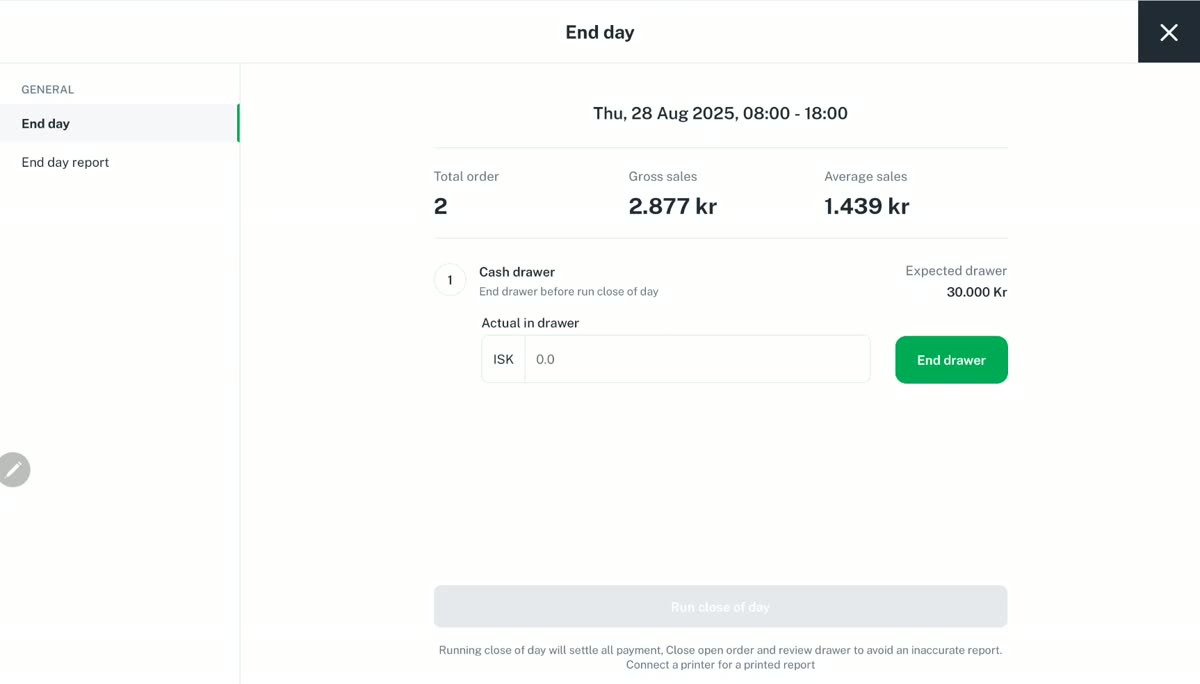
Running the end of day report
POS · 7 steps
Talk to us
Didn’t find the answer? We’re here.
Direct line
+354 519 2887
Call us when it’s urgent.
Live chat
Coming soon
Call or email us in the meantime.
hello@upsell.is
We reply the same day.