

All guides
Selling a gift card at the till
Pick an amount, give the card your own code if you like, and print it with a QR code.
5 steps · 3 min read · Updated 20 October 2026
Gift cards are sold like any other item on the till. Once it’s paid, a receipt prints with the gift card code and a QR code the customer uses to pay later.
Before you start
- The gift card has to be set up as a product in the dashboard, with the amounts you offer. See Creating a gift card and putting it on sale if it’s missing.
- Connect a printer. The code is printed on the receipt and not shown anywhere else on screen.
- 1
Open the gift card
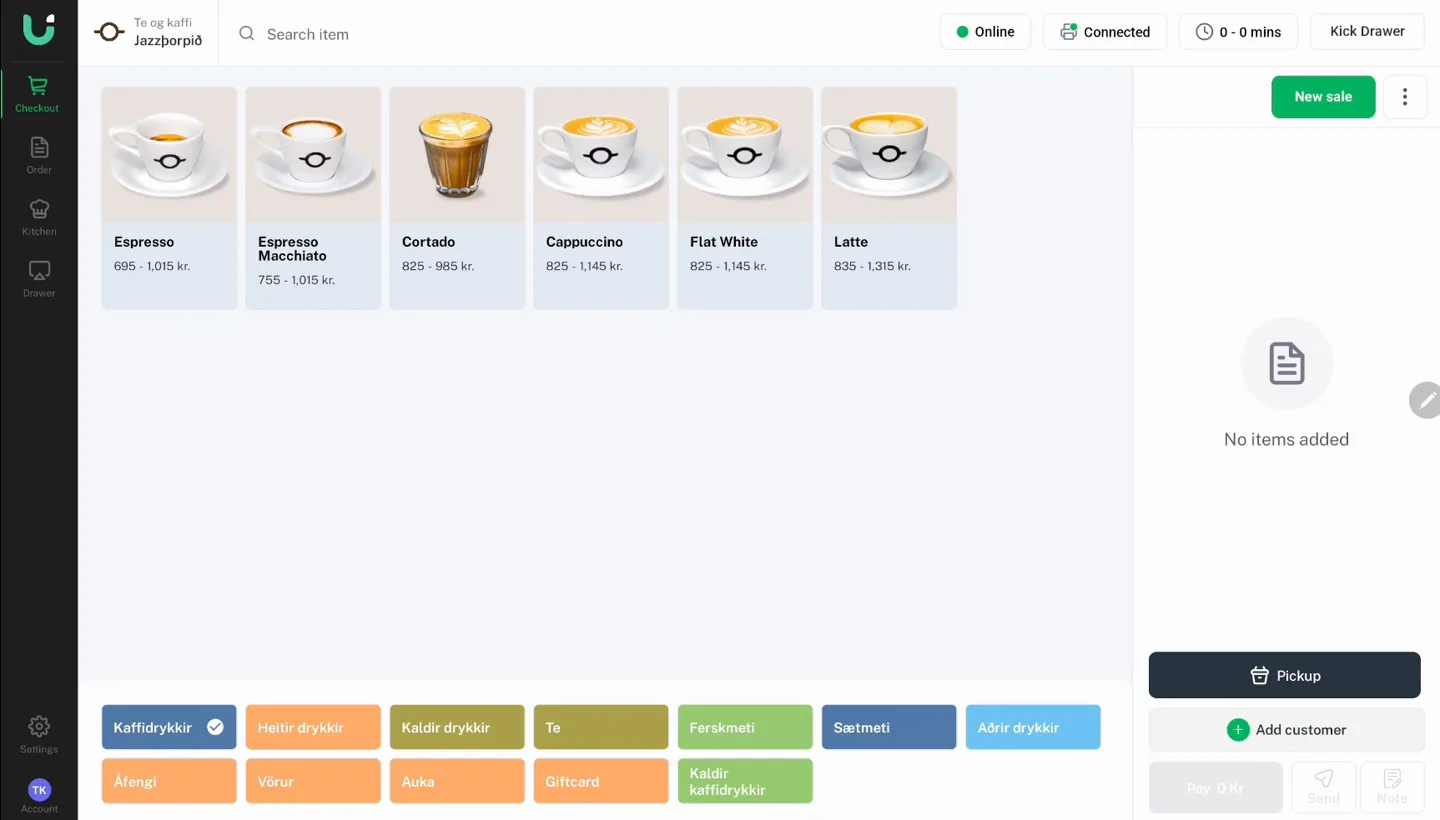
Choose the gift card category at the bottom of the screen, often called "Gjafabréf" or Giftcard, and tap the gift card.
- 2
Choose the amount
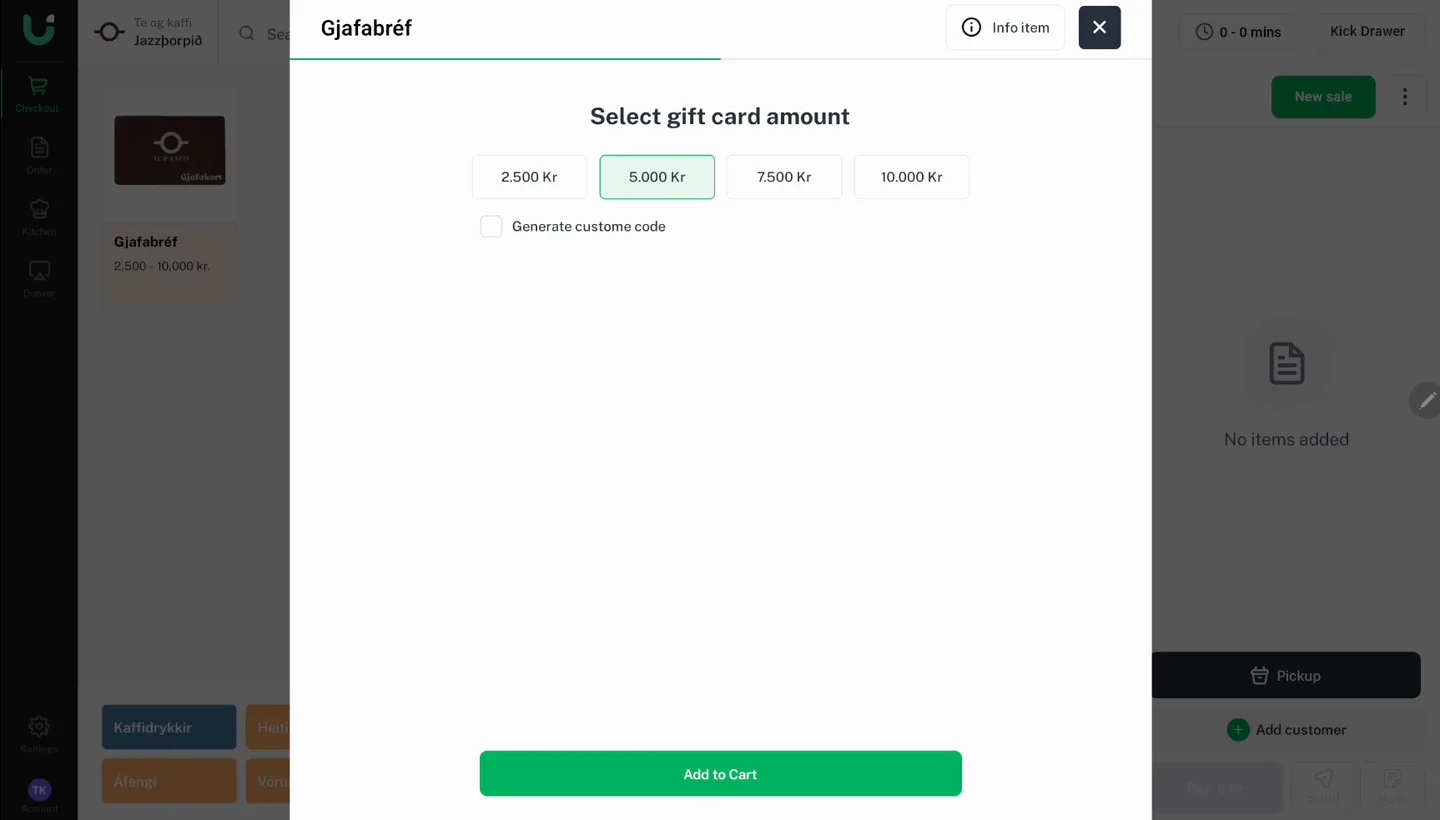
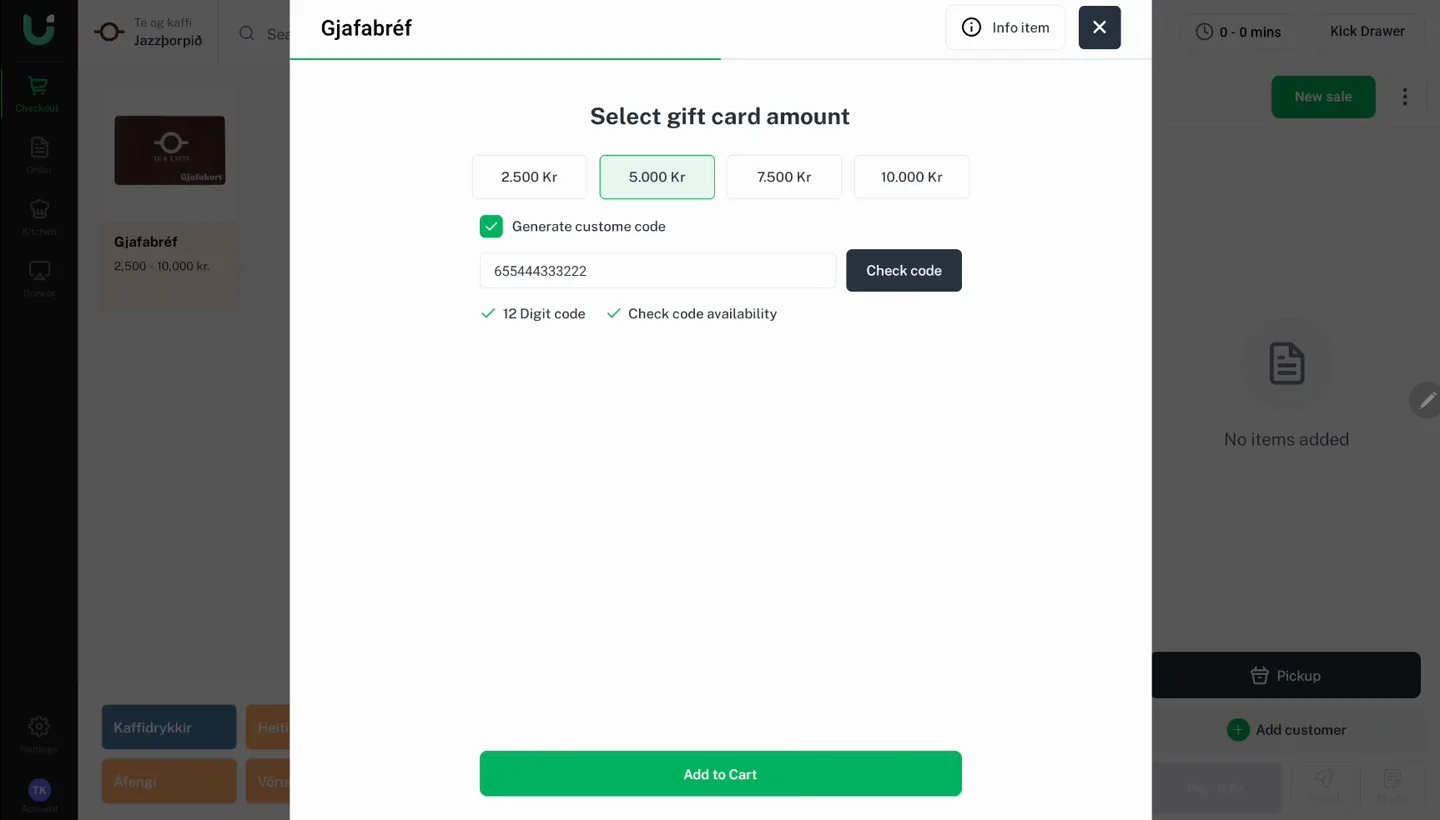
Under Select giftcard amount, pick one of the amounts, e.g. 5,000 kr.
If the gift card allows any amount you see Enter giftcard amount instead: type the card’s value and the price paid, then tap Confirm.
- 3
Your own code (optional)
To choose the code yourself, for instance to match a printed gift card, tick Generate custom code.
Type the code, at least 6 characters (letters or numbers) and tap Check code. Green ticks on both lines mean it’s long enough and not already in use.
Skip this step and the POS creates a 12-letter code for you.
No Generate custom code option? Custom codes aren’t switched on for your store. Contact us if you want them.
- 4
Add it to the cart
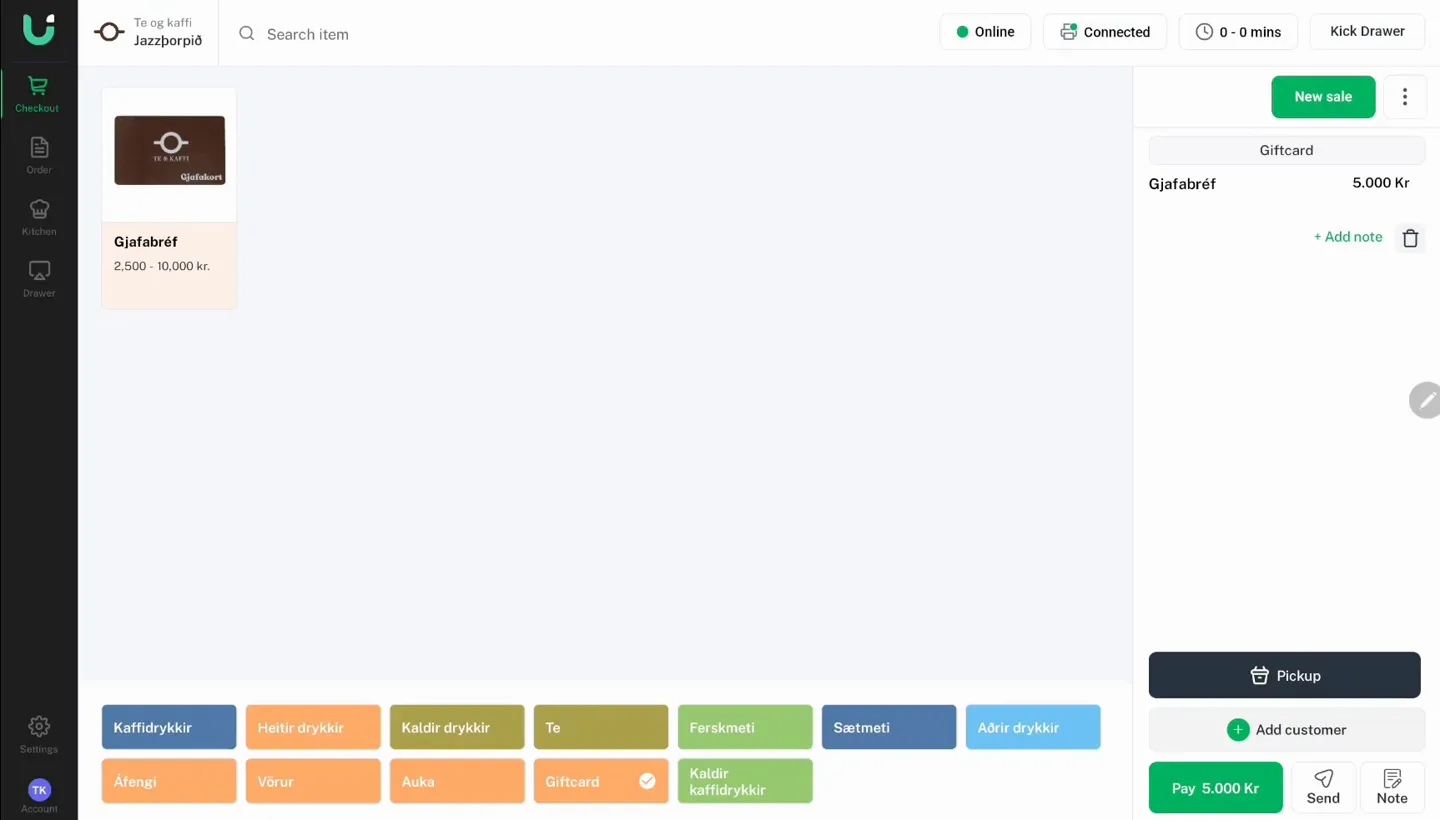
Tap Add to Cart (or Continue).
Some stores then get a Send to customer step: enter the buyer’s email and phone, or tick Send giftcard as a gift and add the recipient’s name and a message. It’s optional. Tap Skip this step, Add to cart to skip it.
The gift card now sits in the cart like any other item.
- 5
Take payment and print
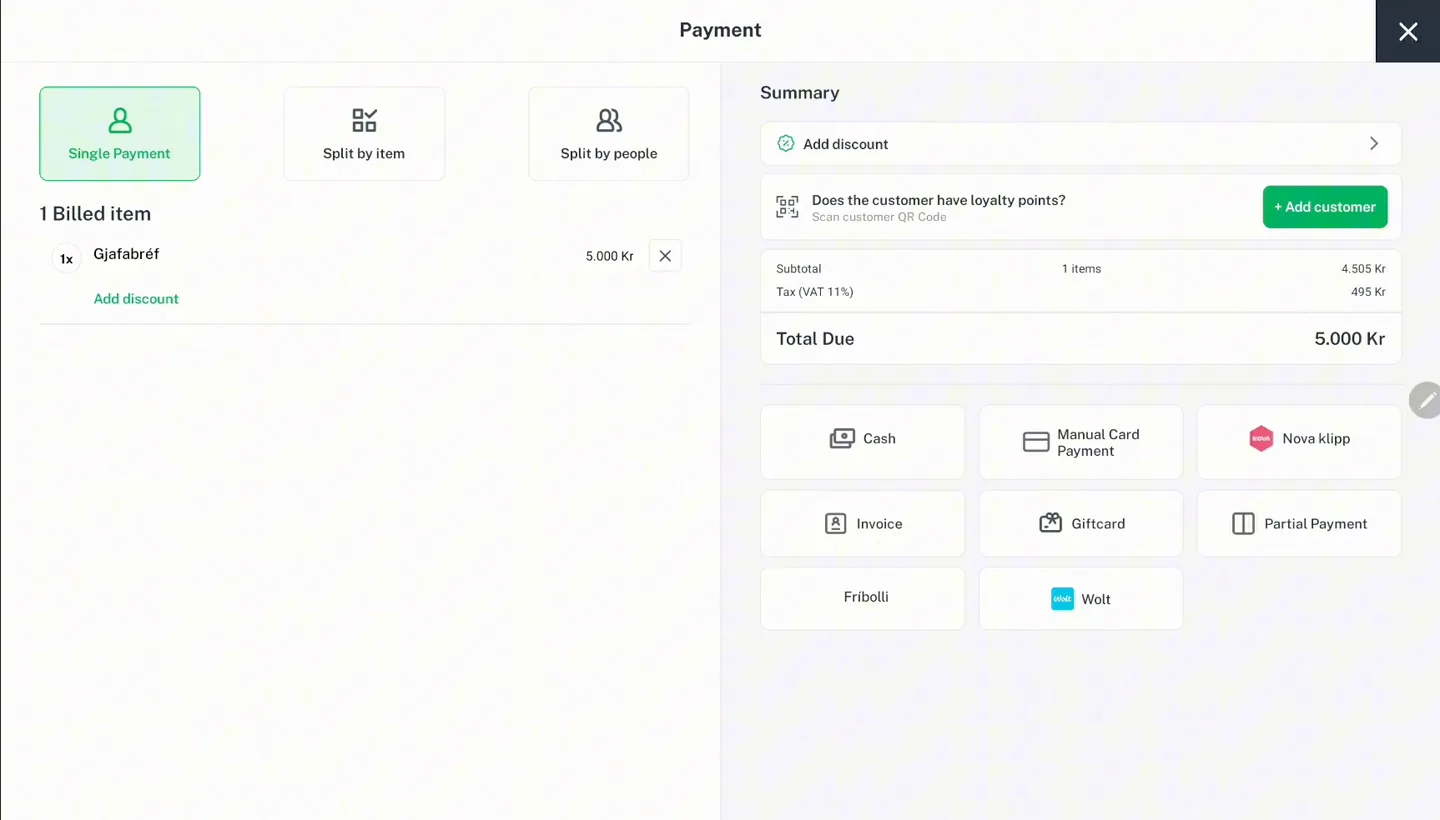
Tap Pay and take payment with whichever method the customer chooses.
The receipt has a GIFT CARD CODE heading with a QR code, the code itself and the value. Hand the receipt to the customer. It is the gift card.
Common questions
The code didn’t print on the receipt.
An automatic code prints once the order has been saved on the server. If the connection dropped the code can be missing. Find the order under Orders and reprint the receipt, or contact us.
The POS says the code is already in use.
Each code can only exist once. Choose another code and tap Check code again.
How do I set up new gift cards or amounts?
Gift cards and their amounts are set up in the dashboard under Promotions and Giftcards. See the guide Creating a gift card and putting it on sale.
Didn’t find the answer?
We’re here. Give us a call or send a message.
Direct line
+354 519 2887
Call us when it’s urgent.
Live chat
Coming soon
Call or email us in the meantime.
hello@upsell.is
We reply the same day.