

All guides
A discount for selected customers
Give specific customers or companies a discount that applies automatically when they order.
4 steps · 3 min read · Updated 20 October 2026
A discount can be tied to particular customers or companies, such as a staff discount or a standing discount for a company on account. It then only applies to their orders.
You create it like any other discount (see "Discounts on products and categories, like a happy hour") and add the customers at the end.
- 1
Create the discount
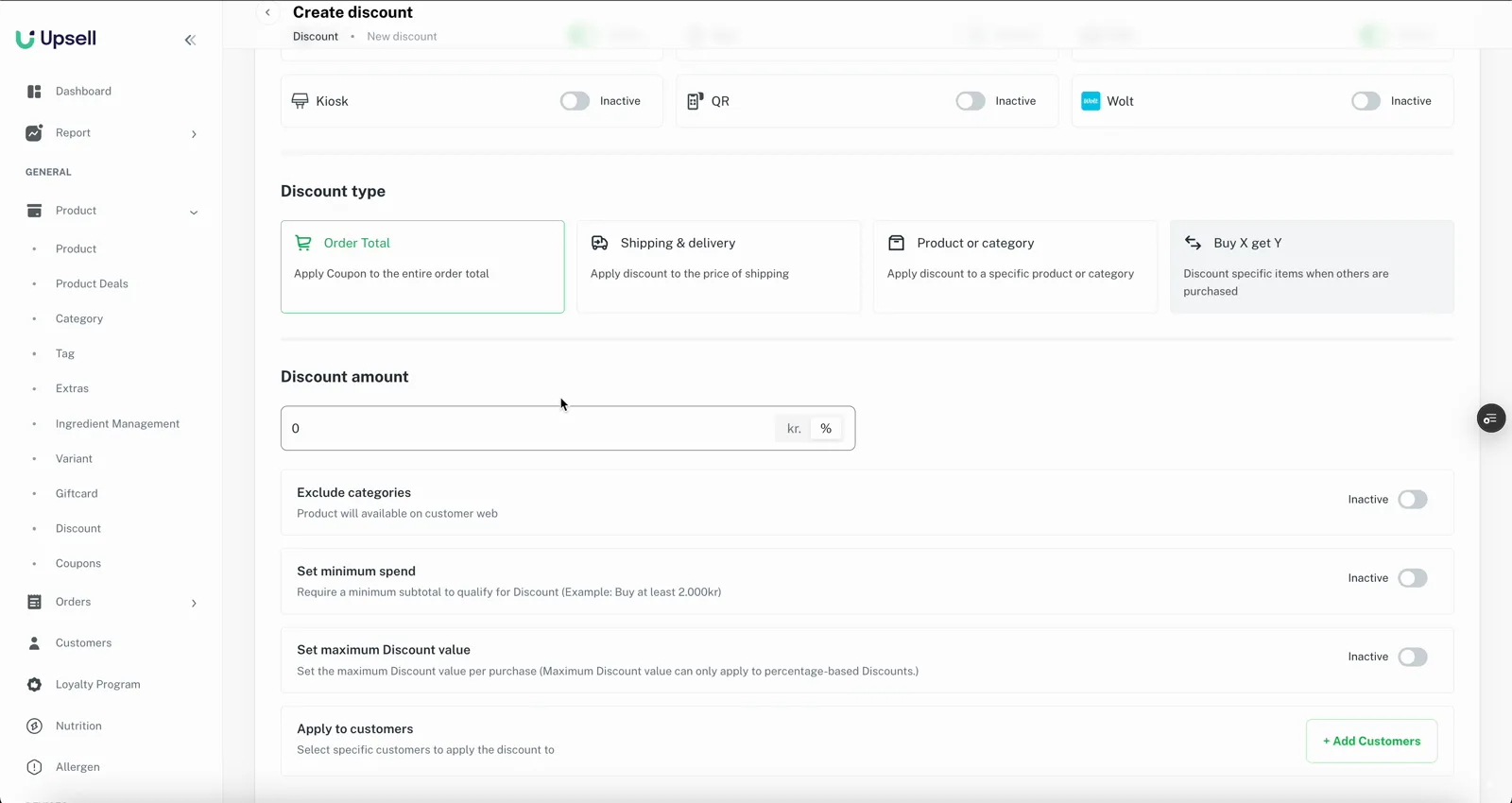
Open Promotions → Discounts and click New Discount.
Fill in the name, branches and channels, pick a discount type and enter the amount, e.g. 15%. Order Total takes it off the whole order.
- 2
Open Apply to customers
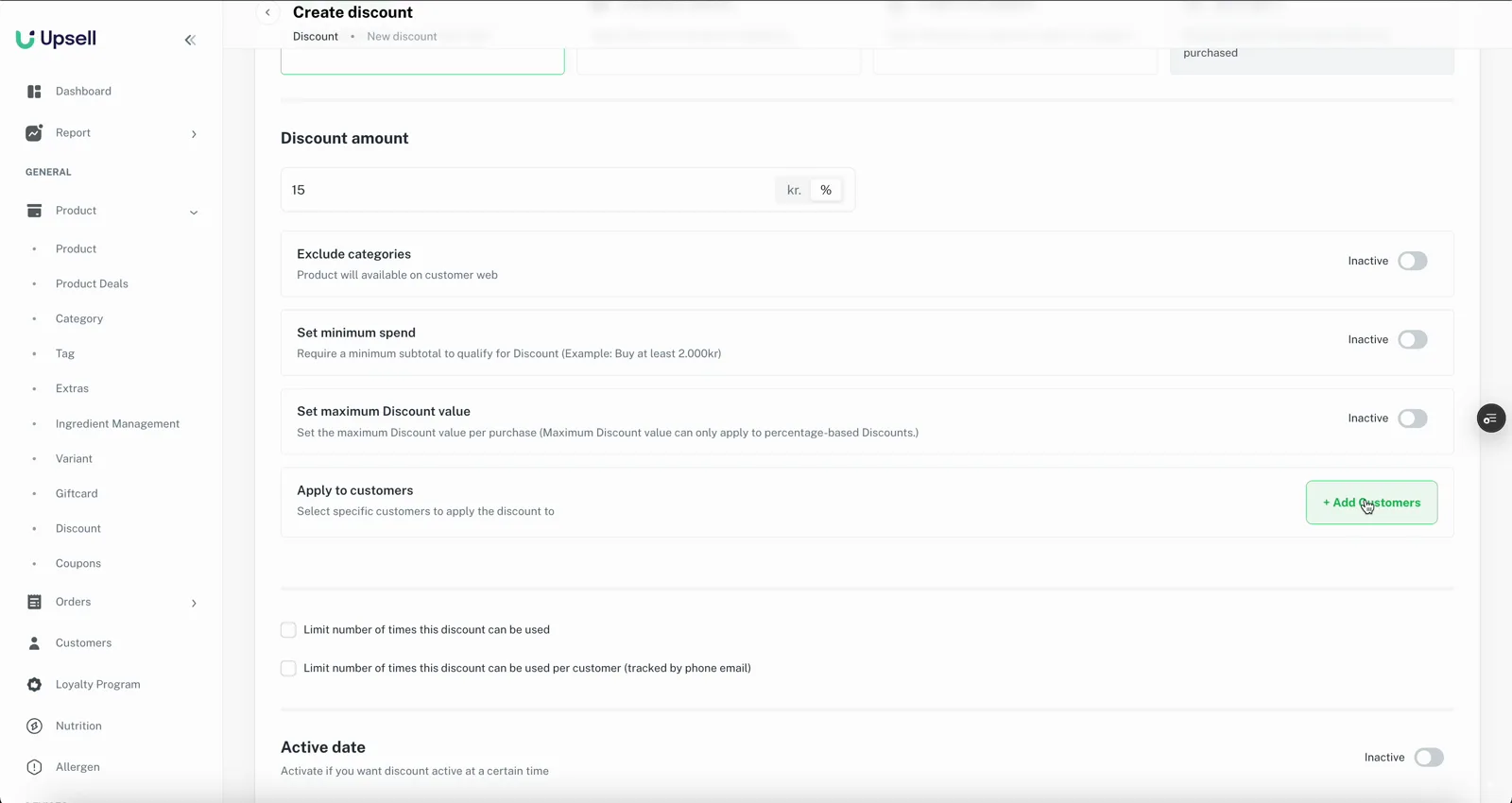
Scroll down to Apply to customers and click + Add customers.
With no customers selected, the discount applies to everyone.
- 3
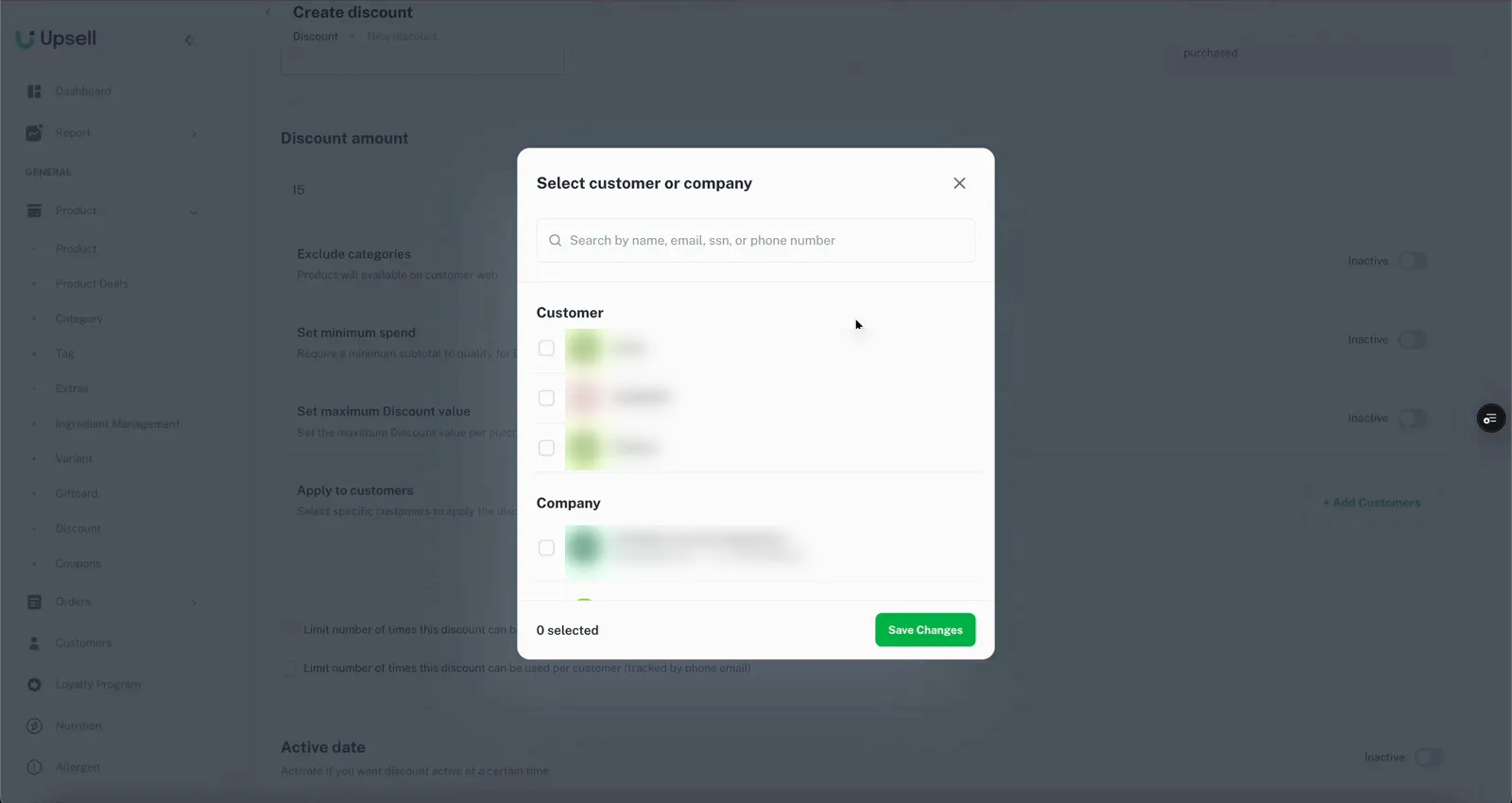
Pick customers or companies
In Select customer or company, search by name, email, kennitala or phone.
Tick customers under Customers or companies under Company accounts and click Save changes.
With + Add from group you can add everyone in a customer group at once.
- 4
Save the discount
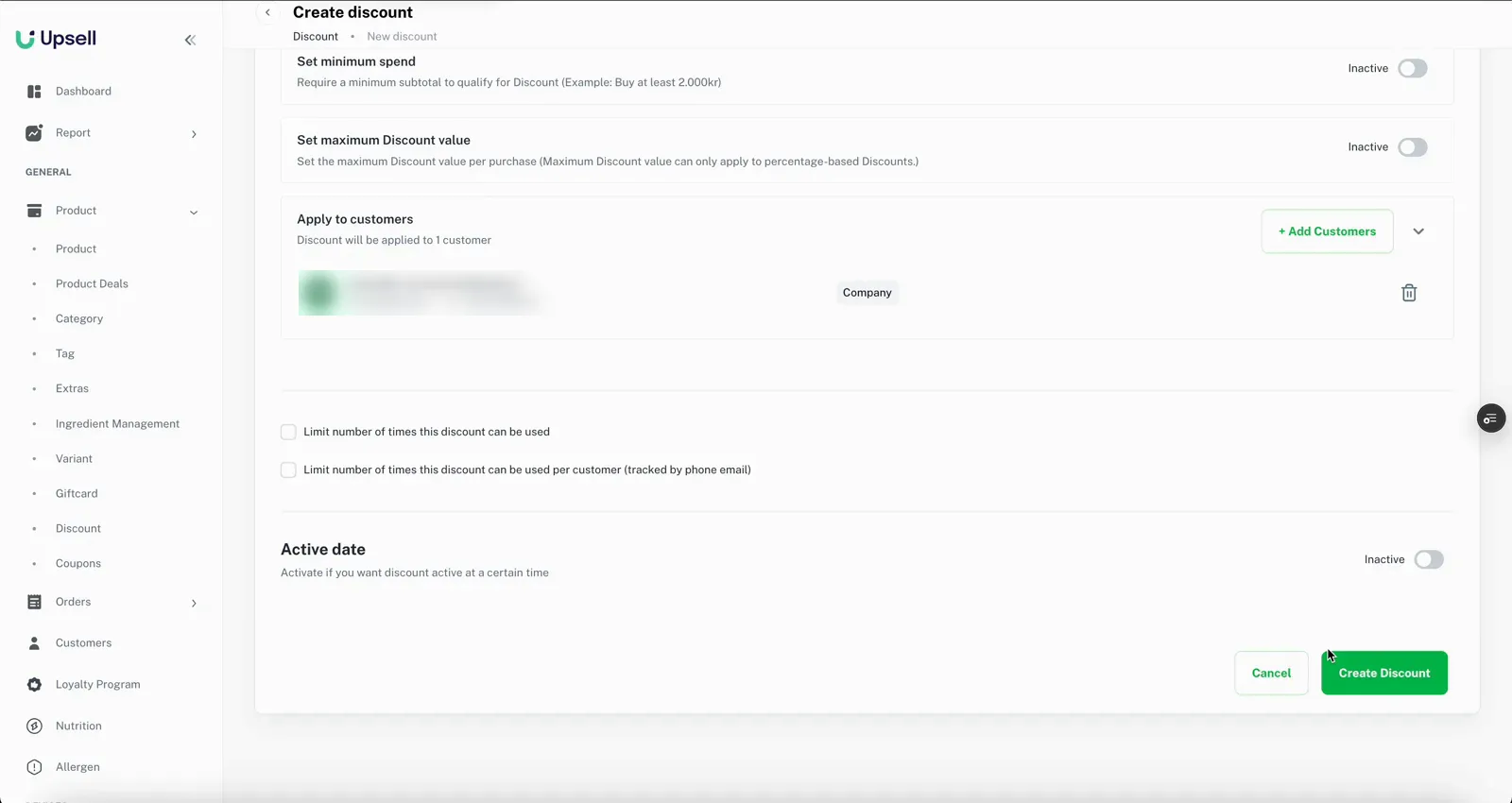
Apply to customers now reads "Discount will be applied to 1 customer" and companies carry a Company tag.
To limit use, tick "Limit number of times this discount can be used per customer".
Click Create discount.
Common questions
How does the customer get it at the till?
Add the customer to the order (Add customer, or scan their QR code). Their discounts then show under Available discounts on the payment screen. For companies it applies when the company is picked under Invoice.
Does it work online too?
Yes, if Web or App is switched on under Discount availability and the customer is logged in.
Didn’t find the answer?
We’re here. Give us a call or send a message.
Direct line
+354 519 2887
Call us when it’s urgent.
Live chat
Coming soon
Call or email us in the meantime.
hello@upsell.is
We reply the same day.